Iframe Block
This feature is provided by the plugin «Block: iframe»
Introduction
The IFrame block allows embedding external web pages or content into the current page. Users can integrate external applications seamlessly by configuring a URL or directly inserting HTML code. With HTML, users can flexibly customize content to meet specific display needs, making it ideal for customized scenarios. This approach enables loading external resources without redirection, enhancing user experience and page interactivity.
Installation
It's a built-in plugin, no installation is required.
Adding Blocks
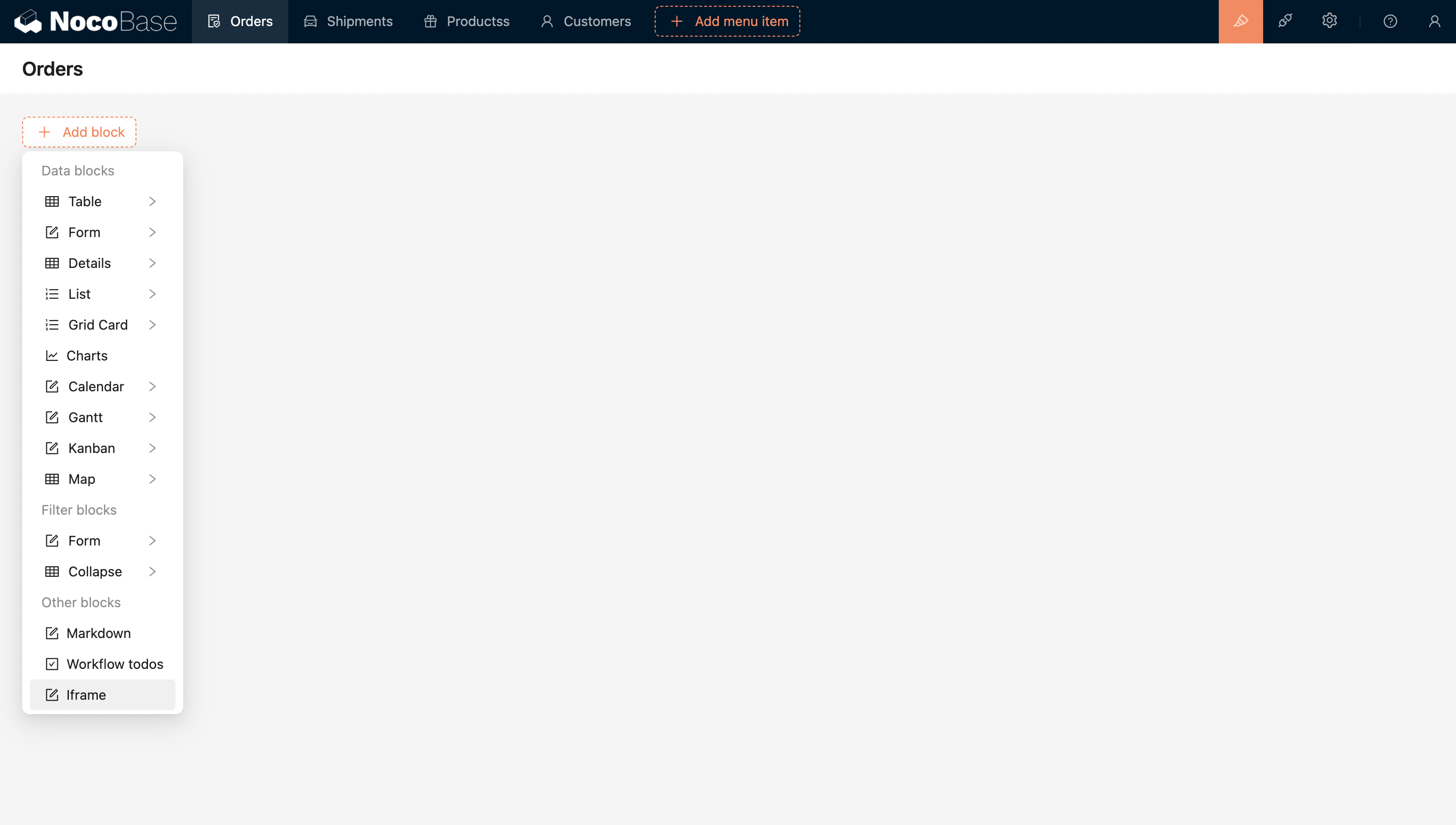
Configure the URL or Html to directly embed the external application.
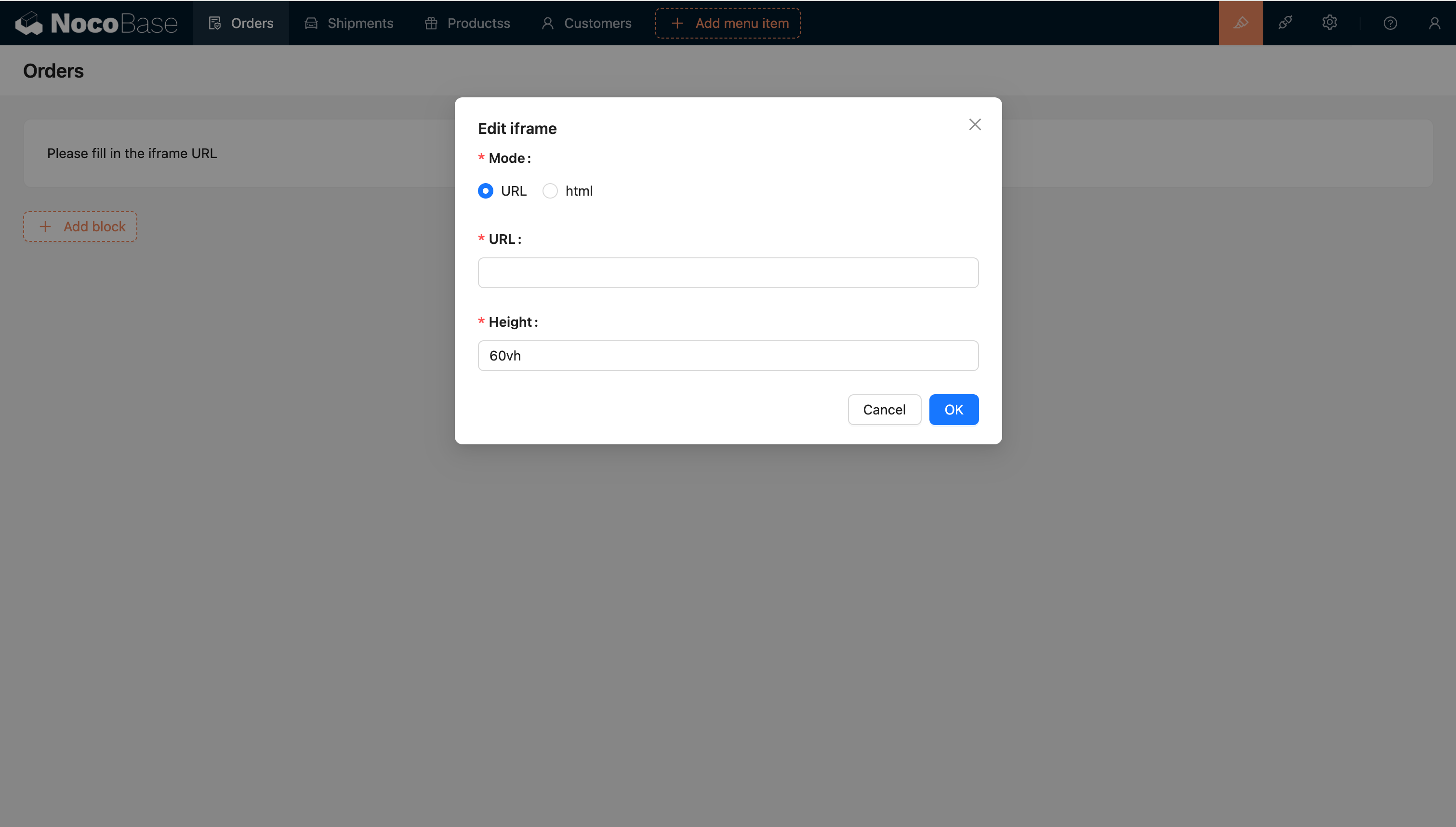
Template engine
String Template
The default template engine.
Handlebars
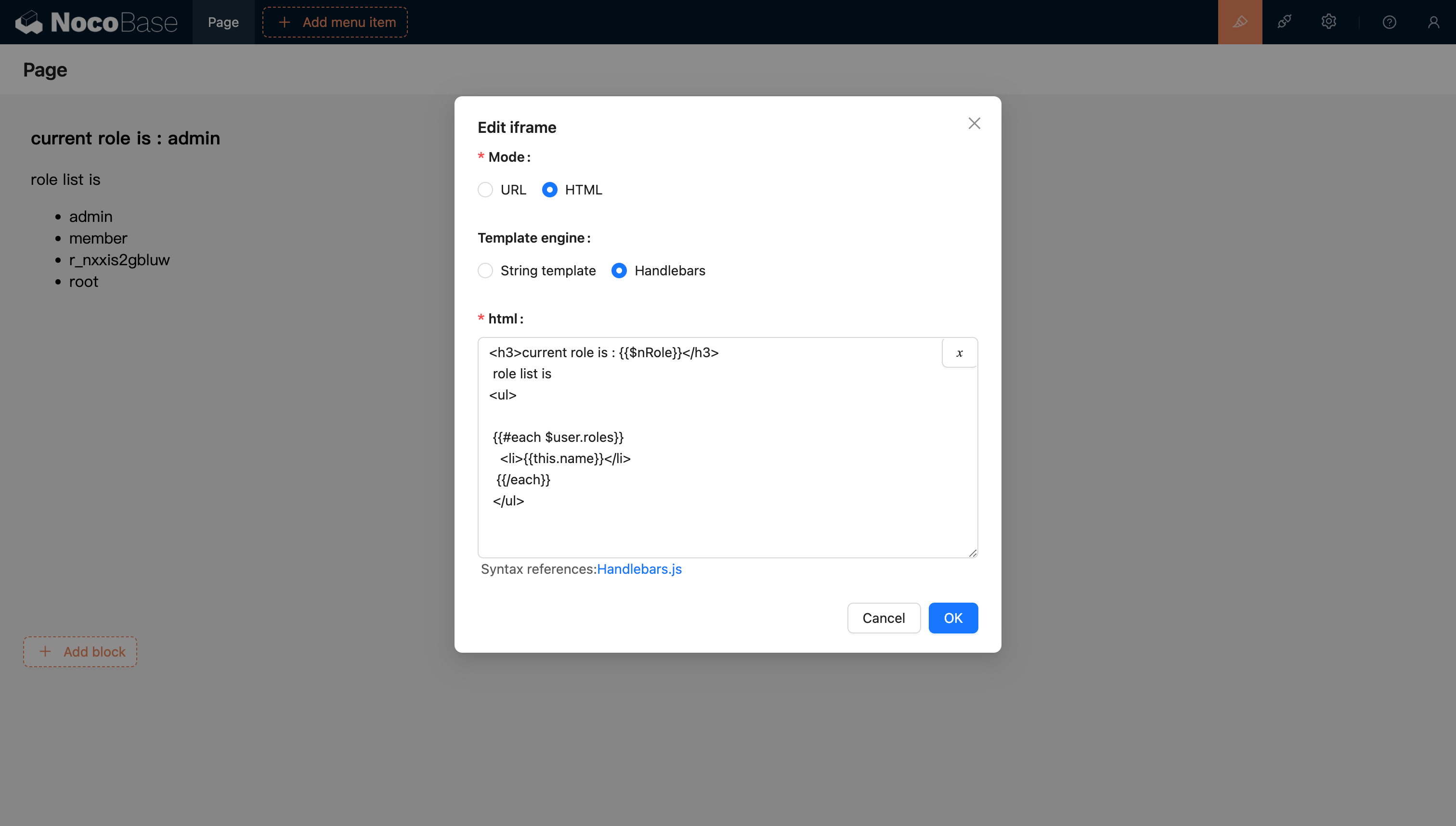
For more information, refer to the Handlebars template documentation.
Passing Variables
HTML Support for Variable Parsing
Support for Selecting Variables from the Variable Selector in the Current Block Context
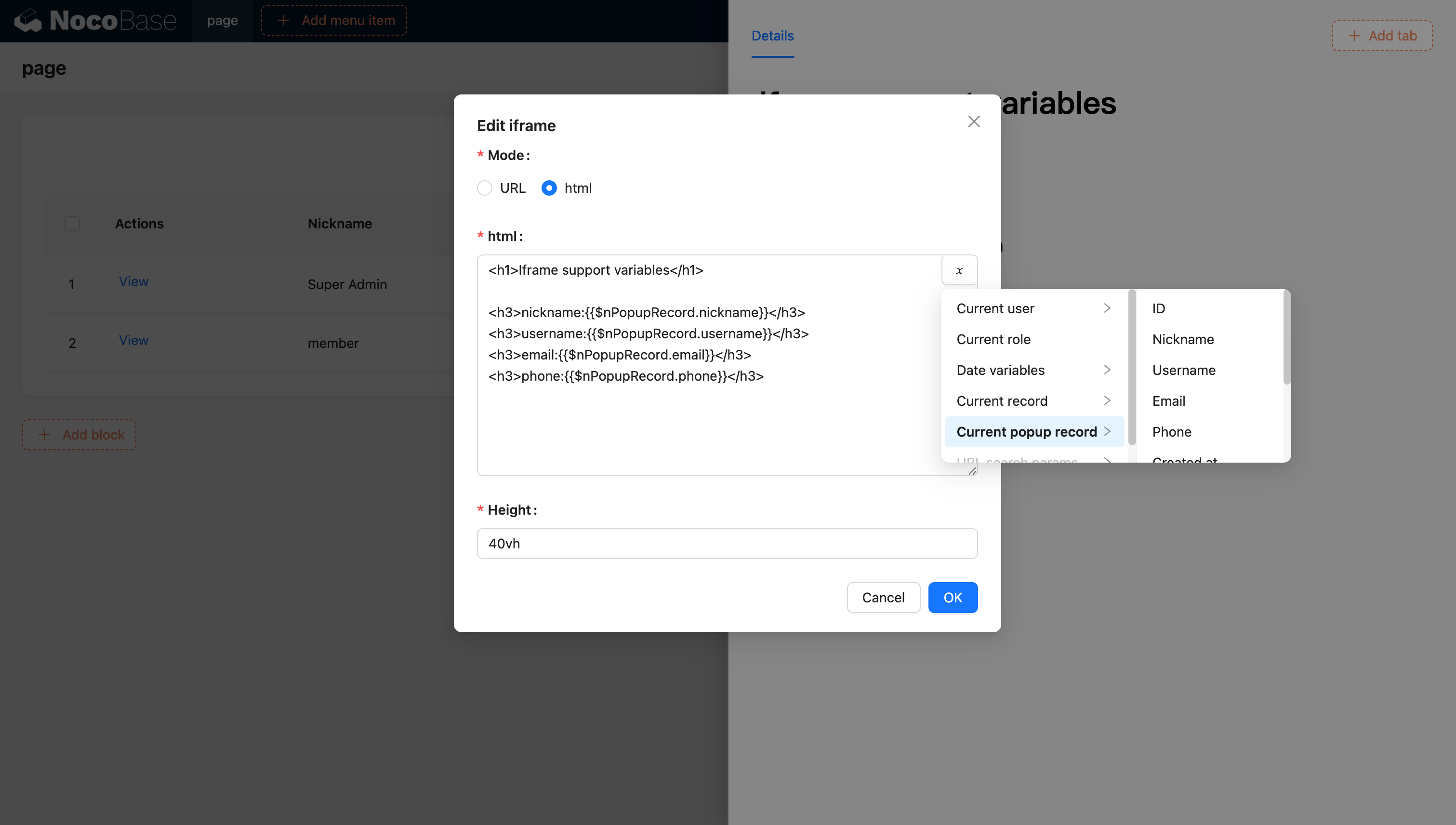
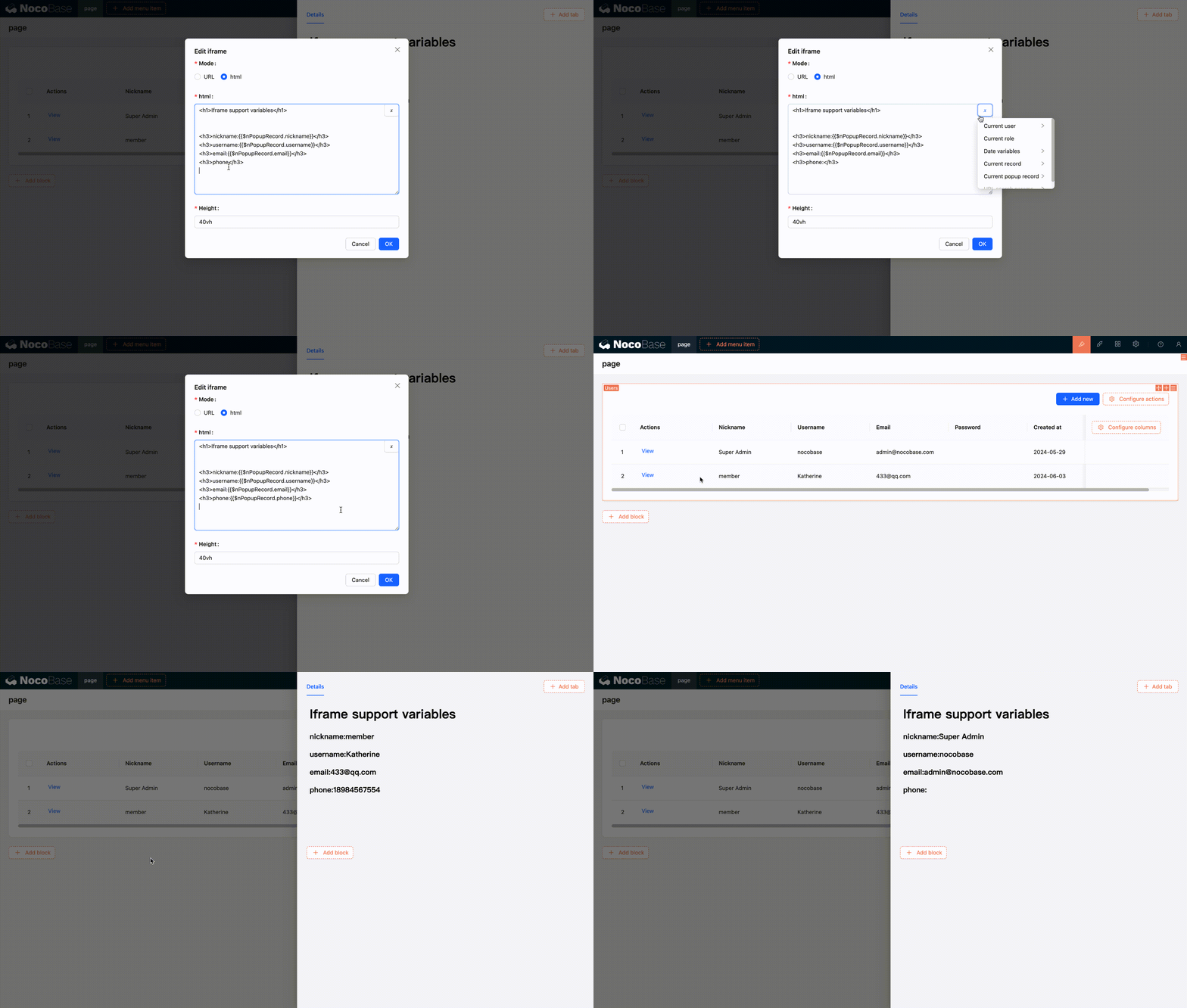
Support for Injecting Variables into the Application and Using Them through Code
You can also inject custom variables into the application through code and use them in HTML. For example, creating a dynamic calendar application using Vue 3 and Element Plus:
<!doctype html>
<html lang="en">
  <head>
    <meta charset="UTF-8" />
    <meta name="viewport" content="width=device-width, initial-scale=1.0" />
    <title>Vue3 CDN Example</title>
    <script src="https://unpkg.com/vue@3.5.9/dist/vue.global.prod.js"></script>
    <script src="https://unpkg.com/element-plus"></script>
    <script src="https://unpkg.com/element-plus/dist/locale/en.min.js"></script>
    <link
      rel="stylesheet"
      href="https://unpkg.com/element-plus/dist/index.css"
    />
  </head>
  <body>
    <div id="app">
      <el-container>
        <el-main>
          <el-calendar v-model="month">
            <div class="header-container">
              <div class="action-group">
                <span class="month-display">{{ month }}</span>
                <el-button-group>
                  <el-button
                    type="primary"
                    :loading="loading"
                    @click="changeMonth(-1)"
                    >Last month</el-button
                  >
                  <el-button
                    type="primary"
                    :loading="loading"
                    @click="changeMonth(1)"
                    >Next month</el-button
                  >
                </el-button-group>
              </div>
            </div>
          </el-calendar>
        </el-main>
      </el-container>
    </div>
    <script>
      const { createApp, ref, provide } = Vue;
      const app = createApp({
        setup() {
          const month = ref(new Date().toISOString().slice(0, 7));
          const loading = ref(false);

          const changeMonth = (offset) => {
            const date = new Date(month.value + '-01');
            date.setMonth(date.getMonth() + offset);
            month.value = date.toISOString().slice(0, 7);
          };
          provide('month', month);
          provide('changeMonth', changeMonth);
          return { month, loading, changeMonth };
        },
      });
      app.use(ElementPlus);
      app.mount('#app');
    </script>
  </body>
</html>
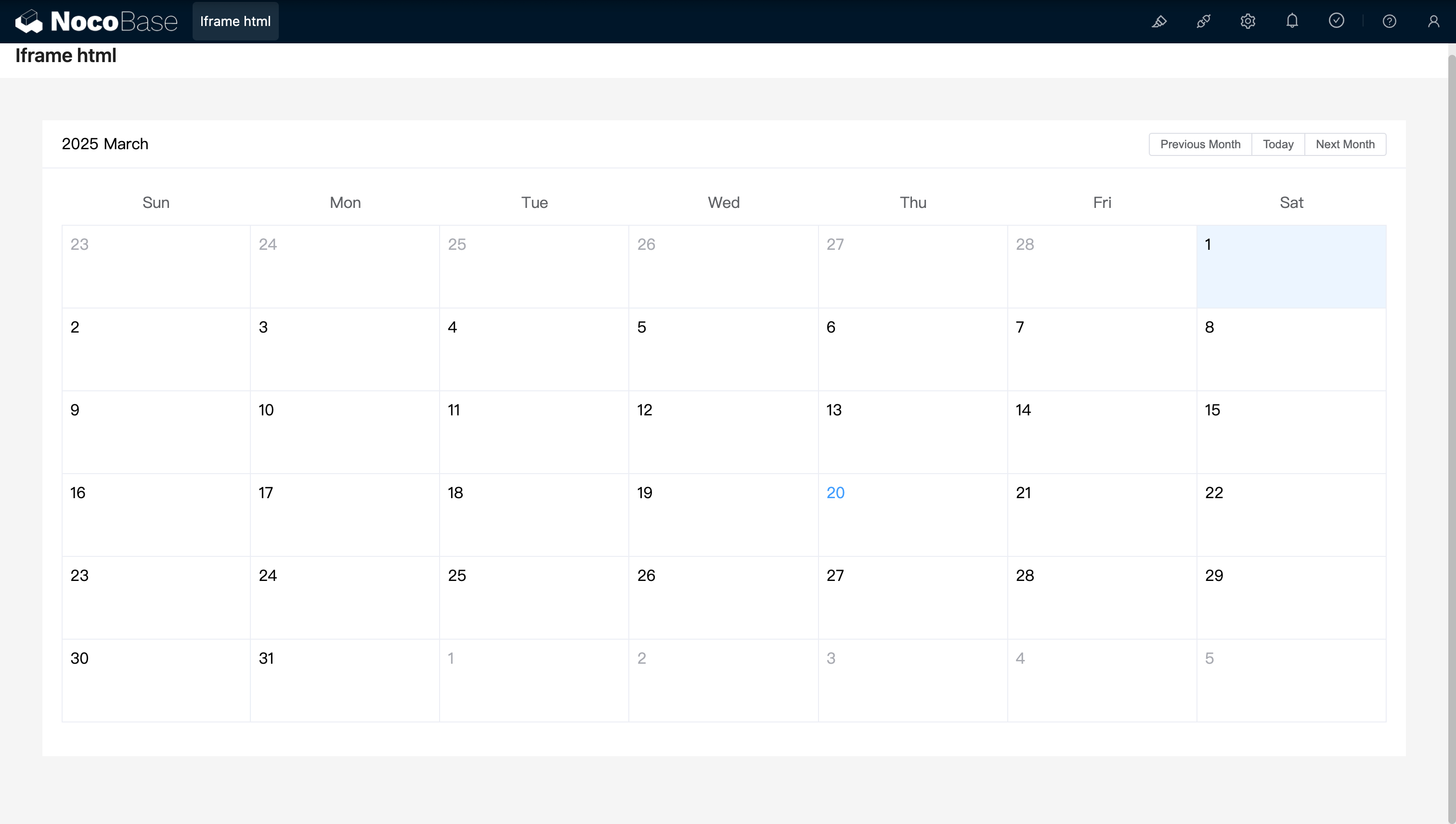
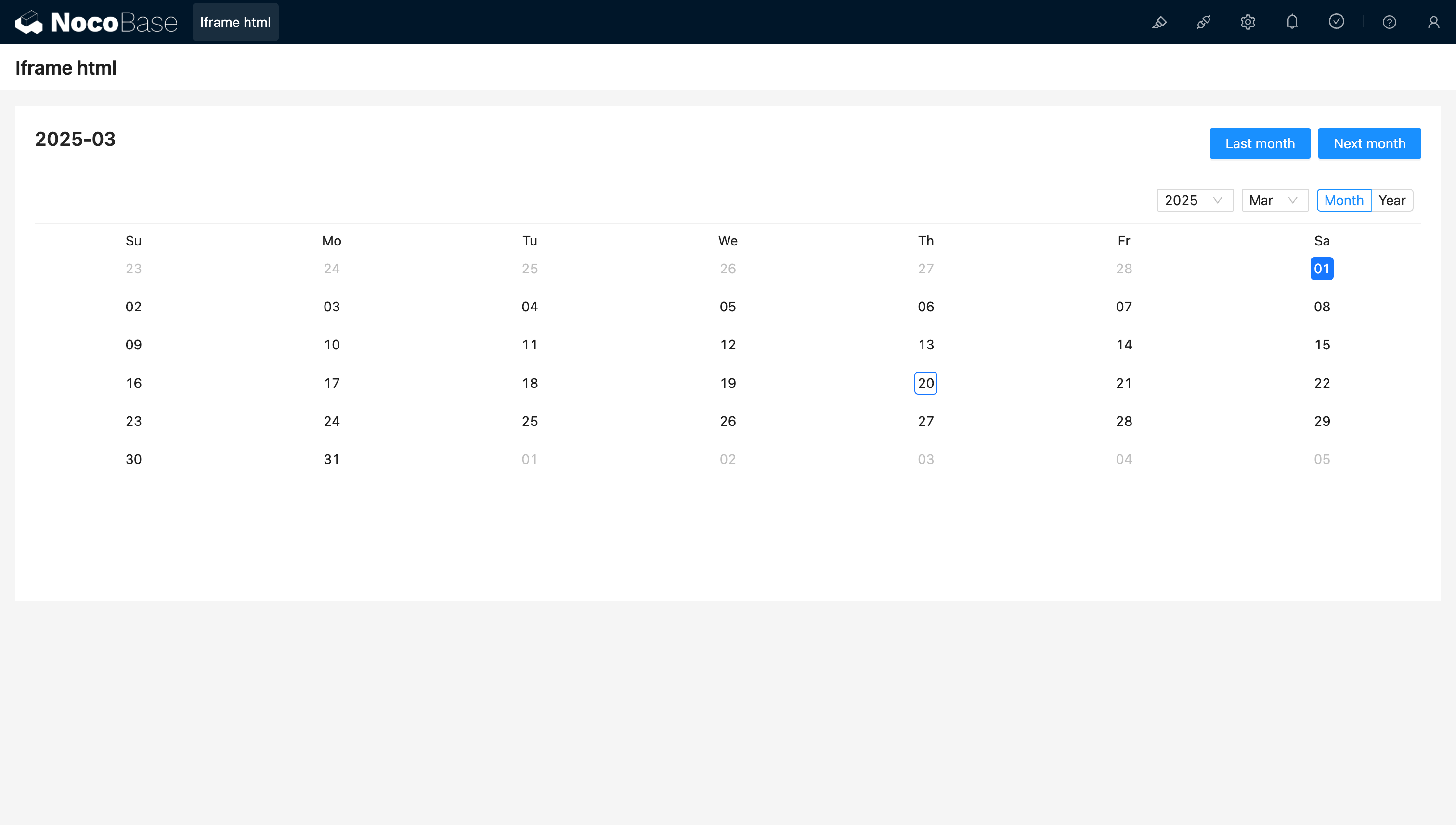
Example: A simple calendar component created with React and Ant Design (antd), using dayjs to handle dates
<!doctype html>
<html lang="en">
  <head>
    <meta charset="UTF-8" />
    <meta name="viewport" content="width=device-width, initial-scale=1.0" />
    <title>React CDN Example</title>
    <script src="https://unpkg.com/react@18/umd/react.production.min.js"></script>
    <script src="https://unpkg.com/react-dom@18/umd/react-dom.production.min.js"></script>
    <link
      rel="stylesheet"
      href="https://cdn.jsdelivr.net/npm/antd/dist/antd.min.css"
    />
    <script src="https://unpkg.com/dayjs/dayjs.min.js"></script>
  </head>
  <body>
    <div id="app"></div>
    <script src="https://cdn.jsdelivr.net/npm/antd/dist/antd.min.js"></script>
    <script>
      document.addEventListener('DOMContentLoaded', function () {
        const { useState } = React;
        const { Calendar, Button, Space, Typography } = window.antd;
        const { Title } = Typography;
        const CalendarComponent = () => {
          const [month, setMonth] = useState(dayjs().format('YYYY-MM'));
          const [loading, setLoading] = useState(false);
          const changeMonth = (offset) => {
            const newMonth = dayjs(month)
              .add(offset, 'month')
              .format('YYYY-MM');
            setMonth(newMonth);
          };
          return React.createElement(
            'div',
            { style: { padding: 20 } },
            React.createElement(
              'div',
              {
                style: {
                  display: 'flex',
                  justifyContent: 'space-between',
                  alignItems: 'center',
                  marginBottom: 16,
                },
              },
              React.createElement(Title, { level: 4 }, month),
              React.createElement(
                Space,
                null,
                React.createElement(
                  Button,
                  { type: 'primary', loading, onClick: () => changeMonth(-1) },
                  'Last month',
                ),
                React.createElement(
                  Button,
                  { type: 'primary', loading, onClick: () => changeMonth(1) },
                  'Next month',
                ),
              ),
            ),
            React.createElement(Calendar, {
              fullscreen: false,
              value: dayjs(month),
            }),
          );
        };
        ReactDOM.createRoot(document.getElementById('app')).render(
          React.createElement(CalendarComponent),
        );
      });
    </script>
  </body>
</html>
URL supports variables
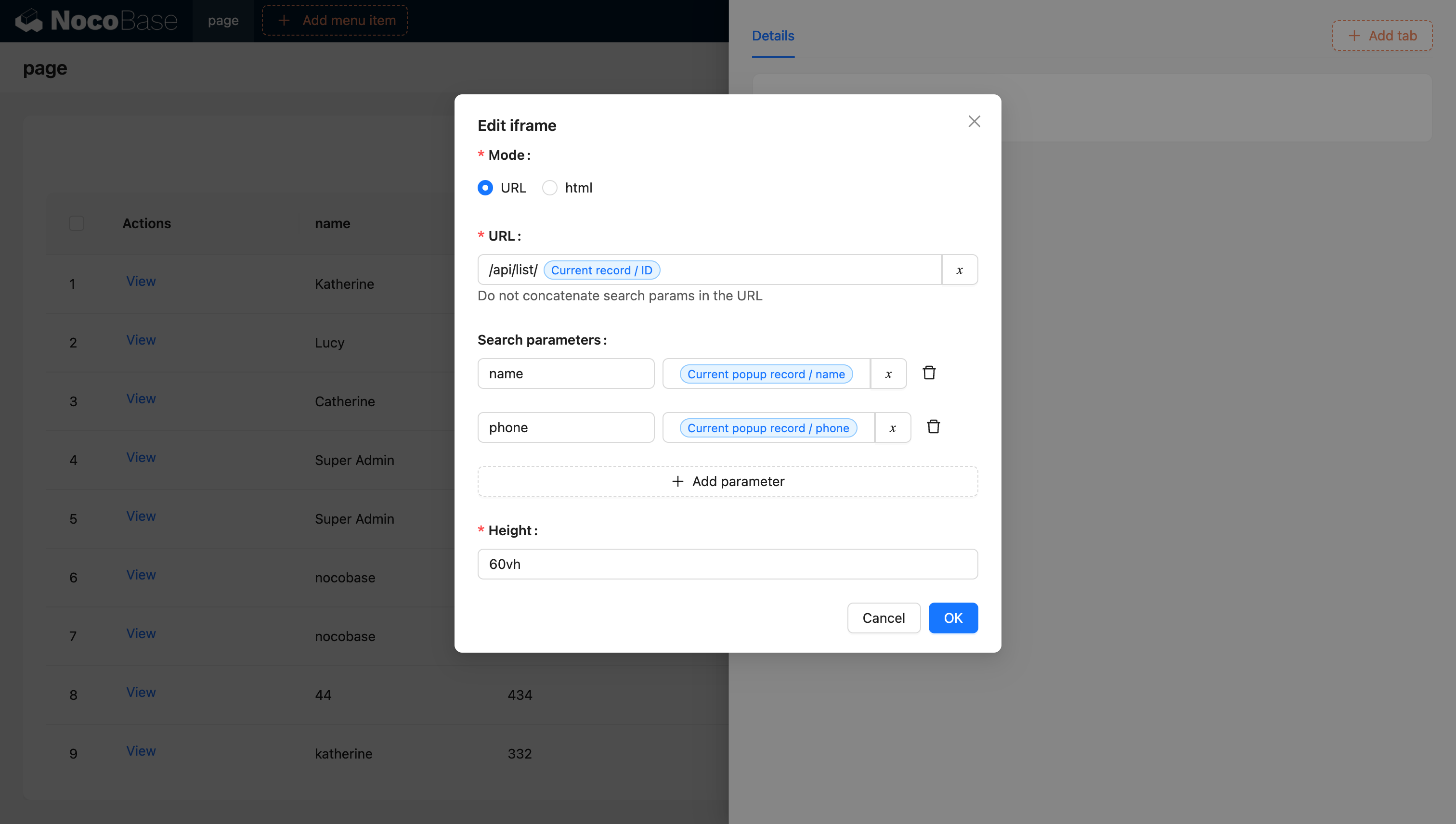
For more information on variables, refer to the Variables documentation.
Creating Iframes with JS Blocks (NocoBase 2.0)
In NocoBase 2.0, you can use JS blocks to dynamically create iframes with more control. This approach provides better flexibility for customizing iframe behavior and styling.
Basic Example
Create a JS block and use the following code to create an iframe:
// Create an iframe that fills the current block container
const iframe = document.createElement('iframe');
iframe.src = 'https://example.com';
iframe.setAttribute('sandbox', 'allow-scripts allow-same-origin');
iframe.style.width = '100%';
iframe.style.height = '100%';
iframe.style.border = 'none';

// Replace existing children so the iframe is the only content
ctx.element.replaceChildren(iframe);
Key Points
- ctx.element: The DOM element of the current JS block container
- sandbox attribute: Controls security restrictions for the iframe content
allow-scripts: Allows the iframe to execute scriptsallow-same-origin: Allows the iframe to access its own origin
- replaceChildren(): Replaces all children of the container with the iframe
Advanced Example with Loading State
You can enhance the iframe creation with loading states and error handling:
// Show loading message
ctx.message.loading('Loading external content...');

try {
  // Create iframe
  const iframe = document.createElement('iframe');
  iframe.src = 'https://example.com';
  iframe.setAttribute('sandbox', 'allow-scripts allow-same-origin');
  iframe.style.width = '100%';
  iframe.style.height = '100%';
  iframe.style.border = 'none';

  // Add load event listener
  iframe.addEventListener('load', () => {
    ctx.message.success('Content loaded successfully');
  });

  // Add error event listener
  iframe.addEventListener('error', () => {
    ctx.message.error('Failed to load content');
  });

  // Insert iframe into container
  ctx.element.replaceChildren(iframe);
} catch (error) {
  ctx.message.error('Error creating iframe: ' + error.message);
}
Security Considerations
When using iframes, consider the following security best practices:
- Use HTTPS: Always load iframe content over HTTPS when possible
- Restrict Sandbox Permissions: Only enable necessary sandbox permissions
- Content Security Policy: Configure appropriate CSP headers
- Same-Origin Policy: Be aware of cross-origin restrictions
- Trusted Sources: Only load content from trusted domains

