Calendar Block
CalendarCommunity Edition+Introduction
The Calendar Block offers a streamlined way to view and manage events and date-related data in a calendar format, making it perfect for scheduling meetings, planning events, and organizing your time efficiently.
Installation
This plugin comes pre-installed, so no additional setup is required.
Adding Blocks
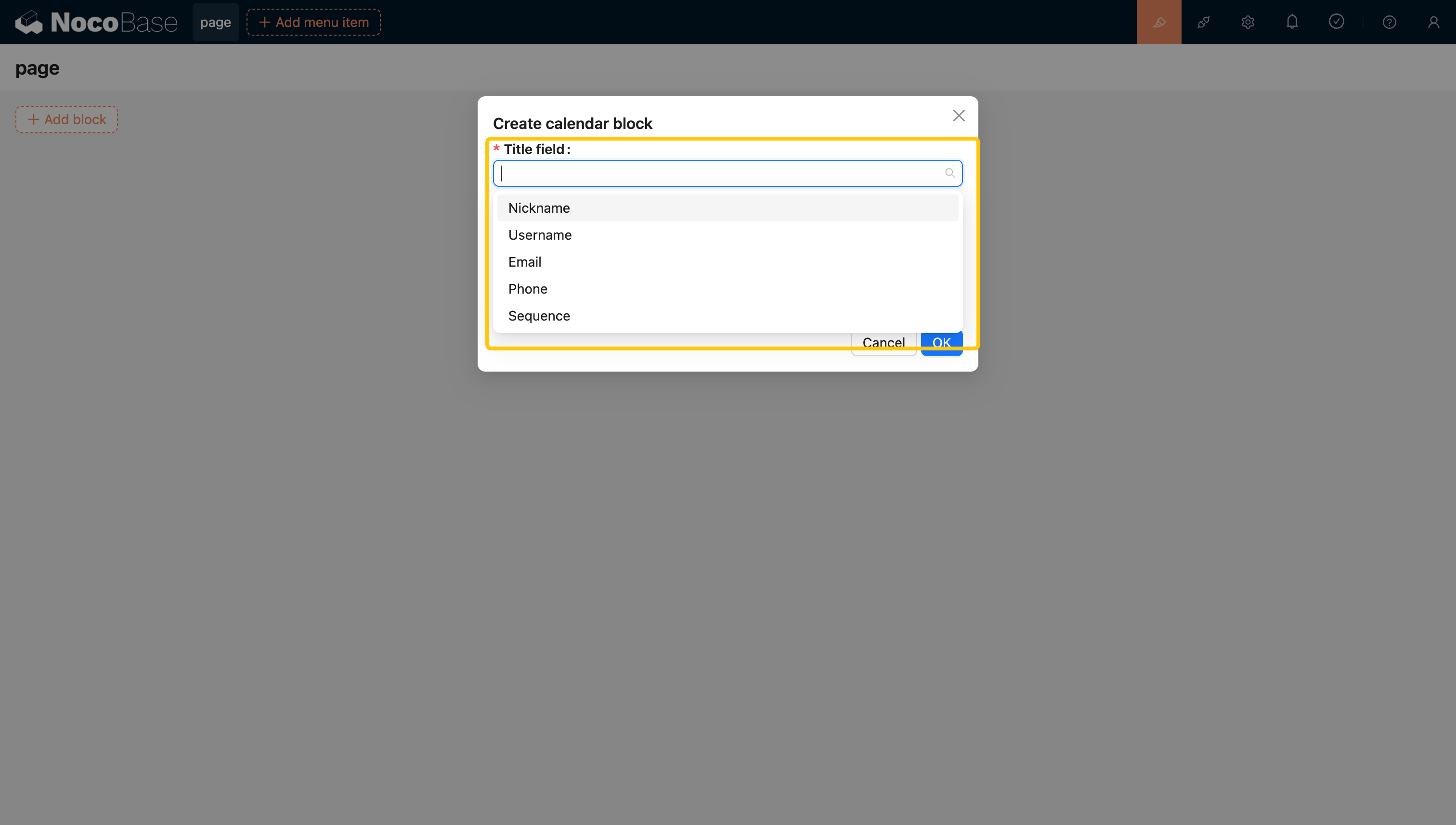
- Title Field: Used to display information on the calendar bars. Currently, it supports field types such as
Single Line Text,Single select,Phone,Email,Radio Group, andSequence. The supported title field types can be extended through plugins. - Start Time: Indicates when the task begins.
- End Time: Marks when the task ends.
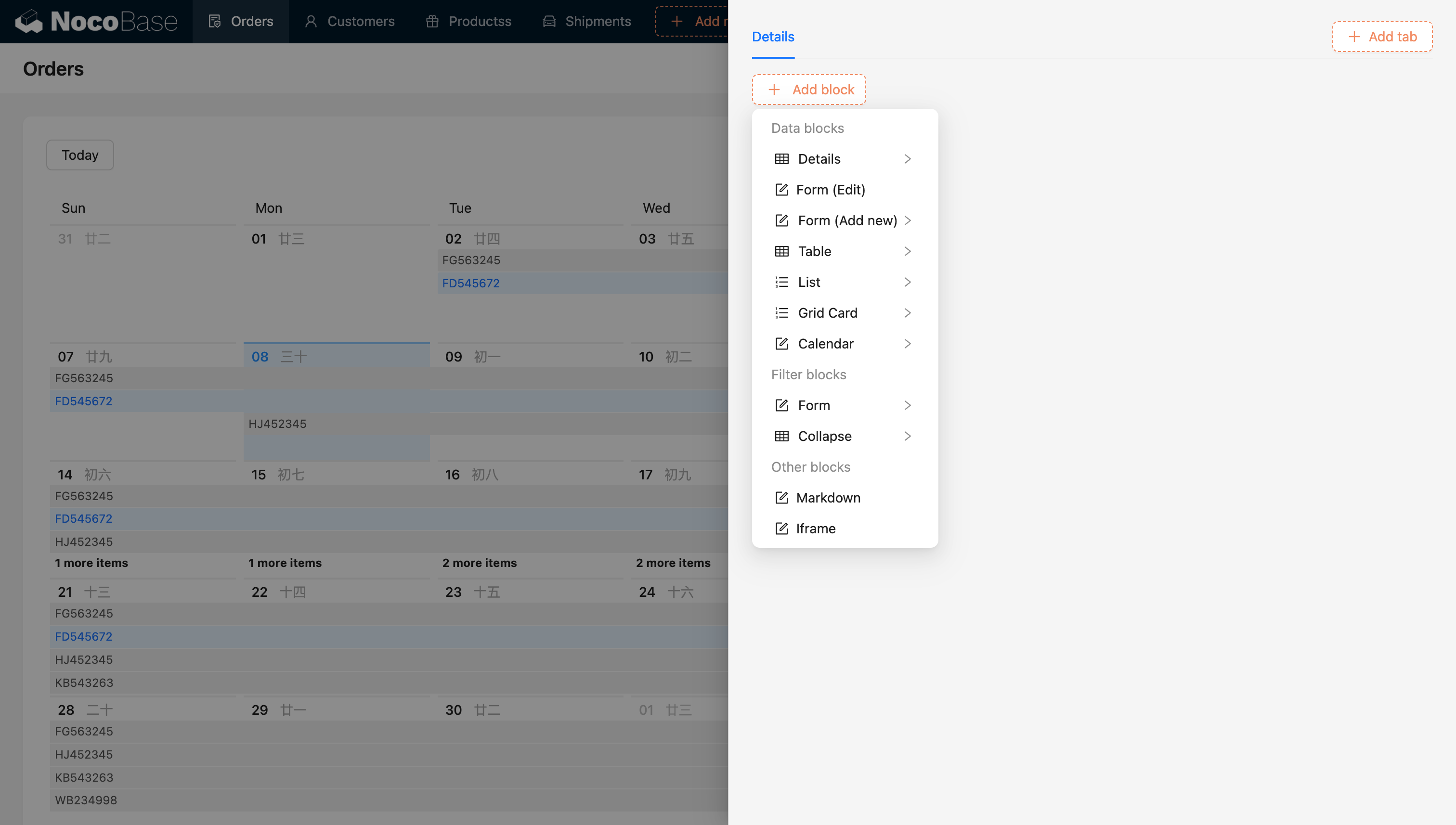
Clicking on a task bar highlights the selection and opens a detailed pop-up window.
Configure Fields
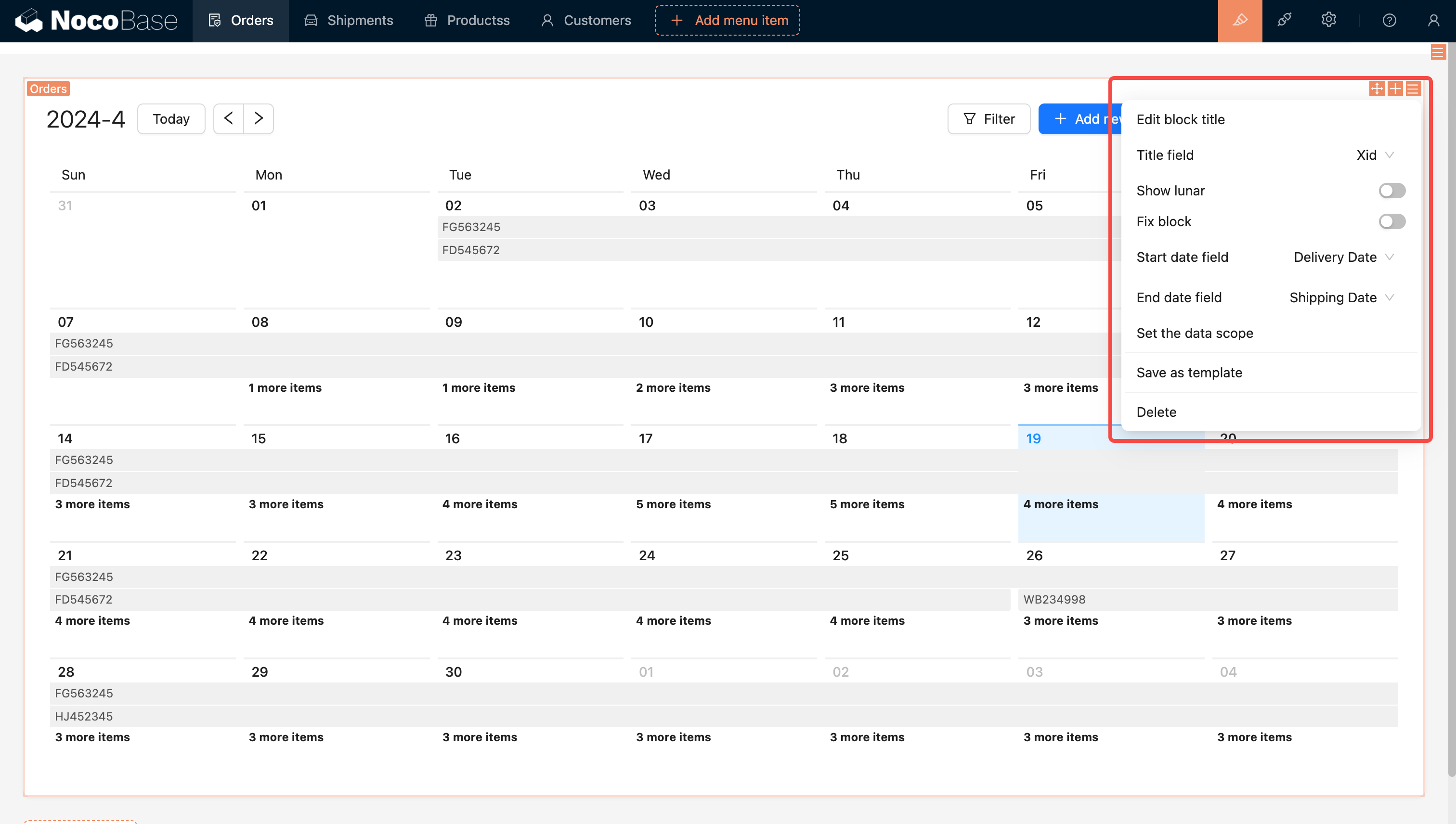
Display Lunar Calendar
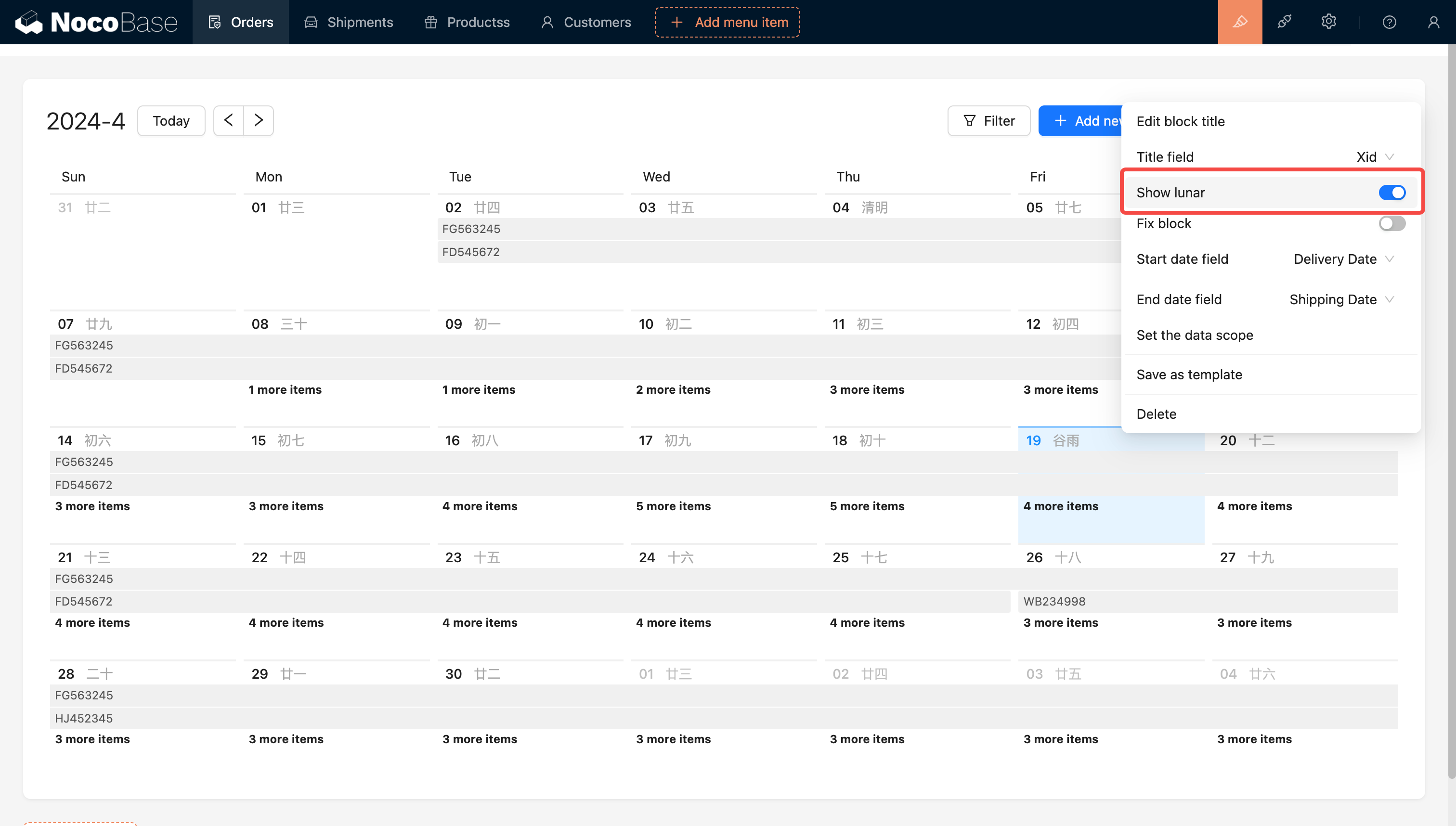
Set Data Range

For additional information, see .
Set Block Height
Example: Adjust the height of the order calendar block. No scrollbar will appear inside the calendar block.
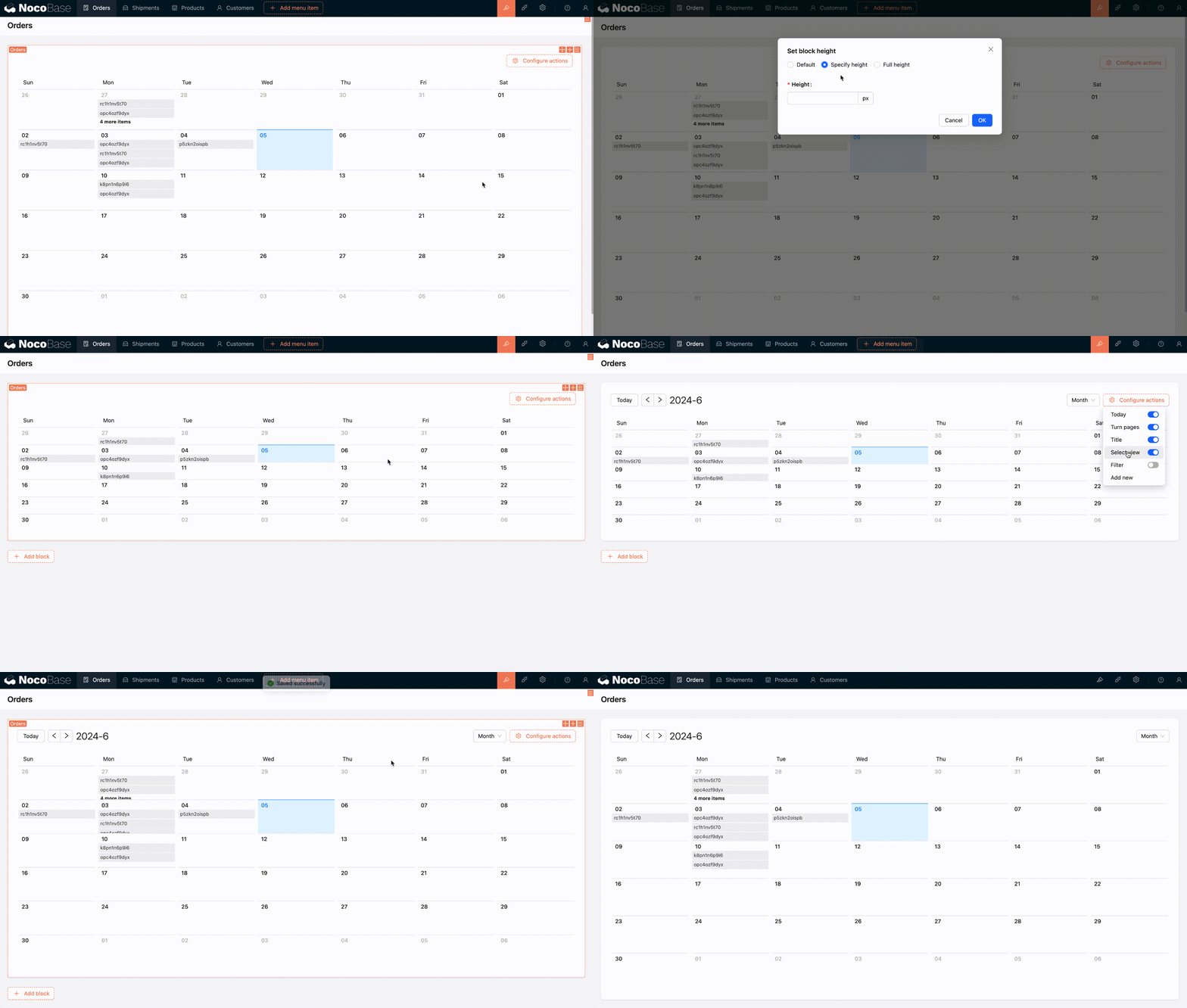
For more information, refer to
Background Color Field
The version of NocoBase needs to be v1.4.0-beta or above.
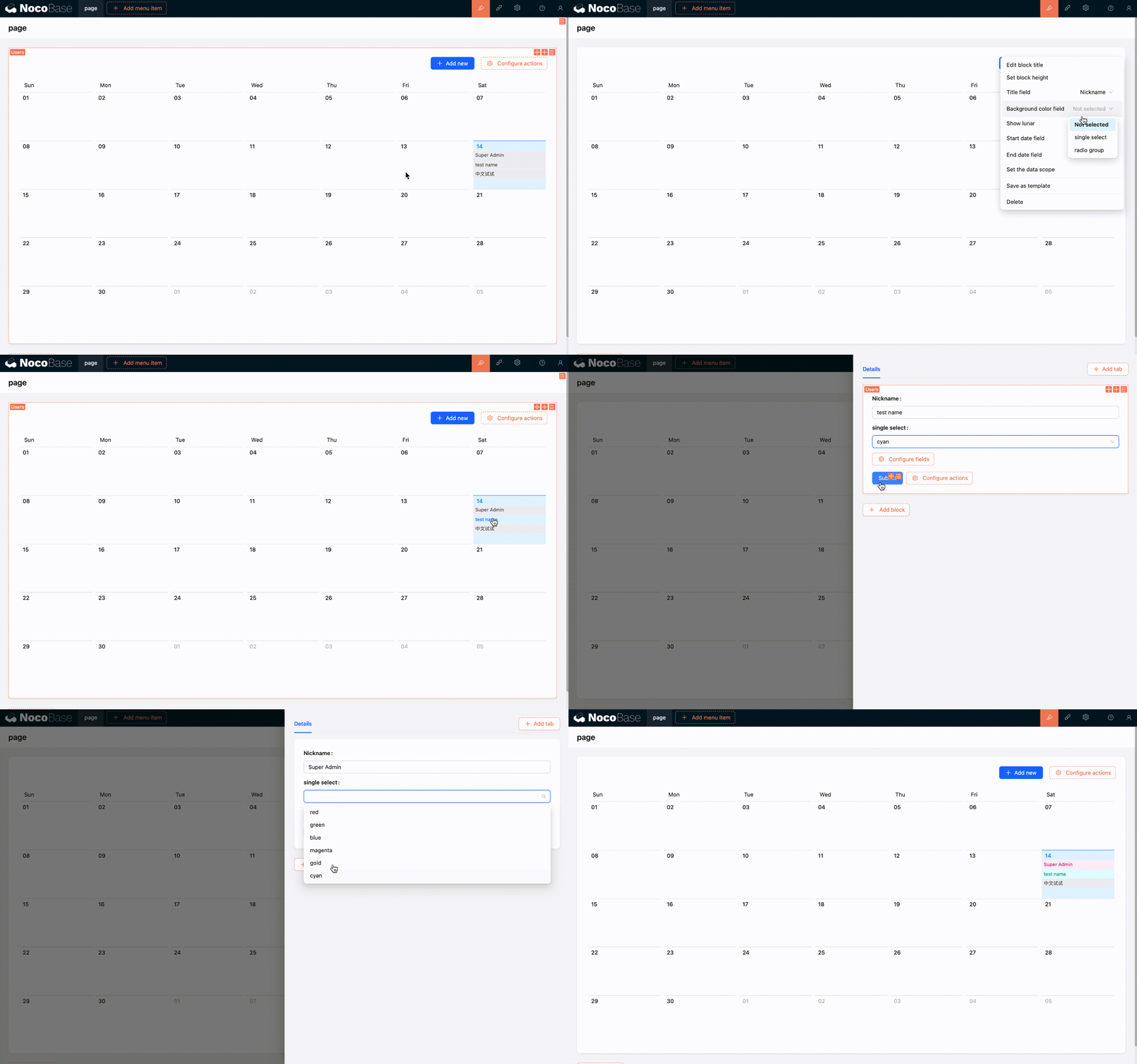
This option can be used to configure the background color of calendar events. Here's how to use it:
- The calendar data table needs to have a field of type Single select or Radio group, and this field needs to be configured with colors.
- Then, return to the calendar block configuration interface and select the field you just configured with colors in the Background Color Field.
- Finally, you can try selecting a color for a calendar event and click submit. You'll see that the color has taken effect.
Week Start Day
Supported in version v1.7.7 and above
The calendar block supports setting the start day of the week, allowing you to choose Sunday or Monday as the first day of the week. The default start day is Monday, making it easier for users to adjust the calendar display according to regional habits for a better user experience.

Configure Actions
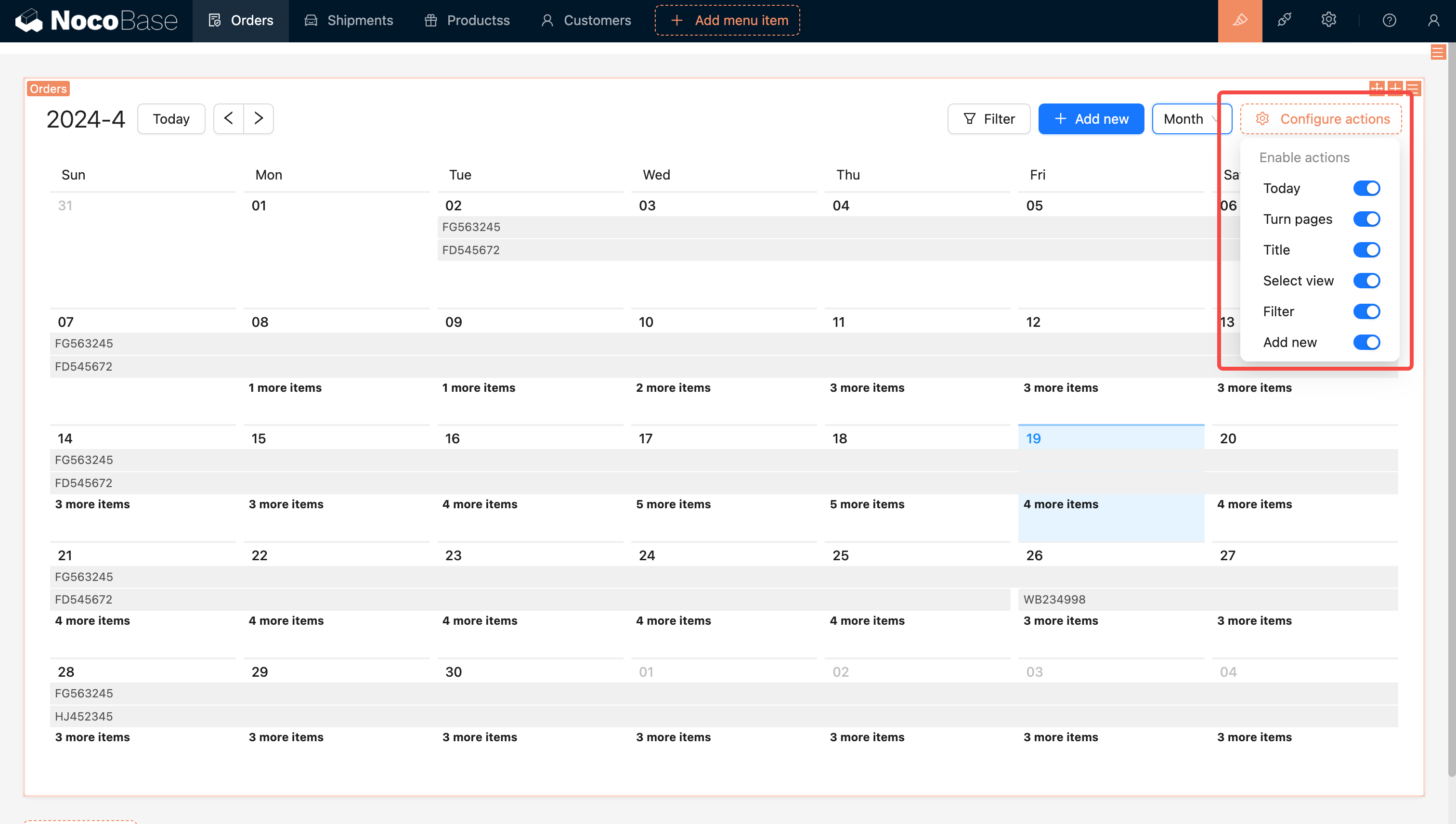
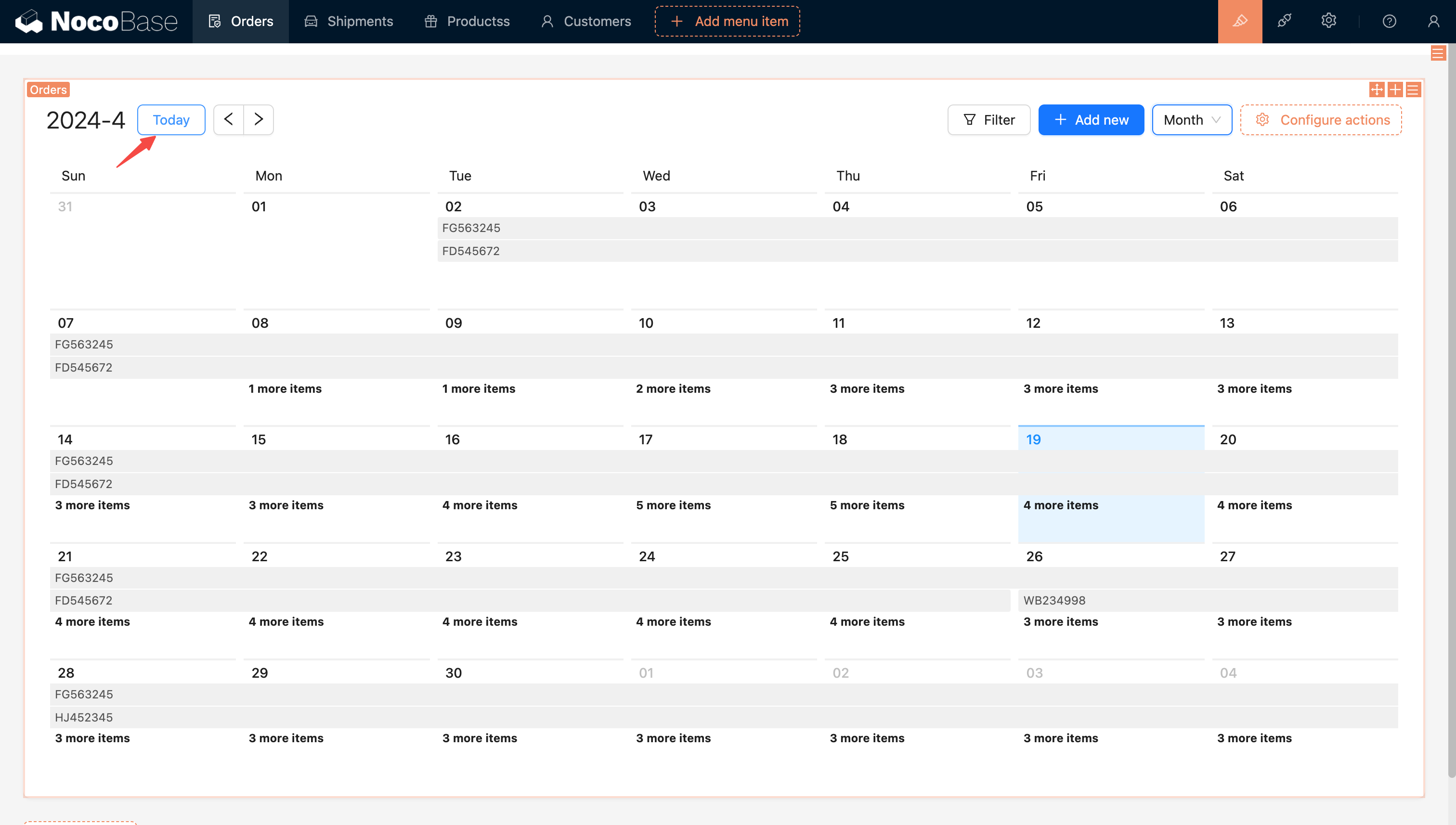
Today
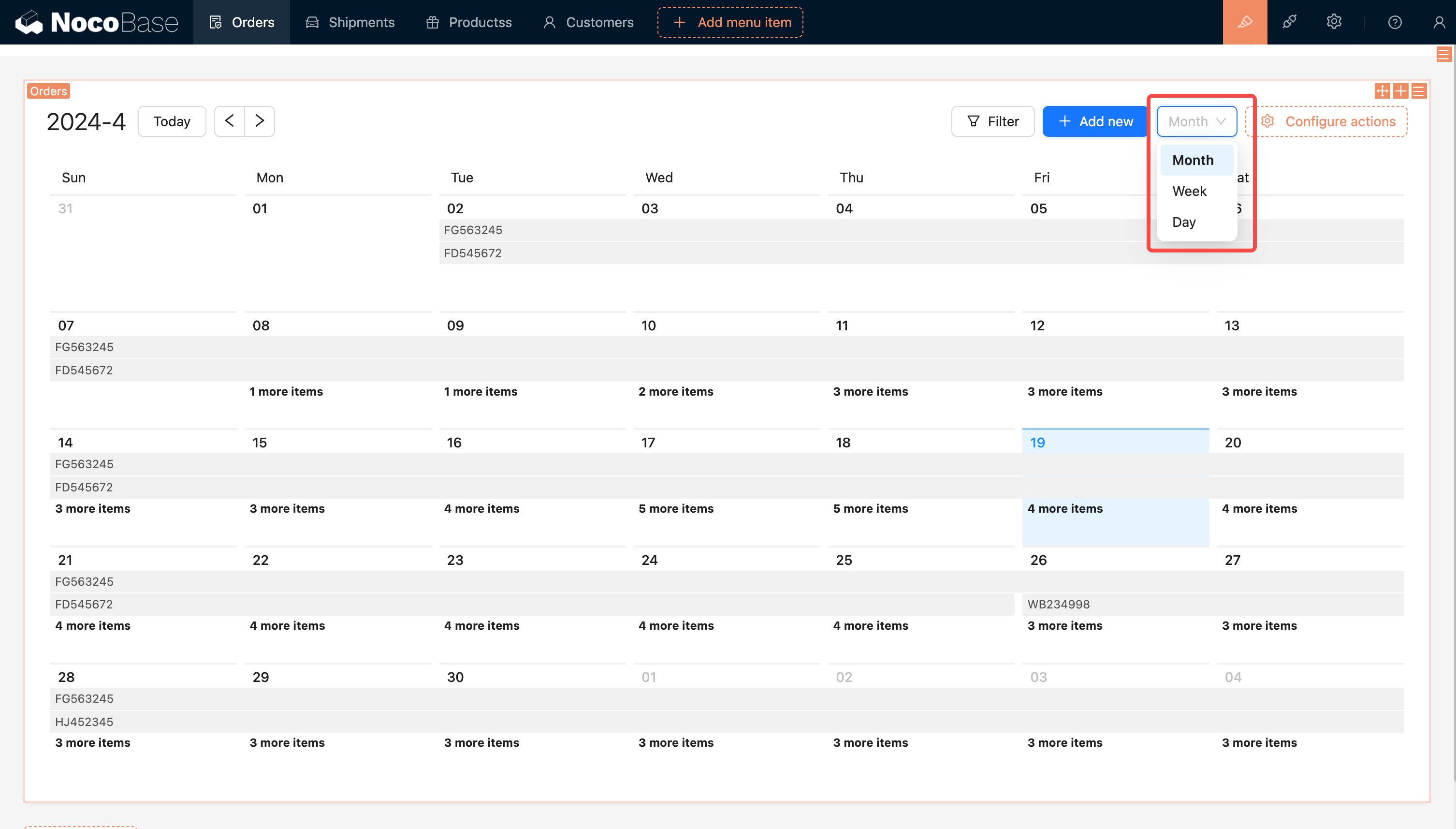
The "Today" button in the Calendar Block offers quick navigation, enabling users to instantly return to the current date after exploring other dates.
Switch View
The default view is set to Month.