Collaborate with AI Employees
AI employeesCommunity Edition+After creating and enabling AI Employees, you can collaborate with them in pages.
Entry Points
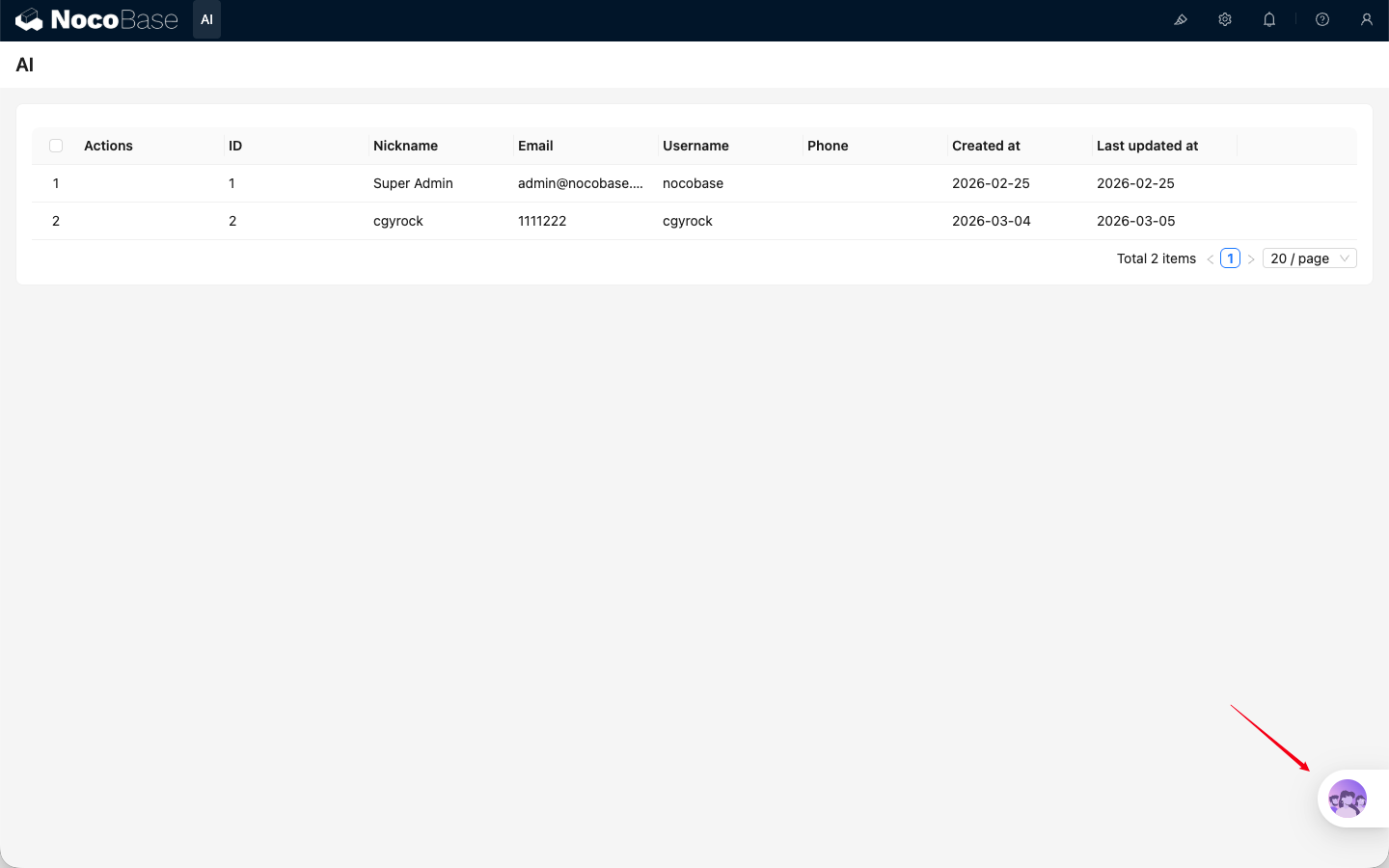
- Bottom-right main entry: Open the AI chat panel from the bottom-right corner of business pages. Suitable for general Q&A and cross-block collaboration.
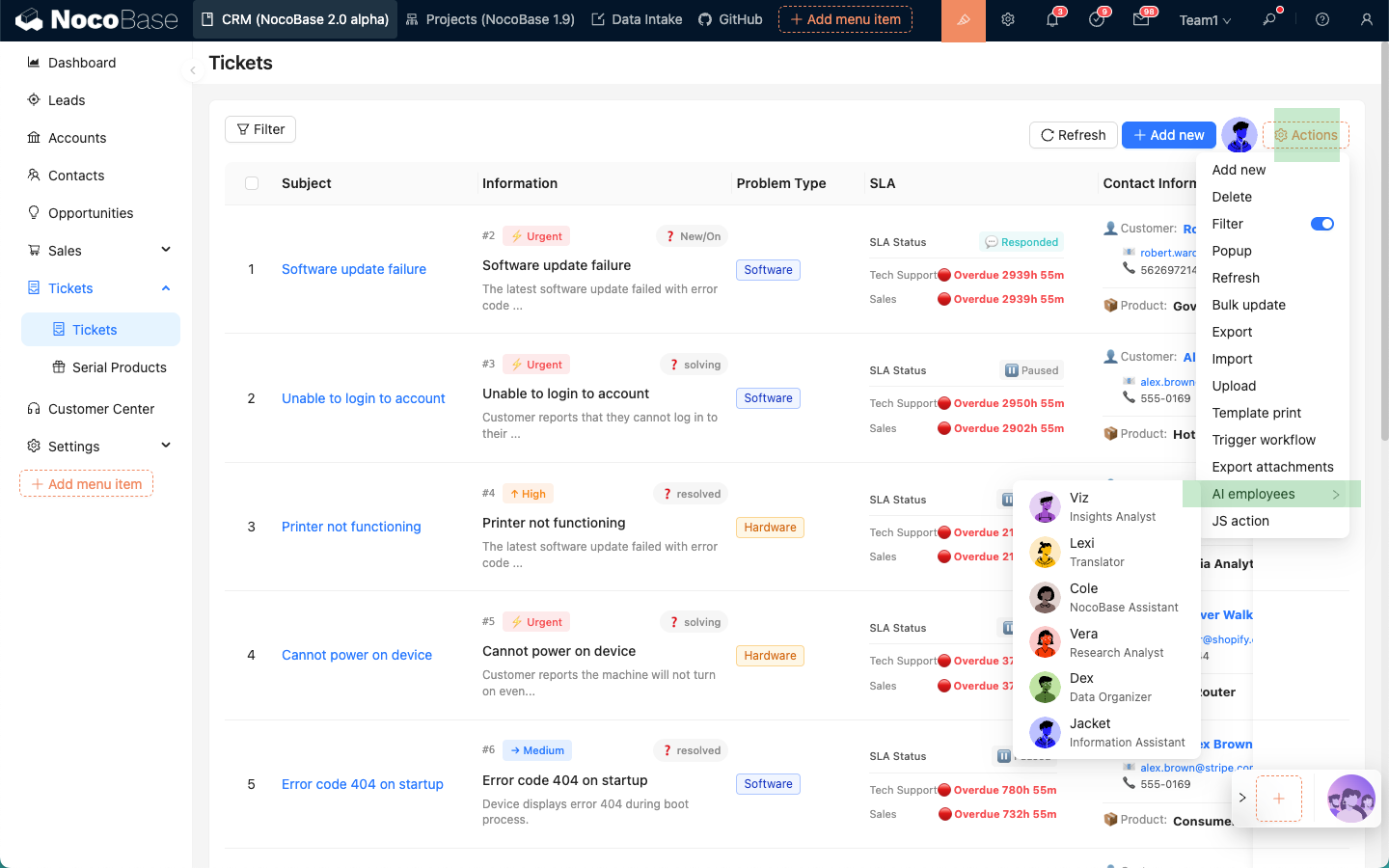
- Block Action entry: In blocks that support
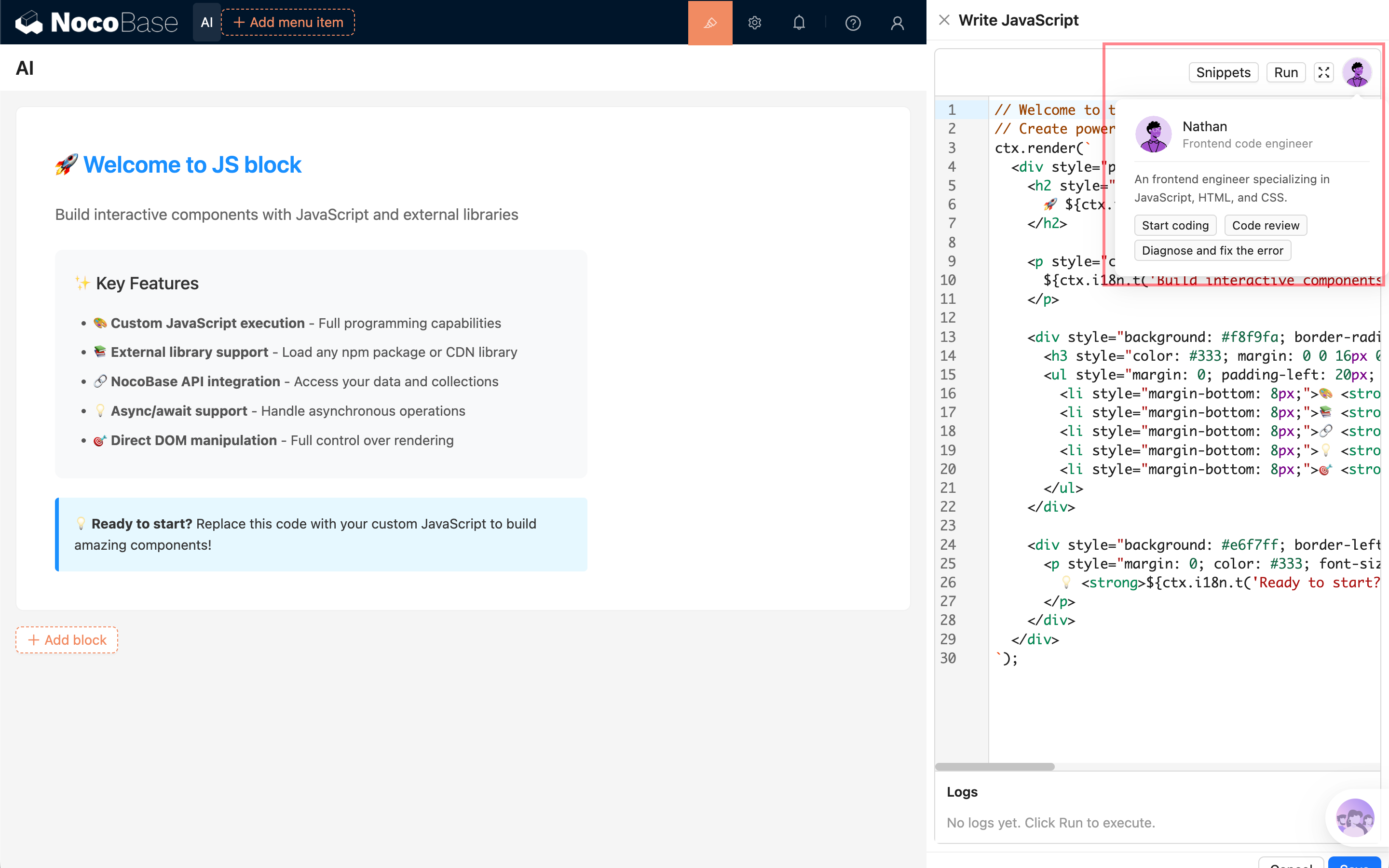
Actions, add AI Employees throughActions -> AI employees. Suitable for tasks on the current block, such as filling form blocks. - Scenario-specific entry: Development-oriented employees, such as Nathan, Lina, and Dara, provide dedicated entries in specific scenarios such as JS blocks, chart blocks, or Localization Management.
Bottom-right Main Entry
Block Action Entry
Scenario-Specific Entry
Basic Chat Operations
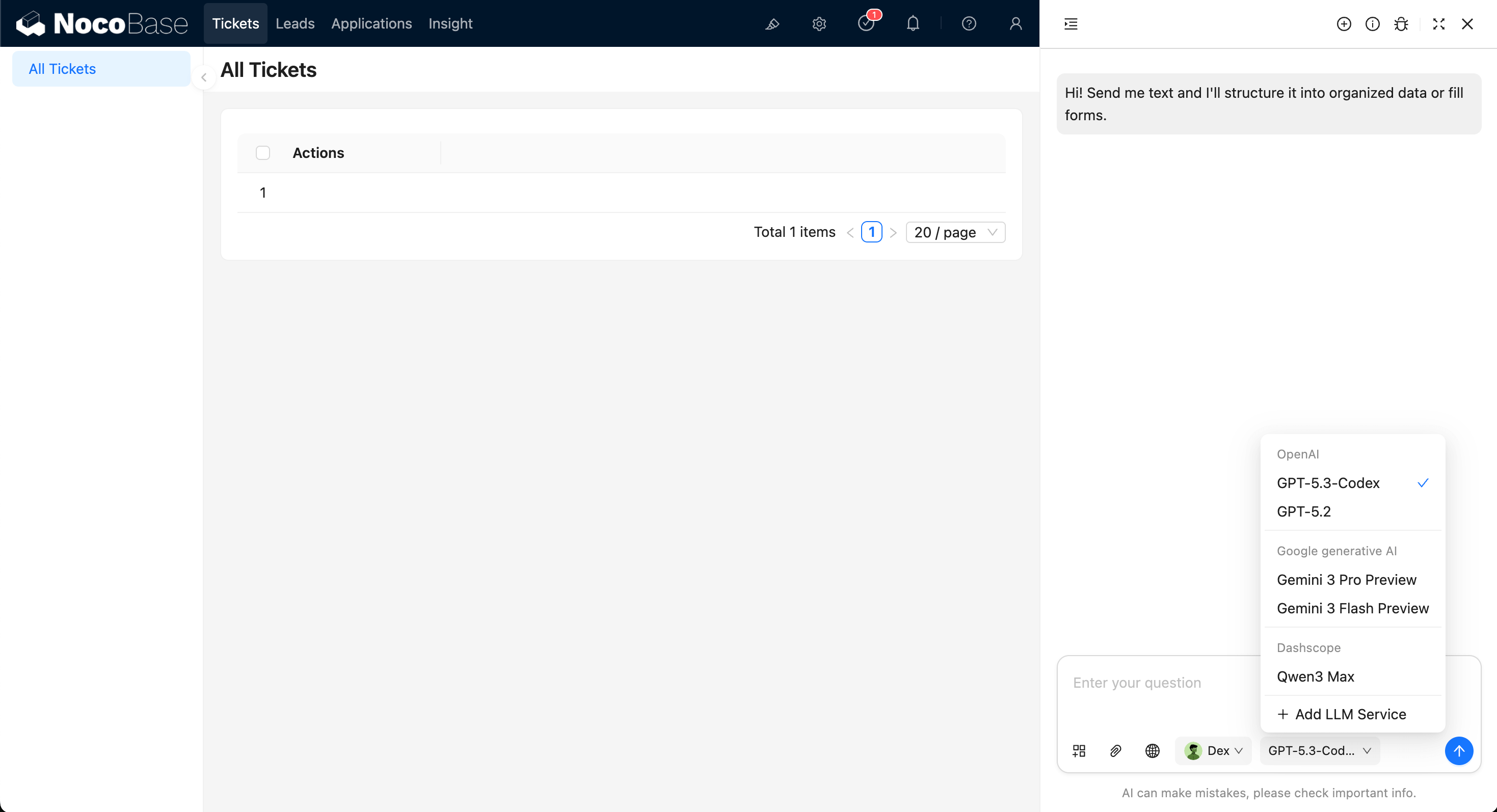
The chat panel supports common operations such as sending messages, uploading attachments, viewing history, creating new chats, and editing system prompts.
In-Chat Switching
In most cases, you can simply talk to Atlas, and he will coordinate the appropriate AI Employee to help handle the task.
If you want to use a specific AI Employee, click the AI Employee dropdown in the message composer to select one.
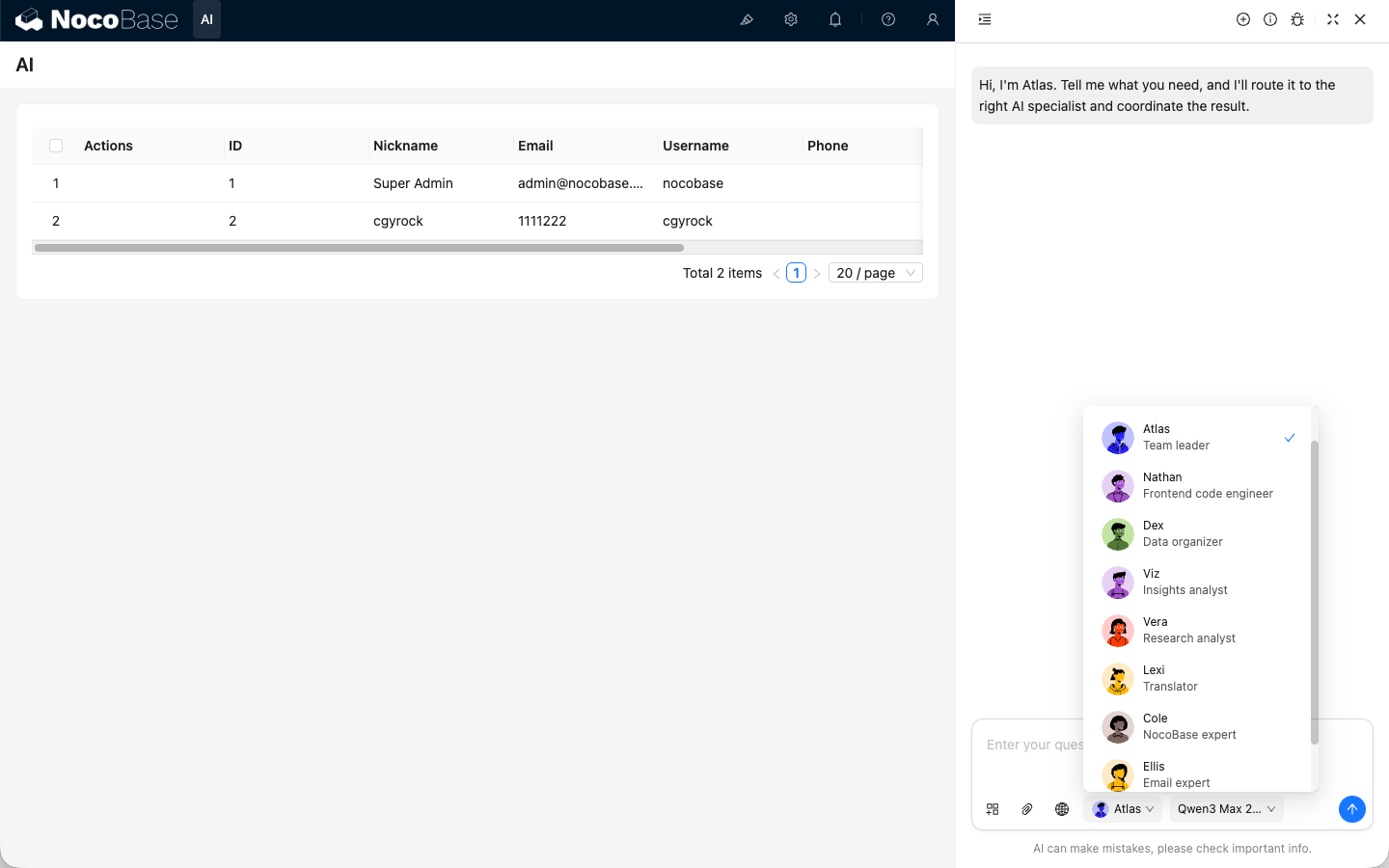
Model preferences are saved per employee and restored next time.