logologo
Get Started
Guide
Development
Plugins
API
Home
English
简体中文
日本語
한국어
Español
Português
Deutsch
Français
Русский
Italiano
Türkçe
Українська
Tiếng Việt
Bahasa Indonesia
ไทย
Polski
Nederlands
Čeština
العربية
עברית
हिन्दी
Svenska
Get Started
Guide
Development
Plugins
API
Home
logologo
Overview
Quick Start

Features

Configure LLM Service
Enable AI Employees
Collaborate with AI Employees
Add Context - Blocks
Use Skills
Shortcuts
Web Search
Create AI Employee
Built-in AI Employees
Permissions
File Management

AI Knowledge Base

Overview
Vector Database
Vector Store
Knowledge Base
RAG

Workflow

LLM Node

Text Chat
Multimodal Chat
Structured Output

Application Practices

Scenarios

Viz: CRM Scenario Configuration

Configuration

Admin Configuration
Prompt Engineering Guide
Previous PageOverview
Next PageConfigure LLM Service

#Quick Start

Let's start from scratch and take 5 minutes to quickly understand and use NocoBase AI Employees.

clipboard-image-1766653060

#1. Install Plugin

AI Employees are built into NocoBase (@nocobase/plugin-ai), ready to use out of the box without separate installation.

#2. Configure LLM Service

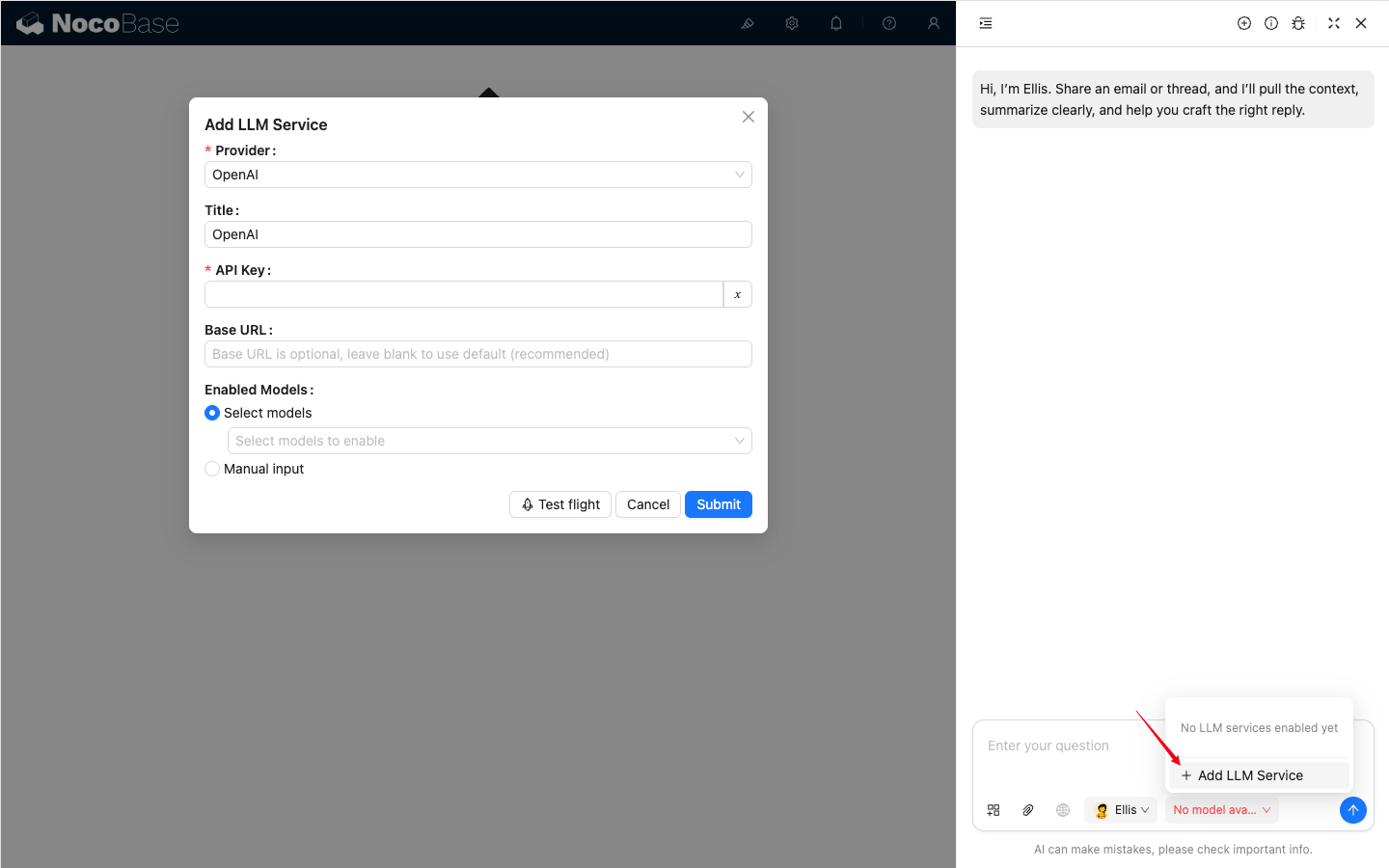
Before using AI Employees, you need to connect to an online LLM Service.

NocoBase currently supports mainstream online LLM Services such as OpenAI, Gemini, Claude, DeepSeek, Qwen (Aliyun), etc. Recommended models (tested): gemini-3, deepseek-chat, qwen3-max.

In addition to online LLM Services, NocoBase also supports connecting to Ollama local models.

  1. Go to System Settings -> AI Employees -> LLM Service.
  2. Click Add New and select your model provider.
  3. Enter the API Key and Base URL (optional).
  4. Click Test Connection to ensure the configuration is correct.

20251021213122

20251021214903

#3. Enable Built-in Employees

NocoBase comes with several built-in AI Employees out of the box, covering common scenarios.

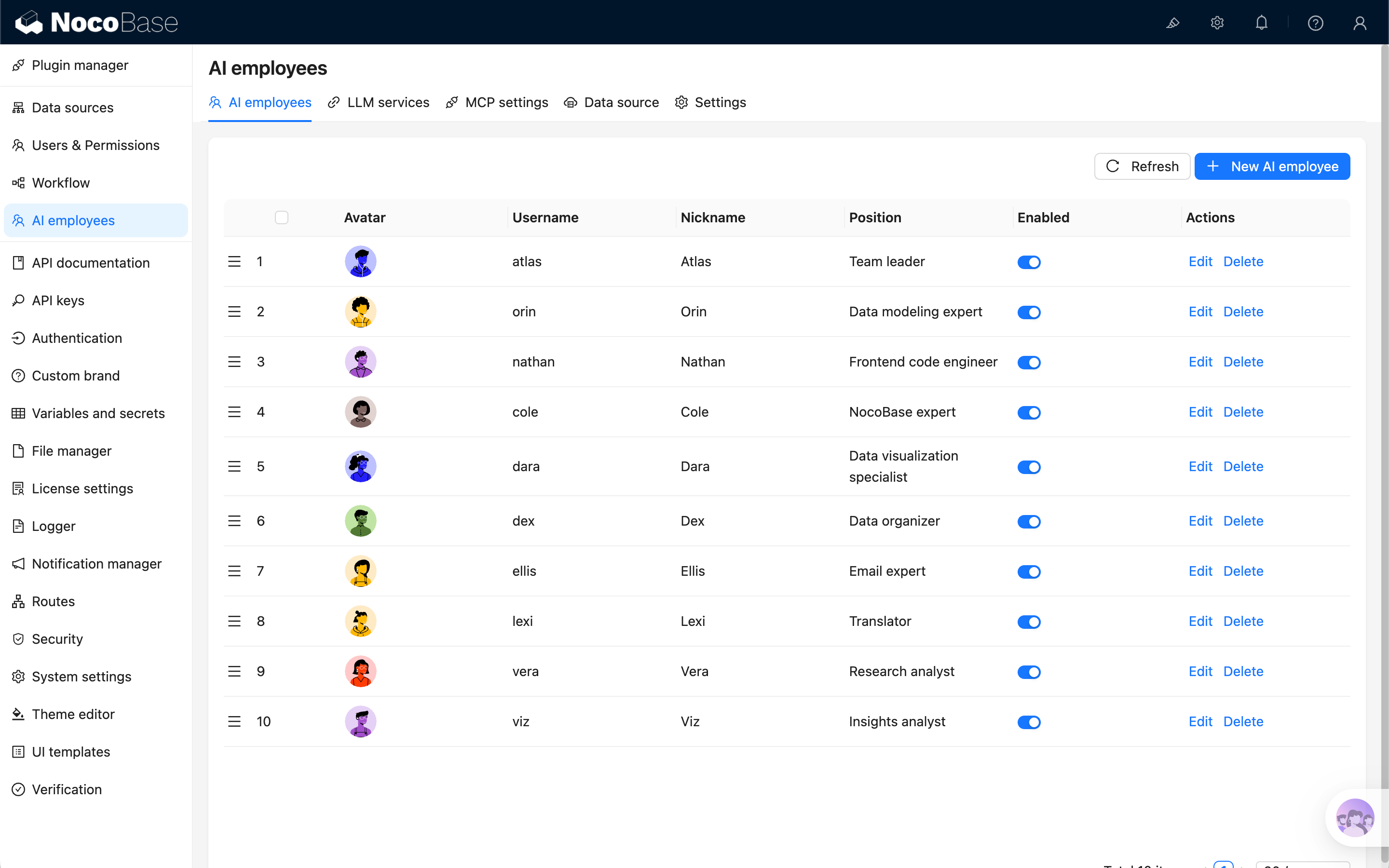
  1. Go to System Settings -> AI Employees list page.
  2. Find the AI Employee you need, for example Viz (Insight Analyst).
  3. Click Edit, in Model Settings, select the LLM Service and Model configured earlier. Recommended: gemini-3, deepseek-chat, qwen3-max.
  4. In the Profile tab, click the Enabled switch.
  5. Click Submit at the bottom to save and take effect.

clipboard-image-1766660703

clipboard-image-1766660863

#4. Start Collaborating

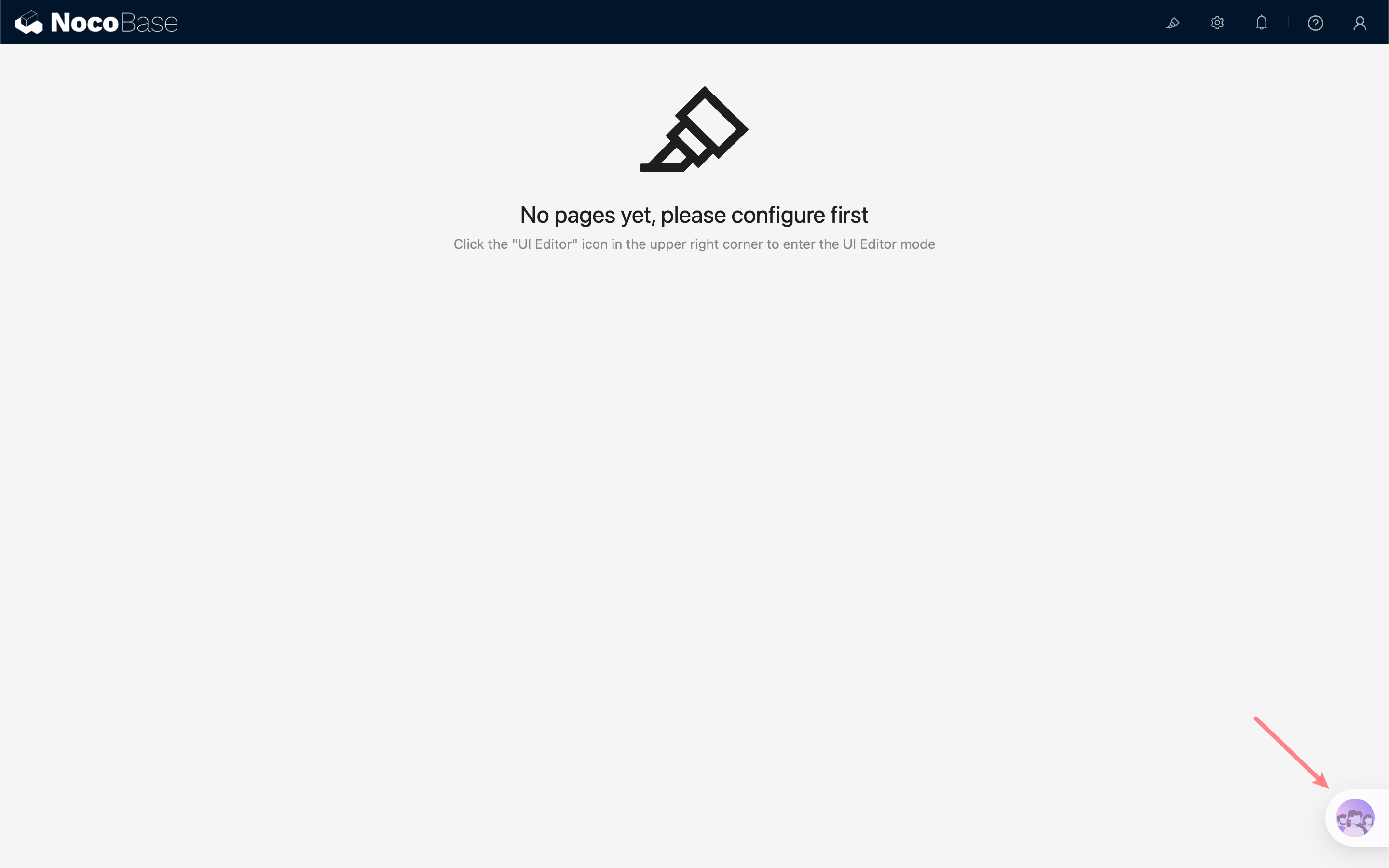
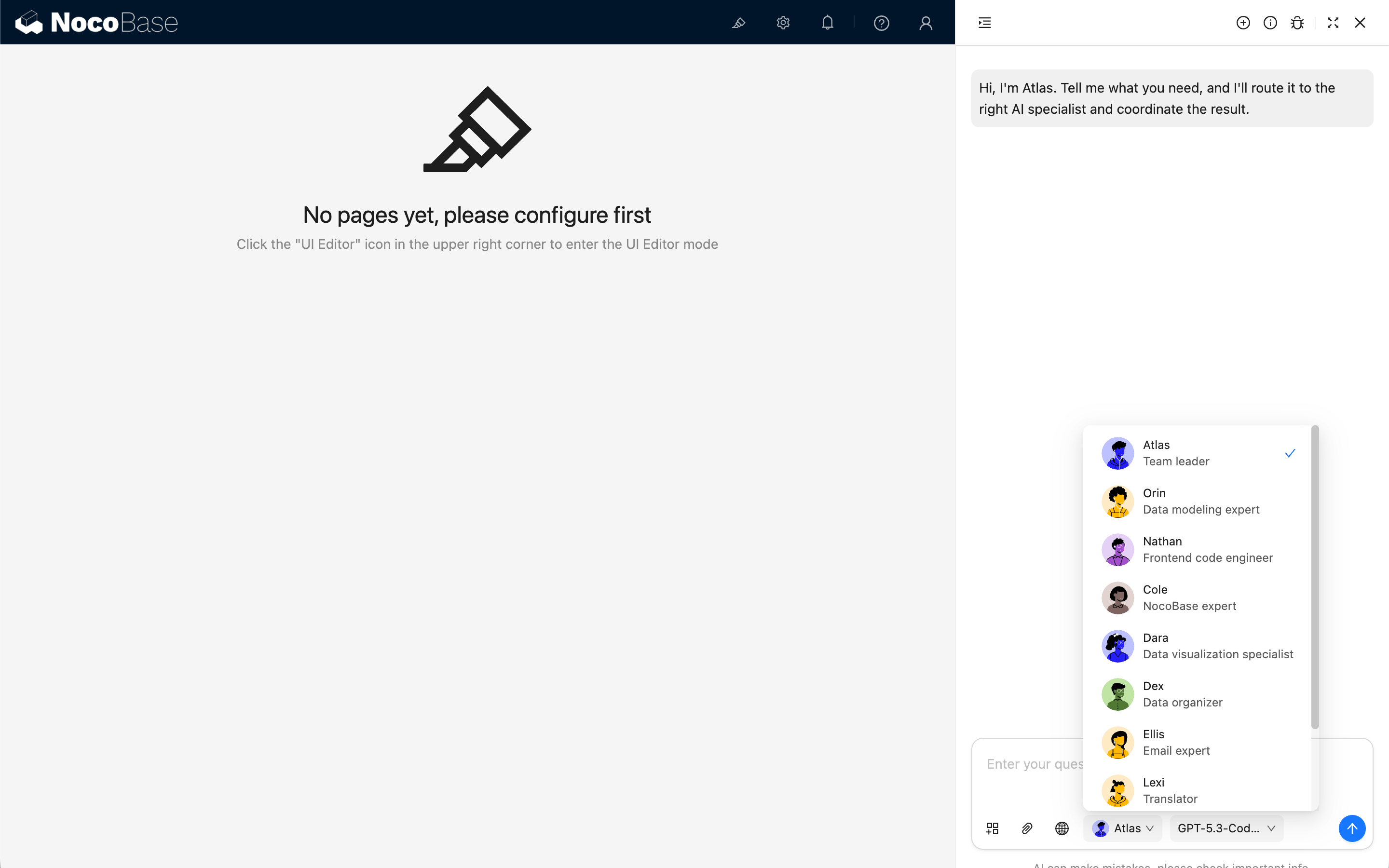
  1. Return to the application interface, click the AI Floating Ball in the bottom right corner, select the employee you want, and start collaborating.
  2. Try sending a command: "Please analyze the quantity and quality (high intent ratio) of leads by source, and provide 2–3 channel optimization suggestions."

You can also Add Work Context, Upload Files, etc., to let the AI better understand the current environment and needs.

clipboard-image-1766661858

clipboard-image-1766666328

Congratulations! You have successfully completed this AI workflow experience. You can continue to explore AI Employees in other roles to further improve business efficiency.

#Built-in Employees Overview

NocoBase provides several built-in AI Employees for specific scenarios.

You just need to configure the Model for them to start working.

Employee NameRole PositioningCore Capabilities
ColeNocoBase AssistantProduct usage Q&A, document retrieval
EllisEmail ExpertEmail writing, summary generation, reply suggestions
DexData OrganizerField translation, formatting, information extraction
VizInsight AnalystData insight, trend analysis, key indicator interpretation
LexiTranslation AssistantMultilingual translation, communication assistance
VeraResearch AnalystWeb search, information aggregation, in-depth research
DaraData Visualization ExpertChart configuration, visual report generation
OrinData Modeling ExpertAssist in designing data table structures, field suggestions
NathanFrontend EngineerAssist in writing frontend code snippets, style adjustments

#Remarks

Some built-in AI Employees will not appear in the AI Employee list in the bottom right corner. They have exclusive work scenarios, for example:

  • Orin will only appear on the data configuration page;
  • Dara will only appear on the chart configuration page;
  • Nathan will only appear on the JS Editor.