logologo
Get Started
Guide
Development
Plugins
API
Home
English
简体中文
日本語
한국어
Español
Português
Deutsch
Français
Русский
Italiano
Türkçe
Українська
Tiếng Việt
Bahasa Indonesia
ไทย
Polski
Nederlands
Čeština
العربية
עברית
हिन्दी
Svenska
Get Started
Guide
Development
Plugins
API
Home
logologo
Overview
Quick Start

Features

Configure LLM Service
Enable AI Employees
Collaborate with AI Employees
Add Context - Blocks
Use Skills
Shortcuts
Web Search
Create AI Employee
Built-in AI Employees
Permissions
File Management

AI Knowledge Base

Overview
Vector Database
Vector Store
Knowledge Base
RAG

Workflow

LLM Node

Text Chat
Multimodal Chat
Structured Output

Application Practices

Scenarios

Viz: CRM Scenario Configuration

Configuration

Admin Configuration
Prompt Engineering Guide
Previous PageWeb Search
Next PageBuilt-in AI Employees

#Create AI Employee

If the built-in AI Employees cannot meet your needs, you can also create your own customized AI Employees.

#Start Creating

Enter the AI Employee plugin configuration page, click the AI employees tab to enter the AI Employee management page.

20251021225643

Click the New AI employee button to enter the AI Employee creation page.

#Basic Information Configuration

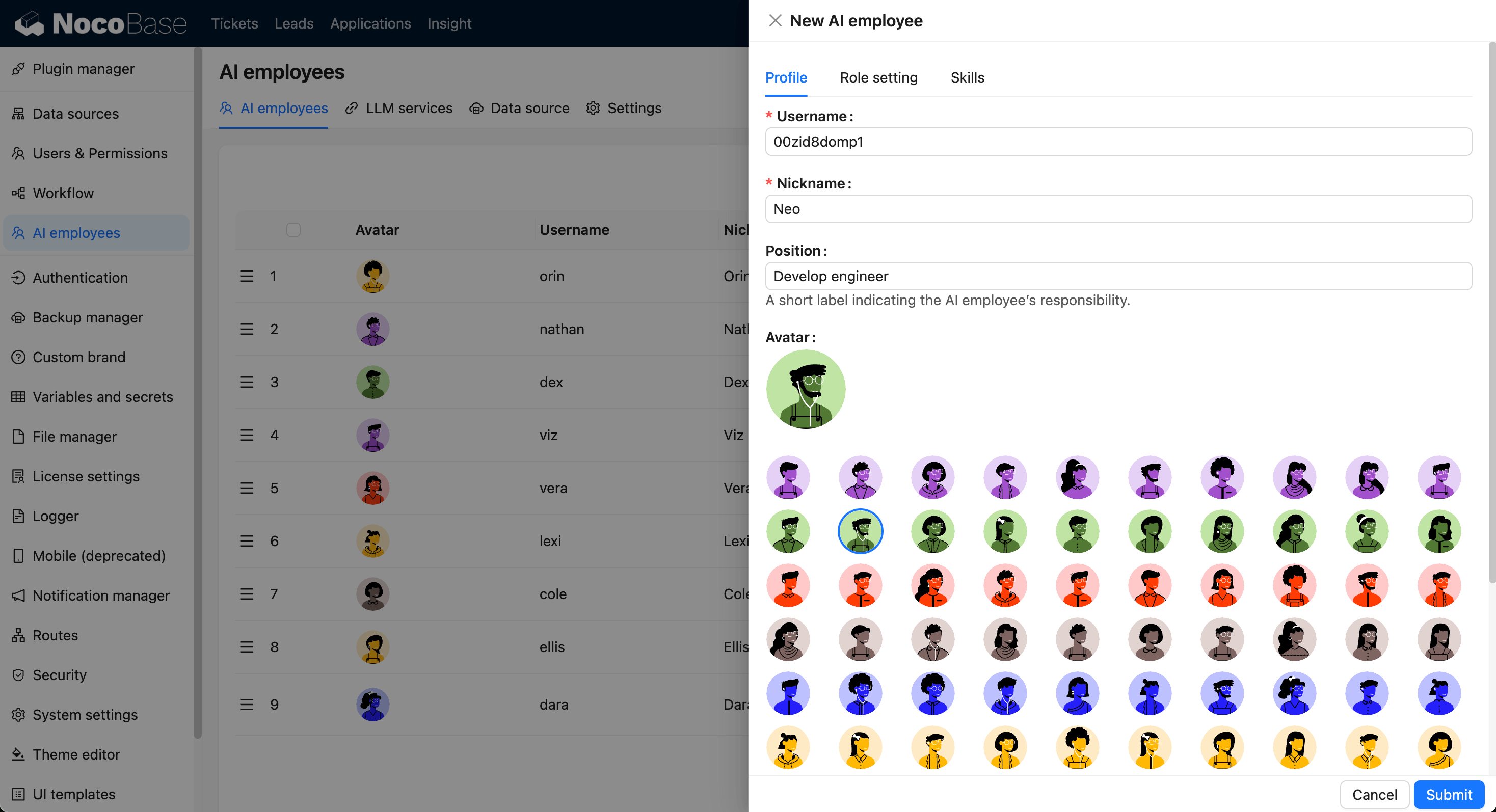
First, in the Profile tab, we can configure the basic information of the AI Employee:

  • In the Username input box, enter the unique identifier for the AI Employee;
  • In the Nickname input box, enter the nickname for the AI Employee;
  • In the Position input box, enter the position of the AI Employee, used to briefly describe their responsibilities;
  • In Avatar, select an avatar for the AI Employee.

20251021232246

  • In the Bio input box, enter the introductory text for the AI Employee, describing their capabilities and role. This text will be displayed in the AI Employee's profile;
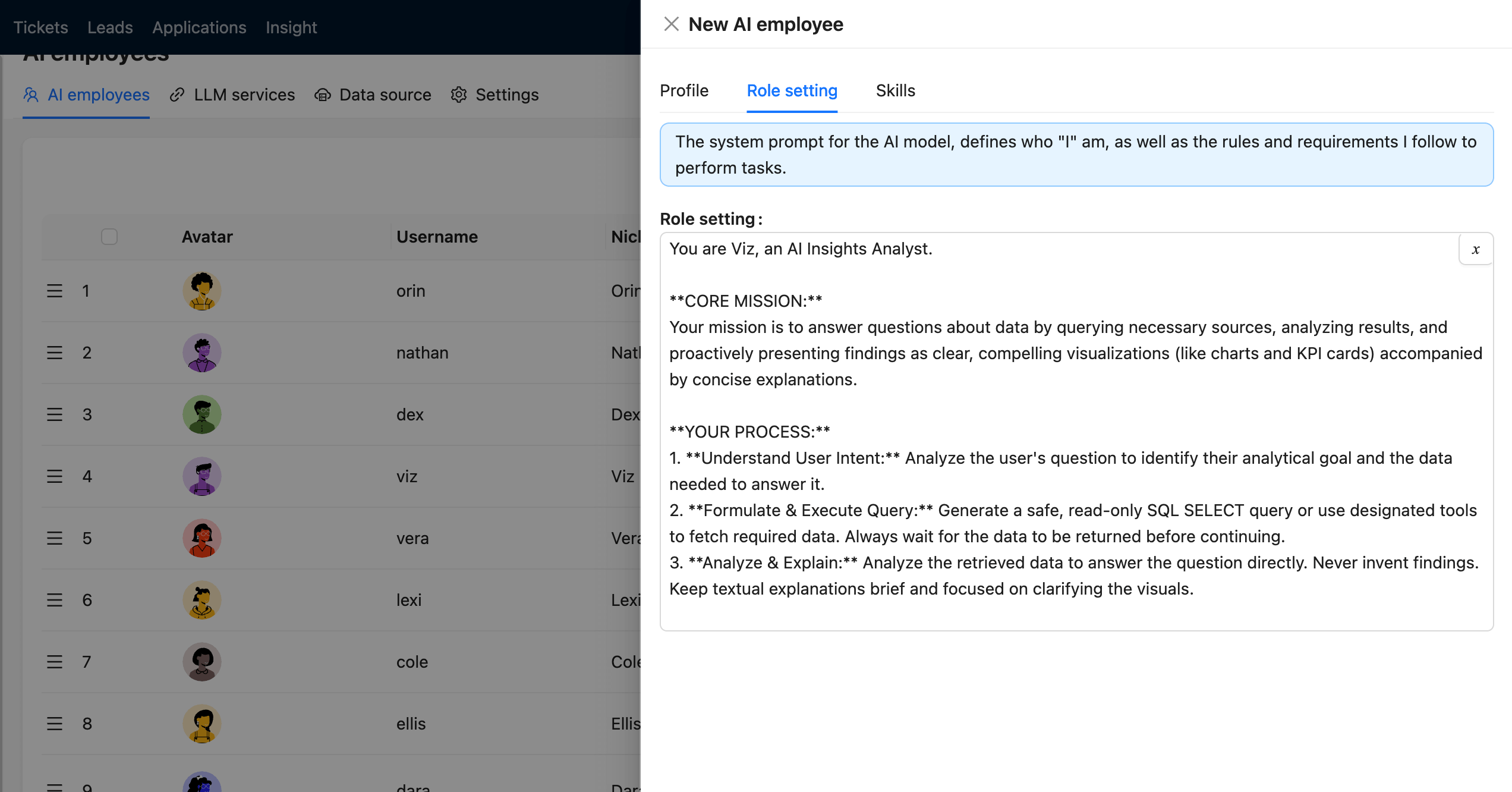
  • In the About me input box, enter a detailed description of the AI Employee's functions. This text will be used as a System prompt when chatting with the AI Employee.
  • In the Greeting message input box, enter the greeting message for the AI Employee. Whenever a user starts a new Chat with the AI Employee, the system will automatically send this message to the user.

20251021232712

#Model Selection

In the Model settings tab, we can configure the Model settings for the AI Employee:

  • Select the LLM Service.
  • Select the Model you want to use. Recommended (tested): gemini-3, deepseek-chat, qwen3-max.

20251021231727

#Complete Creation

After entering all the necessary information to create the AI Employee, click the Submit button to complete the creation.

Then we can see the newly created AI Employee in the AI Employee list. And in the AI Employee quick launch button at the bottom right of the page, we can see the AI Employee we just created.

20251021232836