Shortcut Tasks
To help AI Employees start working more efficiently, we can bind AI Employees to scenario blocks and preset several common tasks.
This lets users start task processing with one click, without having to Select Block and Input Command every time.
Block Binding AI Employee
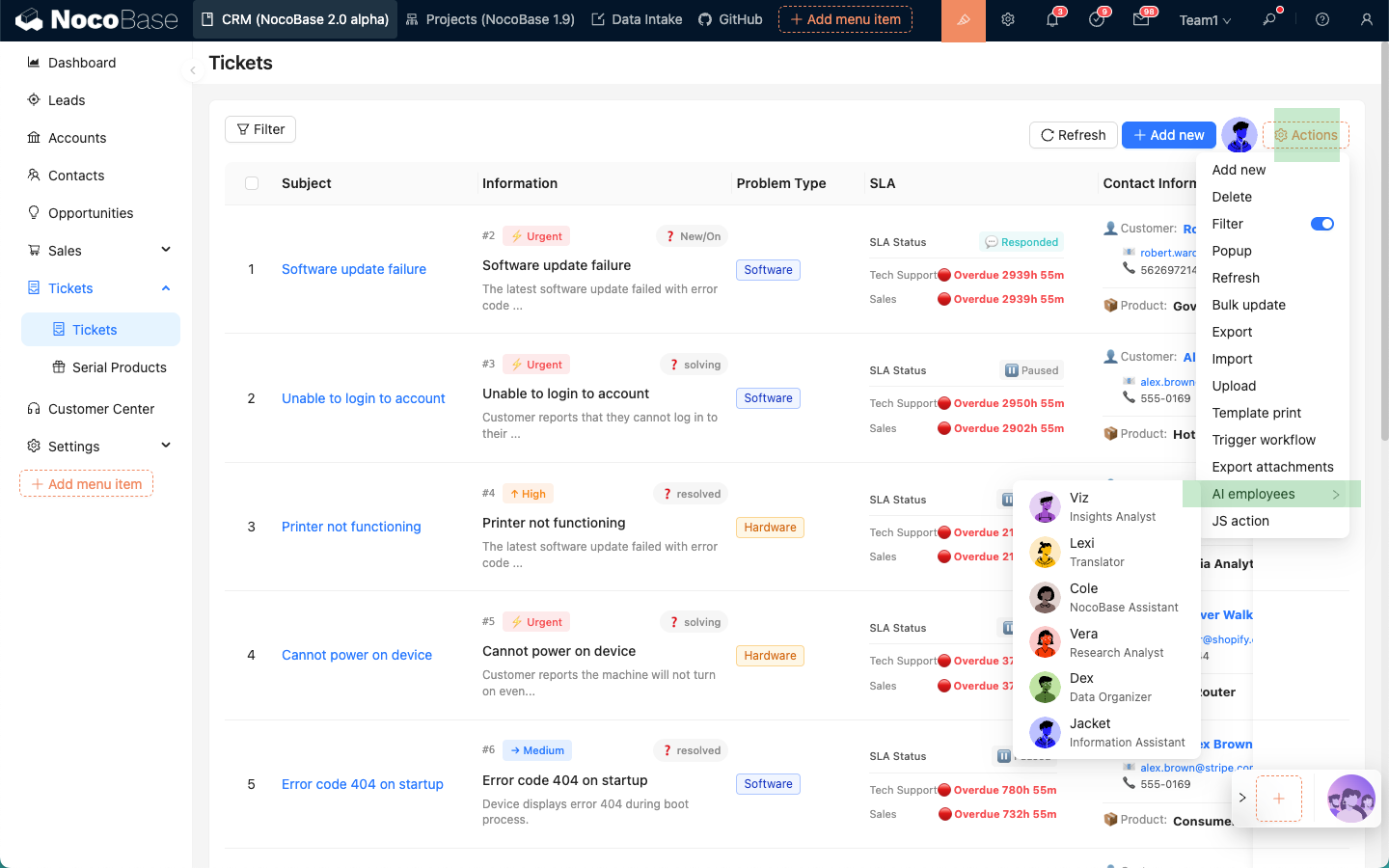
After entering UI editing mode, for blocks that support Actions, select AI employees under Actions, then choose an AI Employee. That AI Employee will be bound to the current block.
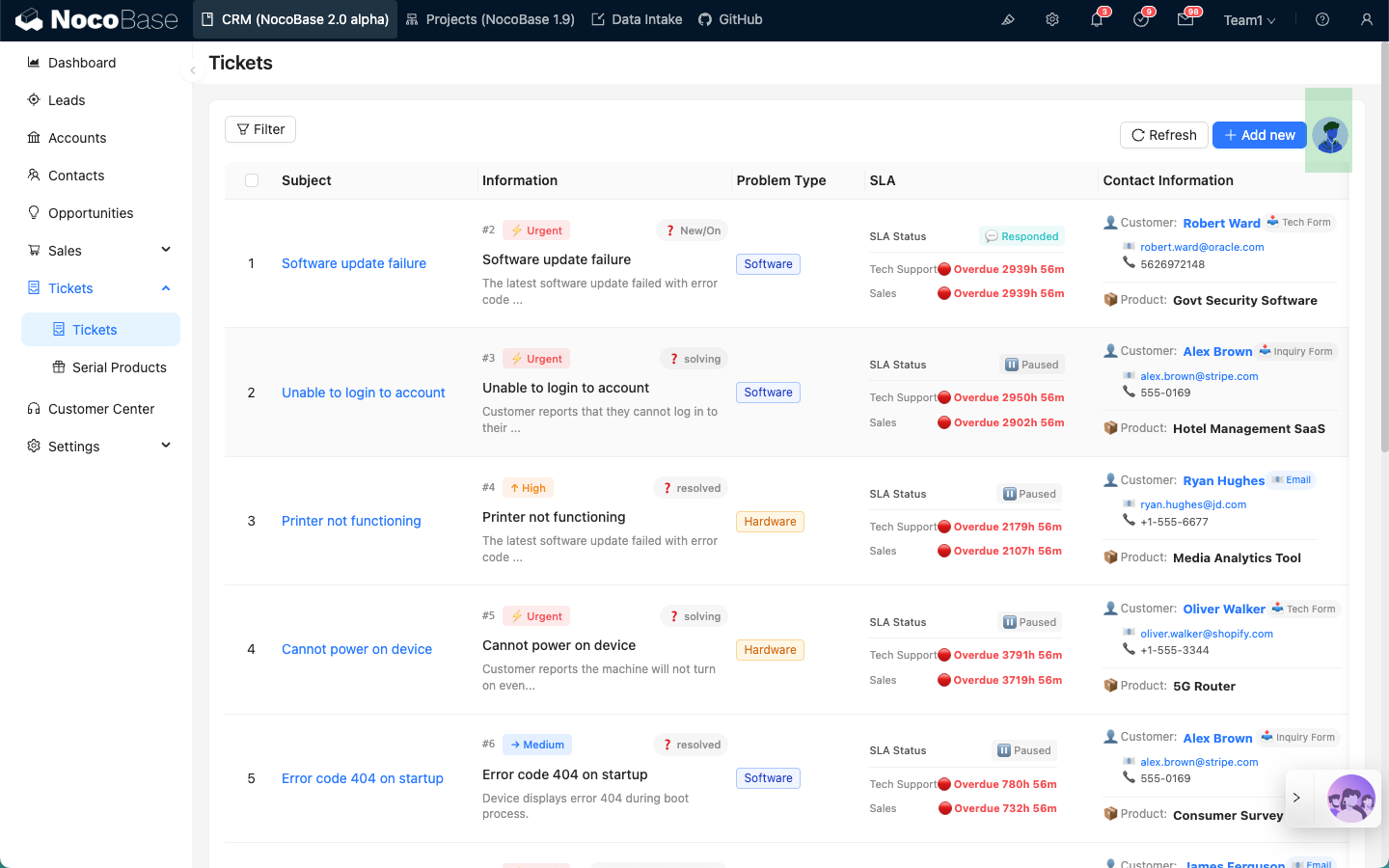
After binding is complete, each time you enter the page, the block Actions area shows the AI Employee bound to the current block.
Configure Tasks
After entering UI editing mode, hover over the AI Employee icon bound to the block. A menu button appears. Select Edit tasks to enter the task settings page.
On the task settings page, you can add multiple tasks for the current AI Employee.
Each tab represents an independent task. Click the "+" next to it to add a new task.
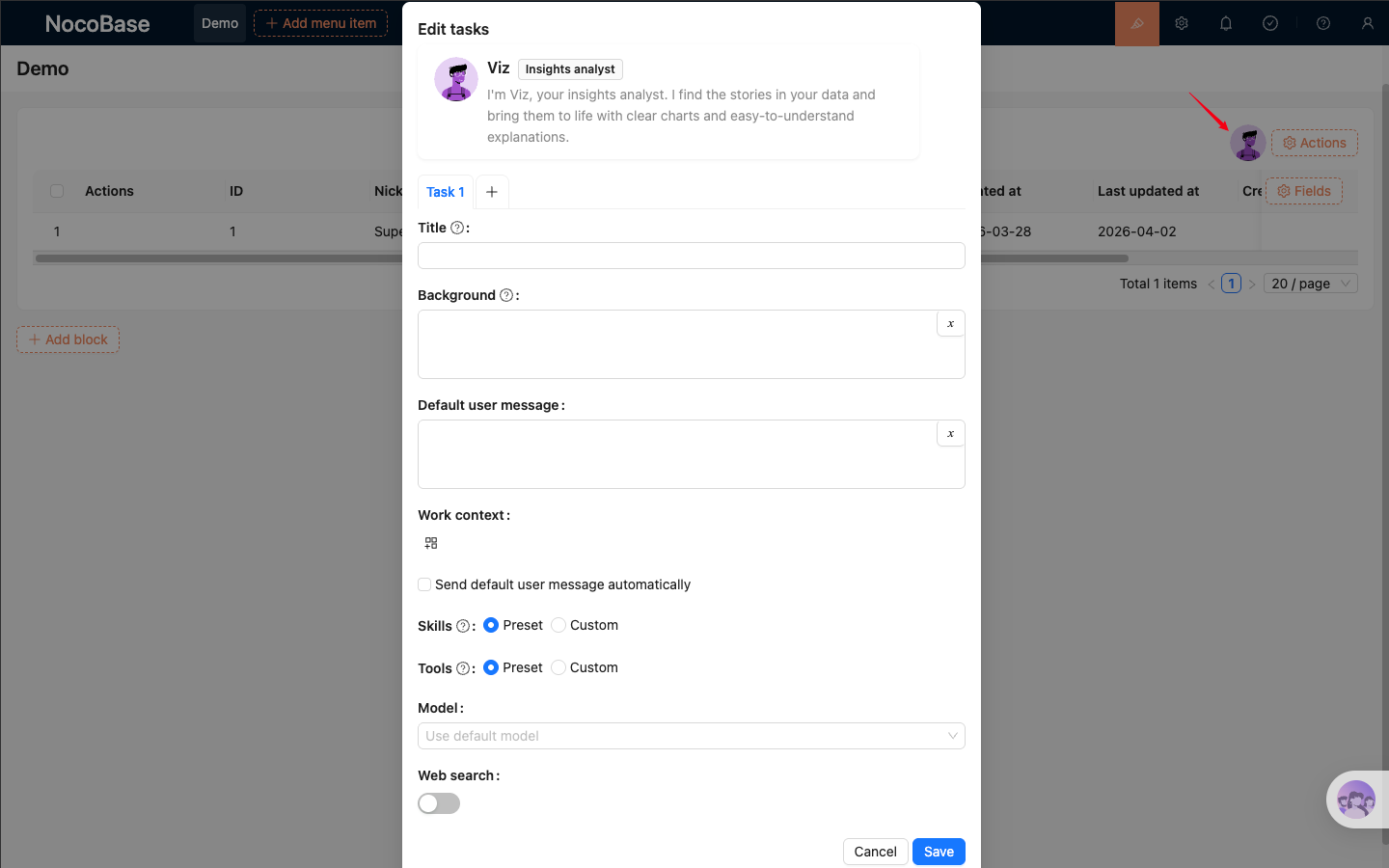
Task settings form:
- Enter task title in
Title. The title appears in the AI Employee task list. - Enter main task content in
Background. This content is used as the system prompt when chatting with the AI Employee. - Enter default user message in
Default user message. It is auto-filled in the input box after selecting the task. - In
Work context, choose default app context information to send to the AI Employee. This works the same as in the chat panel. - In
Skills, setPresetto use the current AI Employee's preset skills. SetCustomerto use only some of the AI Employee's skills. Leave it empty to use no skills. - In
Tools, setPresetto use the current AI Employee's preset tools. SetCustomerto use only some of the AI Employee's tools. Leave it empty to use no tools. Send default user message automaticallycontrols whether the default user message is sent automatically after clicking to run the task.
Task List
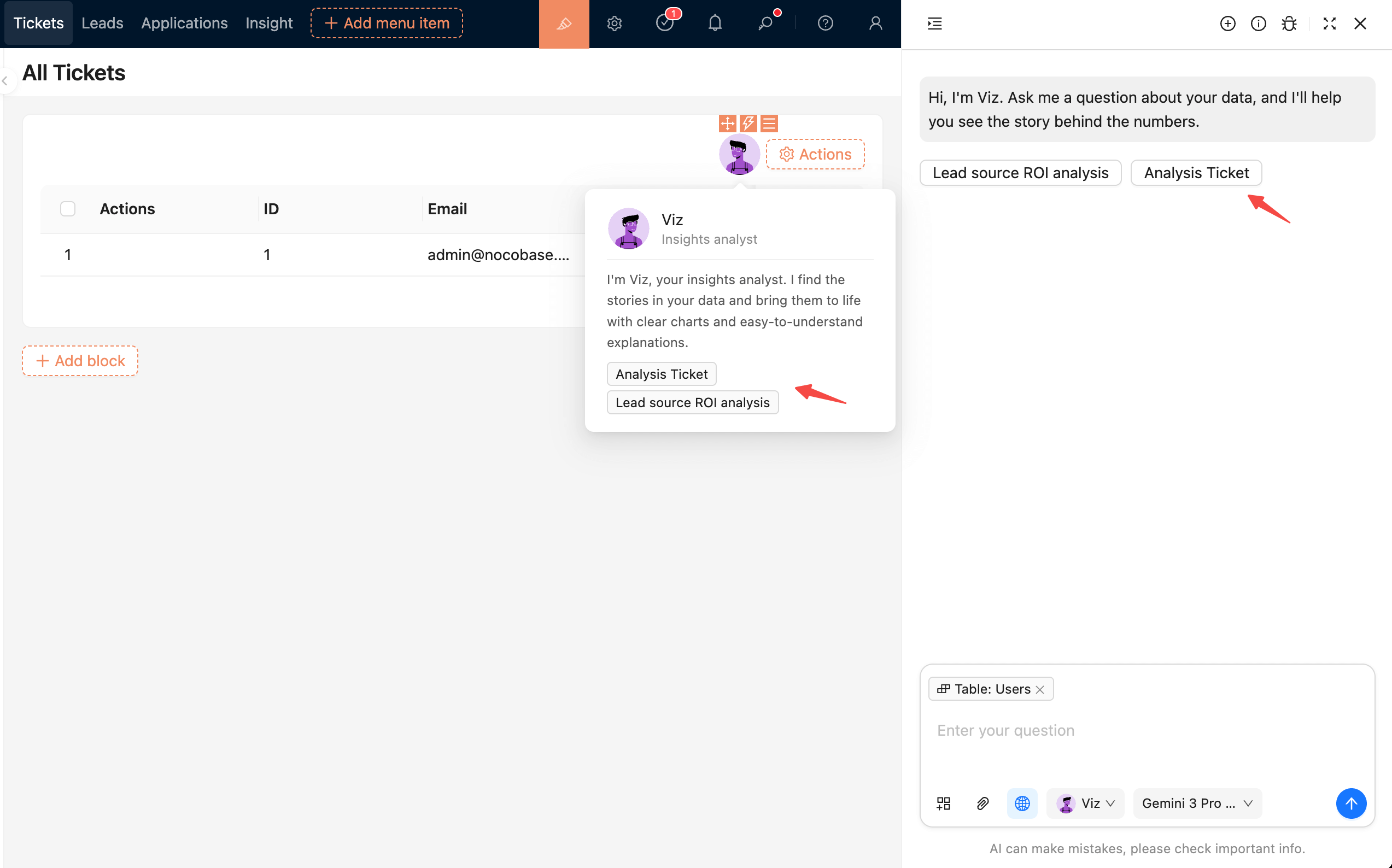
After tasks are configured, they appear in the AI Employee profile popover and in the greeting message before the conversation starts. Click to run a task.