

Legacy CRM (v1)
Preview Only: This version is relatively complete in terms of features, but the overall data structure design is suboptimal, lacks multi-language localization support, and has coupling between CRM collections and project management collections. These issues led to the redesign of CRM 2.0. It is currently recommended to use CRM 2.0, which features a more rational data structure, is easier to extend and modify, and has completed multi-language localization.
Interface Preview
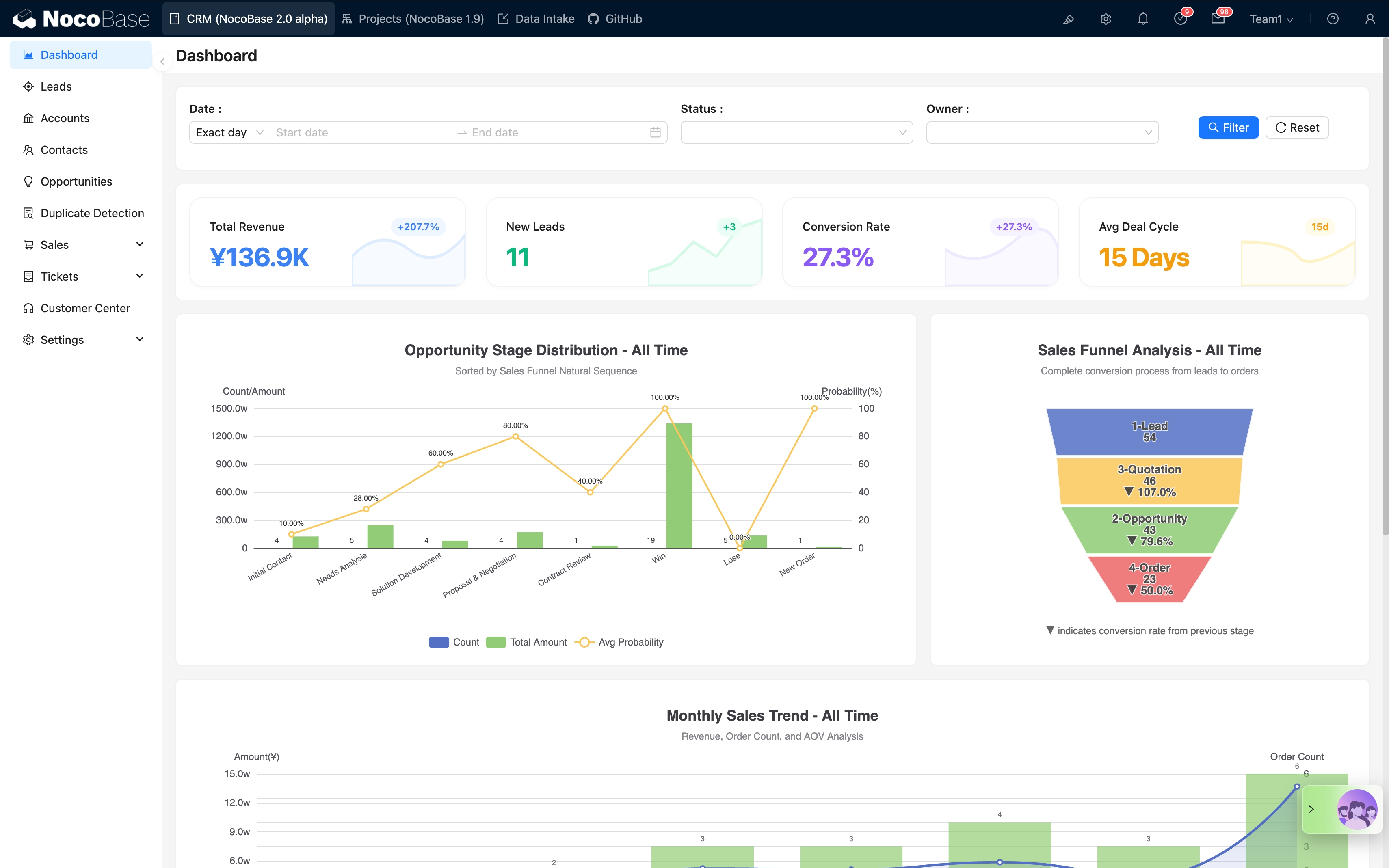
Version Features
The legacy CRM includes the following functional modules:
- Customer Management: Customer information, contacts, and customer grading.
- Sales Pipeline: Lead management, opportunity tracking, and sales funnel.
- Order Management: Quotations, orders, and contracts.
- Project Management (Not yet included in the v2 version).
- Communication & Collaboration: Email communication, comments, and approval workflows.
- Data Analysis: Dashboards, reports, and data visualization.
How to Install
The current version is deployed via backup and restoration.
The Backup Manager plugin is now open-source: The "Backup Manager" plugin needed to restore the solution is now open-source and available to all editions (including the Community Edition). We recommend restoring directly via this plugin.
Before you begin, please ensure:
- You have a basic NocoBase runtime environment. For main system installation, please refer to the detailed Official Installation Documentation.
- NocoBase version v2.1.0-beta.2 or higher.
- You have downloaded the CRM v1 backup file: nocobase_crm_v1_backup_260224.nbdata
Important Notes:
- This solution is based on the PostgreSQL 16 database. Please ensure your environment uses PostgreSQL 16.
- DB_UNDERSCORED must not be true: Please check your
docker-compose.ymlfile and ensure theDB_UNDERSCOREDenvironment variable is not set totrue. Otherwise, it will conflict with the backup and cause restoration to fail.
Restore using Backup Manager
This method uses the built-in "Backup Manager" plugin for one-click restoration, which is the simplest approach. This plugin is now open-source and available to all editions (including the Community Edition).
Steps
Step 1: Enable the "Backup Manager" plugin
- Log in to your NocoBase system.
- Go to Plugin Manager.
- Find and enable the Backup Manager plugin.
Step 2: Restore from local backup file
- After enabling the plugin, refresh the page.
- Go to System Administration -> Backup Manager in the left menu.
- Click the Restore from local backup button in the top right corner.
- Drag and drop the downloaded backup file into the upload area.
- Click Submit and wait for the system to complete the restoration.
Notes
- Database Compatibility: Your PostgreSQL version, character set, and case sensitivity settings must match the backup source file.
- Commercial Plugin Compatibility: Please ensure you have obtained and enabled the commercial plugins required for this solution.