Built-in AI Employees
NocoBase provides several built-in AI Employees for specific scenarios.
You just need to configure the Model for them to start working.
Introduction
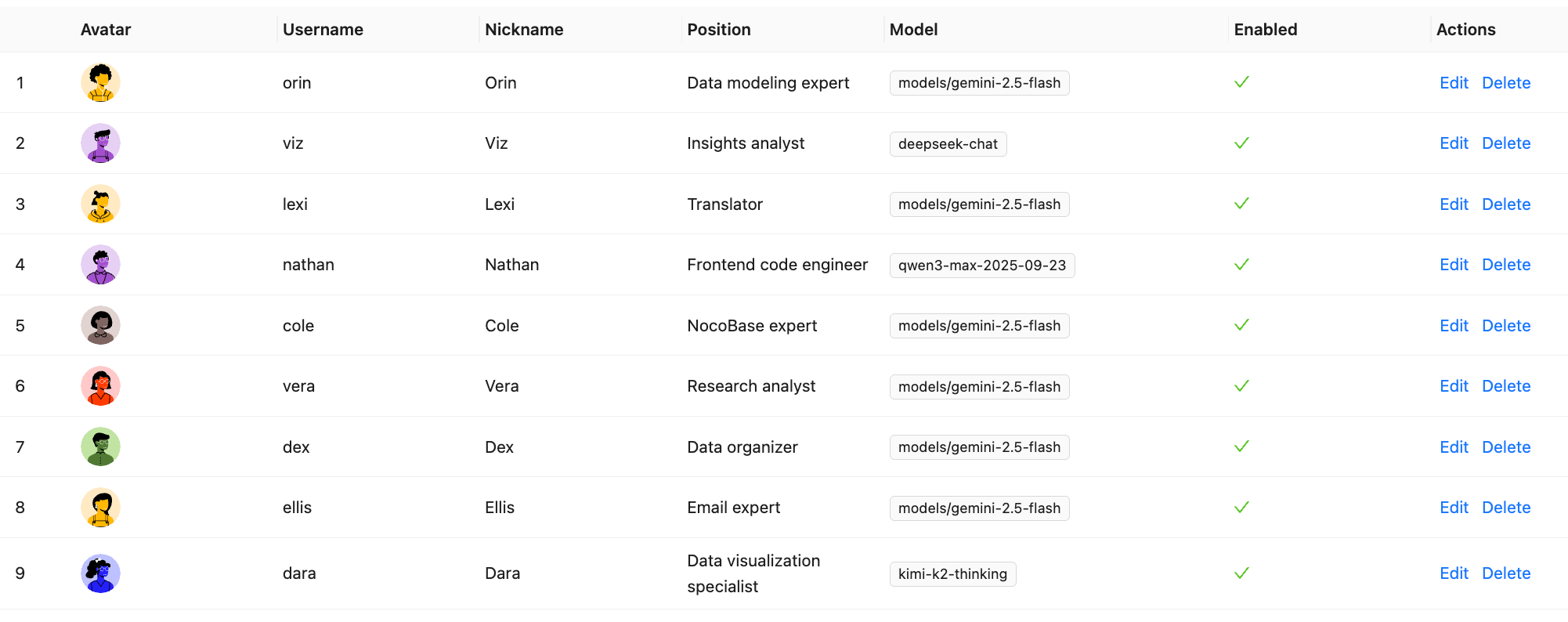
| Employee Name | Role Positioning | Core Capabilities |
|---|---|---|
| Cole | NocoBase Assistant | Product usage Q&A, document retrieval |
| Ellis | Email Expert | Email writing, summary generation, reply suggestions |
| Dex | Data Organizer | Field translation, formatting, information extraction |
| Viz | Insight Analyst | Data insight, trend analysis, key indicator interpretation |
| Lexi | Translation Assistant | Multilingual translation, communication assistance |
| Vera | Research Analyst | Web search, information aggregation, in-depth research |
| Dara | Data Visualization Expert | Chart configuration, visual report generation |
| Orin | Data Modeling Expert | Assist in designing data table structures, field suggestions |
| Nathan | Frontend Engineer | Assist in writing frontend code snippets, style adjustments |
You can click the AI Floating Ball in the bottom right corner of the application interface, select the employee you want, and start collaborating.
Scenario-Specific AI Employees
Some built-in AI Employees (Builder type) will not appear in the AI Employee list in the bottom right corner. They have exclusive work scenarios, for example:
- Orin will only appear on the data source configuration page;
- Dara will only appear on the chart configuration page;
- Nathan will only appear on the JS Editor.
Below are a few typical application scenarios for AI Employees, hoping to provide you with inspiration. We look forward to you exploring more potential in actual business.
Viz: Insight Analyst
Introduction
Generate charts and insights with one click, letting data speak for itself.
Viz is the built-in AI Insight Analyst. He knows how to read data from your current page (such as Leads, Opportunities, Accounts), automatically generating trend charts, comparison charts, KPI cards, and concise conclusions, making business analysis easy and intuitive.
Want to know "Why have sales dropped recently"? Just say a sentence to Viz, and he can tell you which link dropped, what the possible reasons are, and what to do next.
Use Cases
Whether it's monthly business inventory, channel ROI, or sales funnel, you can let Viz analyze, generate charts, and interpret results.
| Scenario | What you want to know | Viz's Output |
|---|---|---|
| Monthly Review | What is better this month compared to last month? | KPI card + Trend chart + Three improvement suggestions |
| Growth Breakdown | Is the revenue increase due to volume or price? | Factor decomposition chart + Comparison table |
| Channel Analysis | Which channel is most worth continuing to invest in? | ROI chart + Retention curve + Suggestions |
| Funnel Analysis | Where is the traffic stuck? | Funnel chart + Shortcoming explanation |
| Customer Retention | Which customers are most valuable? | RFM segmentation chart + Retention curve |
| Promotion Evaluation | How was the big promotion effect? | Comparison chart + Price elasticity analysis |
How to Use
Page Entry
-
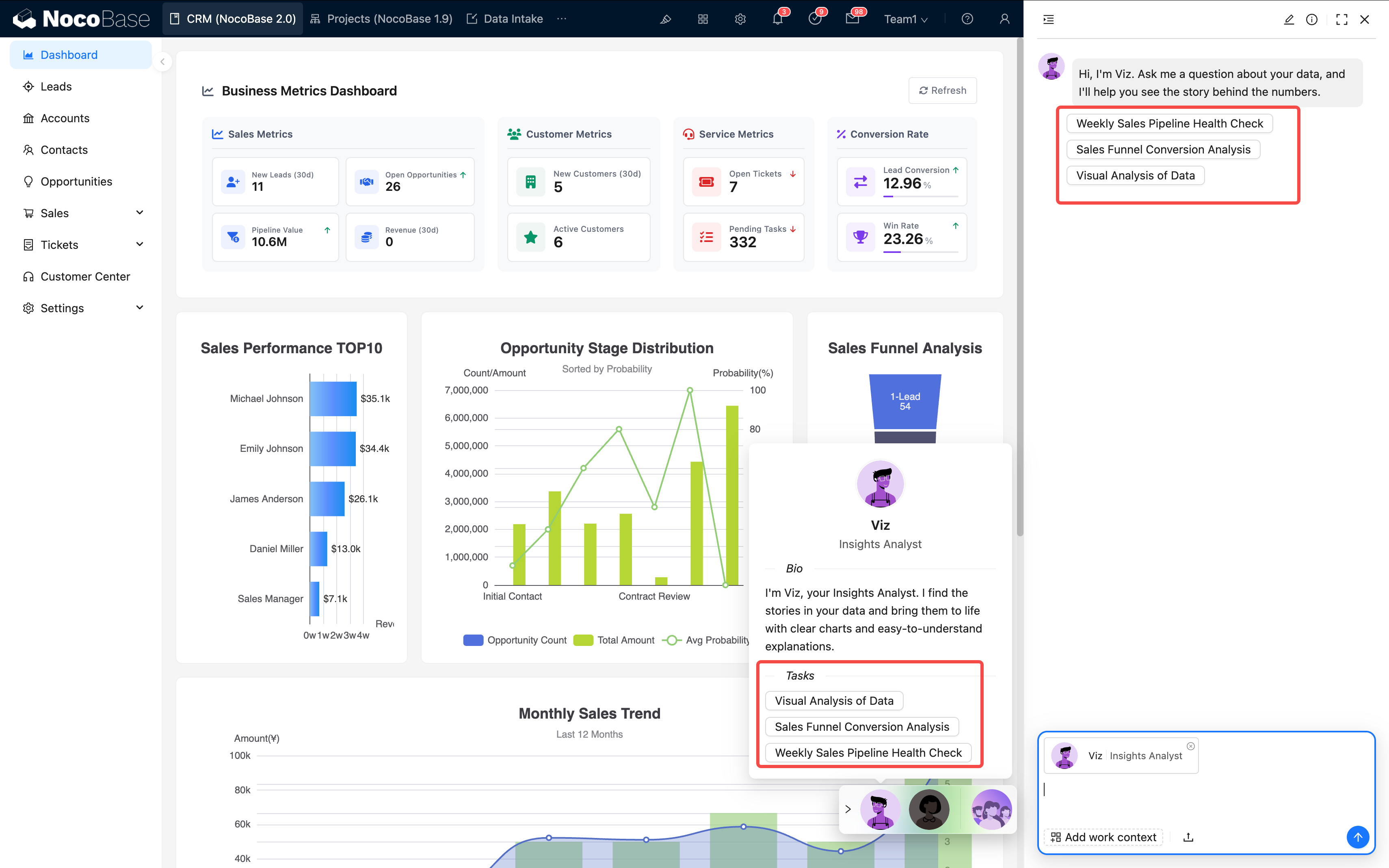
Top Right Button (Recommended) On pages like Leads, Opportunities, Accounts, etc., click the Viz Icon in the top right corner to select preset tasks, such as:
- Stage conversion and trends
- Source channel comparison
- Monthly review analysis
-
Bottom Right Global Panel You can call out the global AI panel on any page and speak directly to Viz:
Viz will automatically bring in the data Context of your current page.
Interaction Mode
Viz supports natural language questioning and can also understand multi-round follow-ups. Example:
Each follow-up will delve deeper based on the previous analysis results, without needing to repeat data conditions.
Tips for Chatting with Viz
| Practice | Effect |
|---|---|
| Specify time range | "Last 30 days" "Last month vs This month" is more accurate |
| Specify dimension | "View by region/channel/product" helps align perspectives |
| Focus on trends not details | Viz is good at finding change directions and key reasons |
| Use natural language | No imperative syntax needed, just ask like chatting |
Dex: Data Organizer
Introduction
Quickly extract and fill forms, making messy information structured.
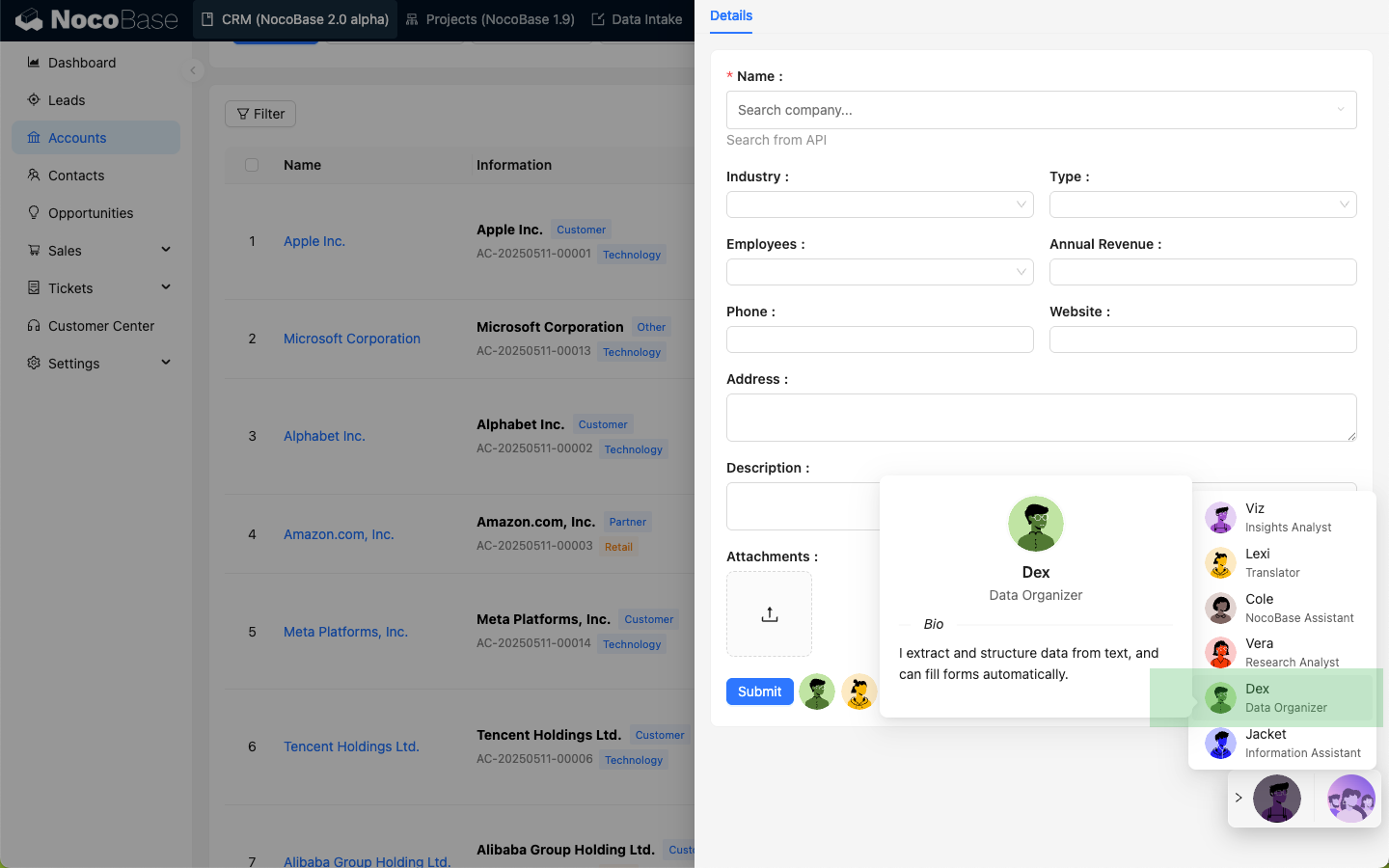
Dex is a Data Organizer expert who extracts required information from unstructured data or files into structured information and can call Tools to fill the information into forms.
How to Use
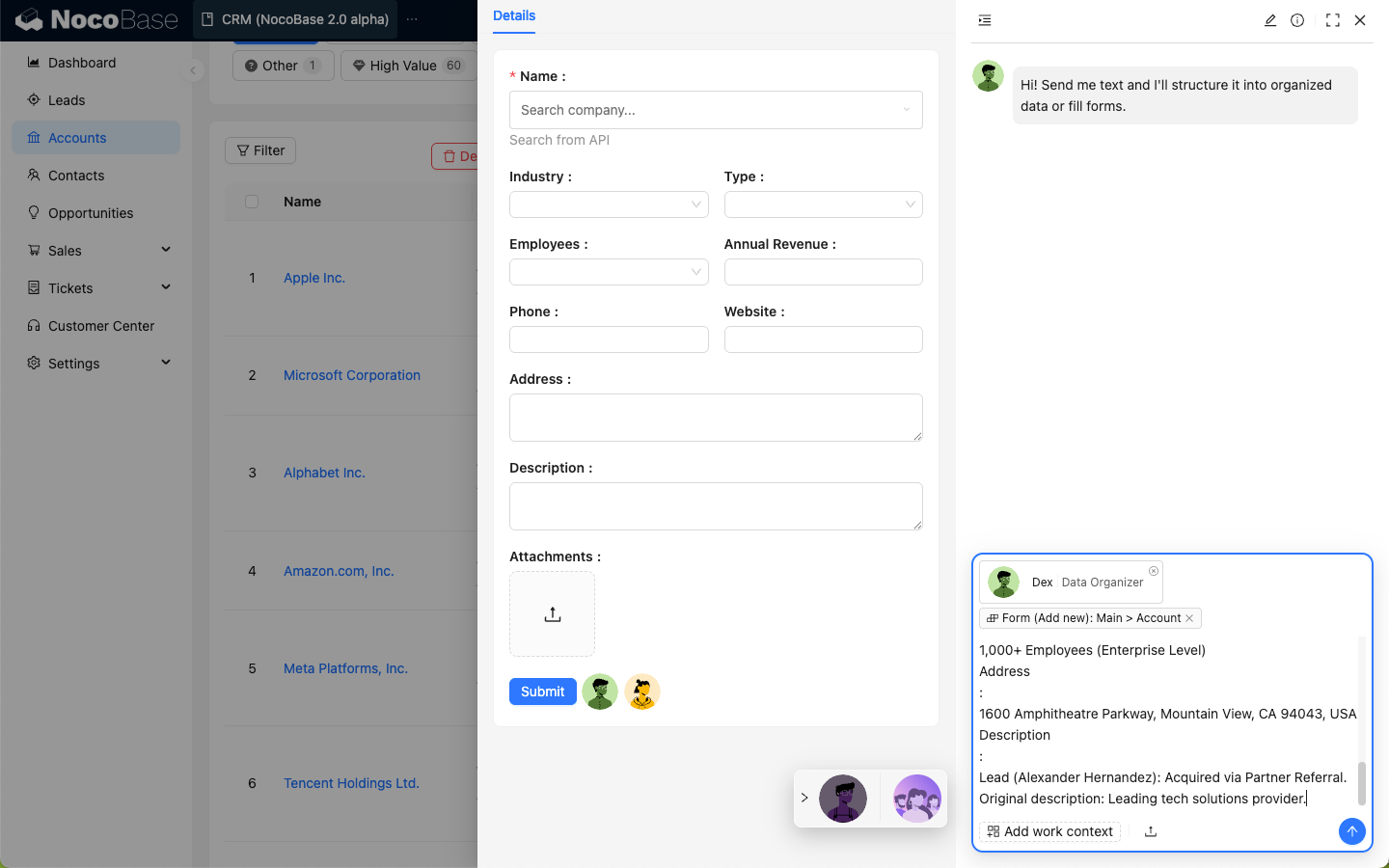
Summon Dex on the form page to open the chat window.
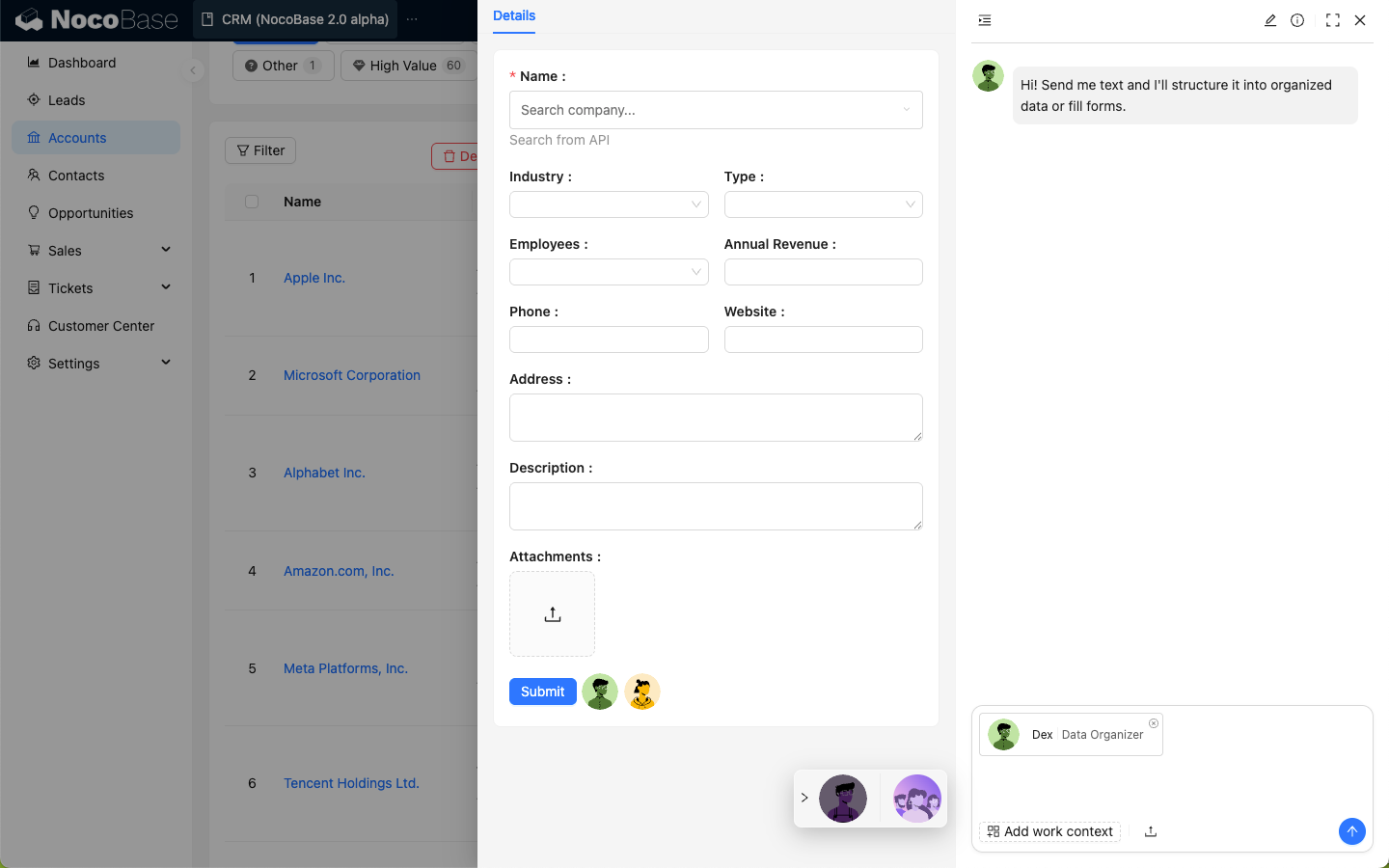
Click Add work context in the input box and select Pick Block. The page enters the Block selection state.
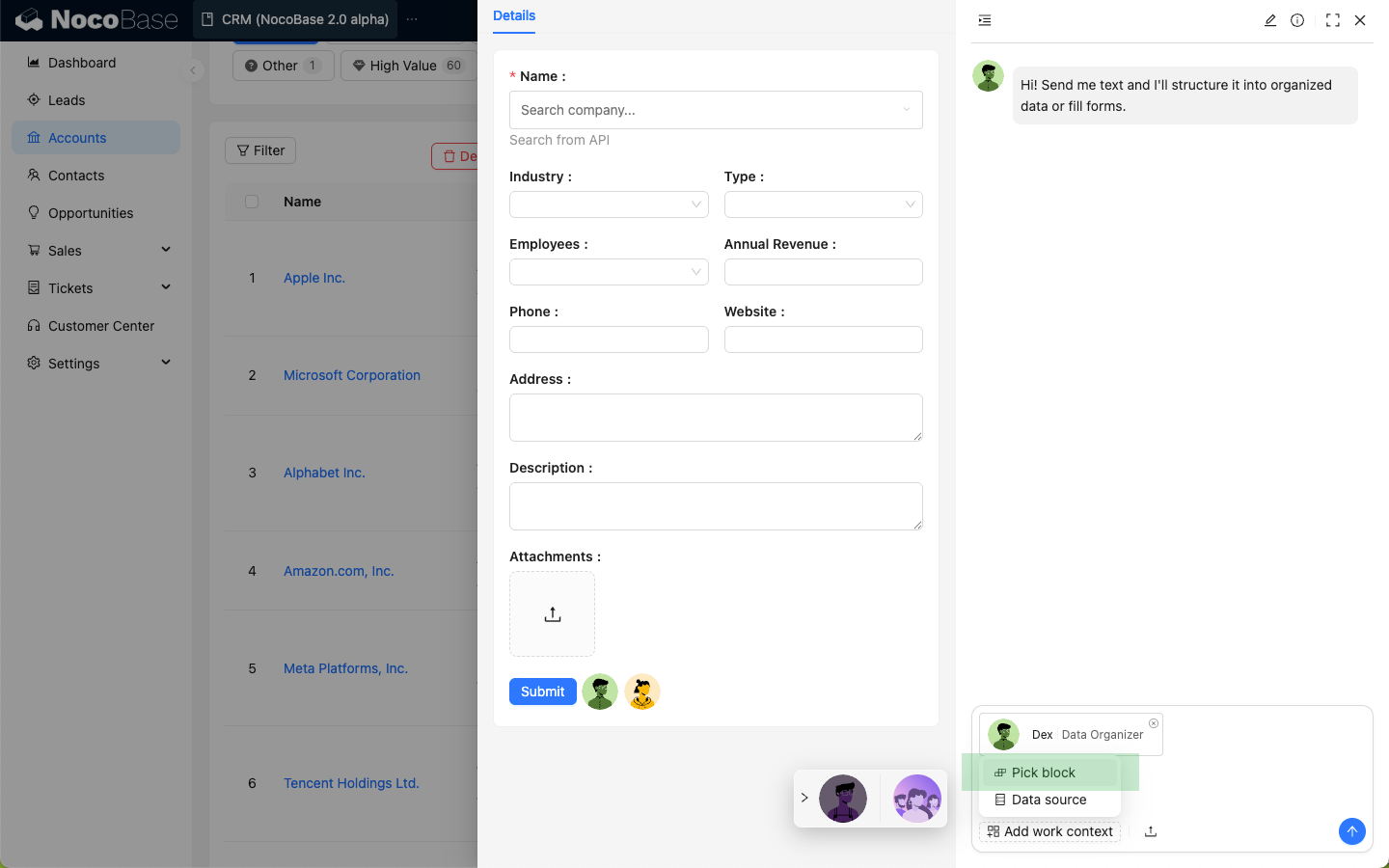
Select the Form Block on the page.
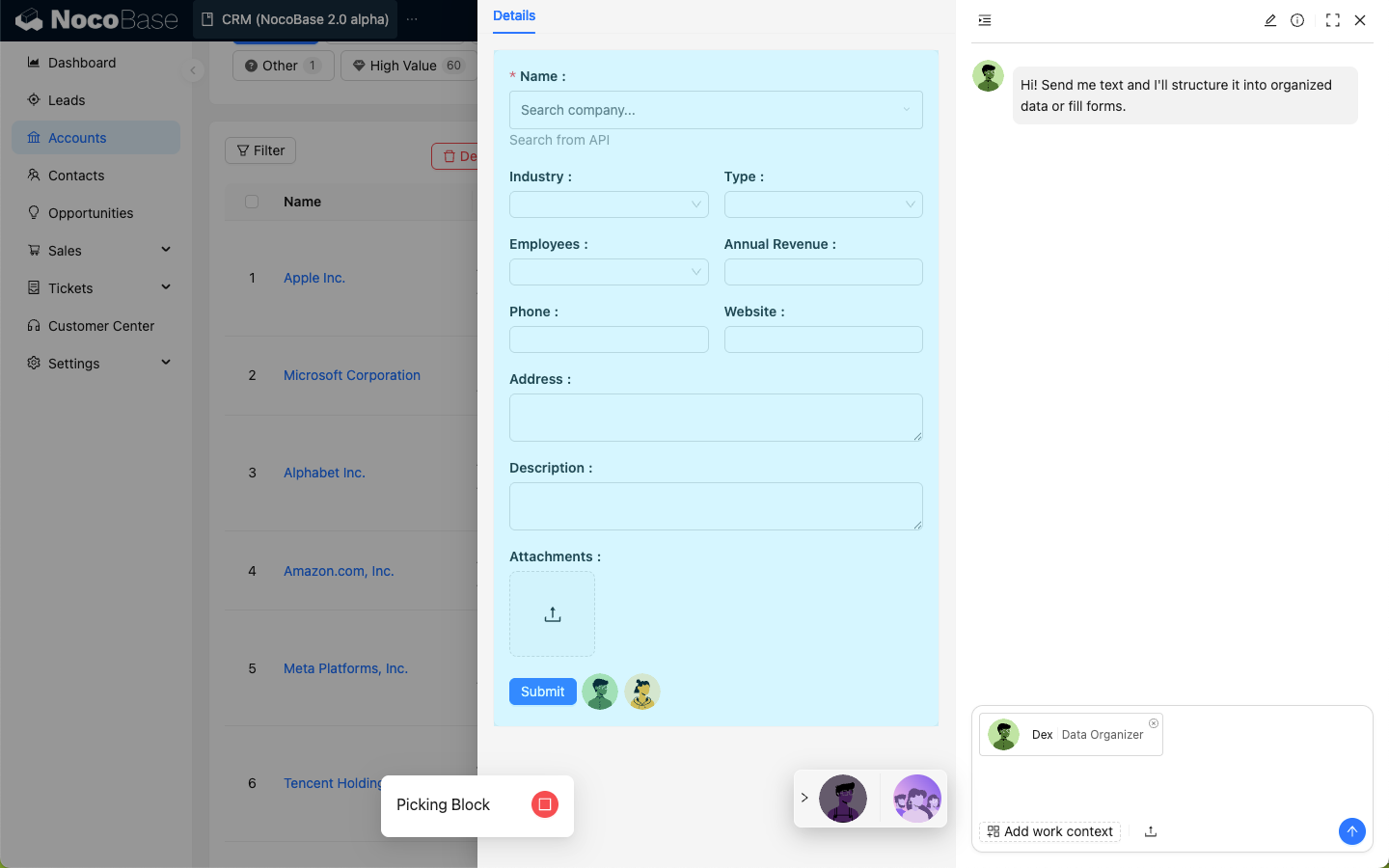
Enter the data to be organized by Dex in the Chatbox.
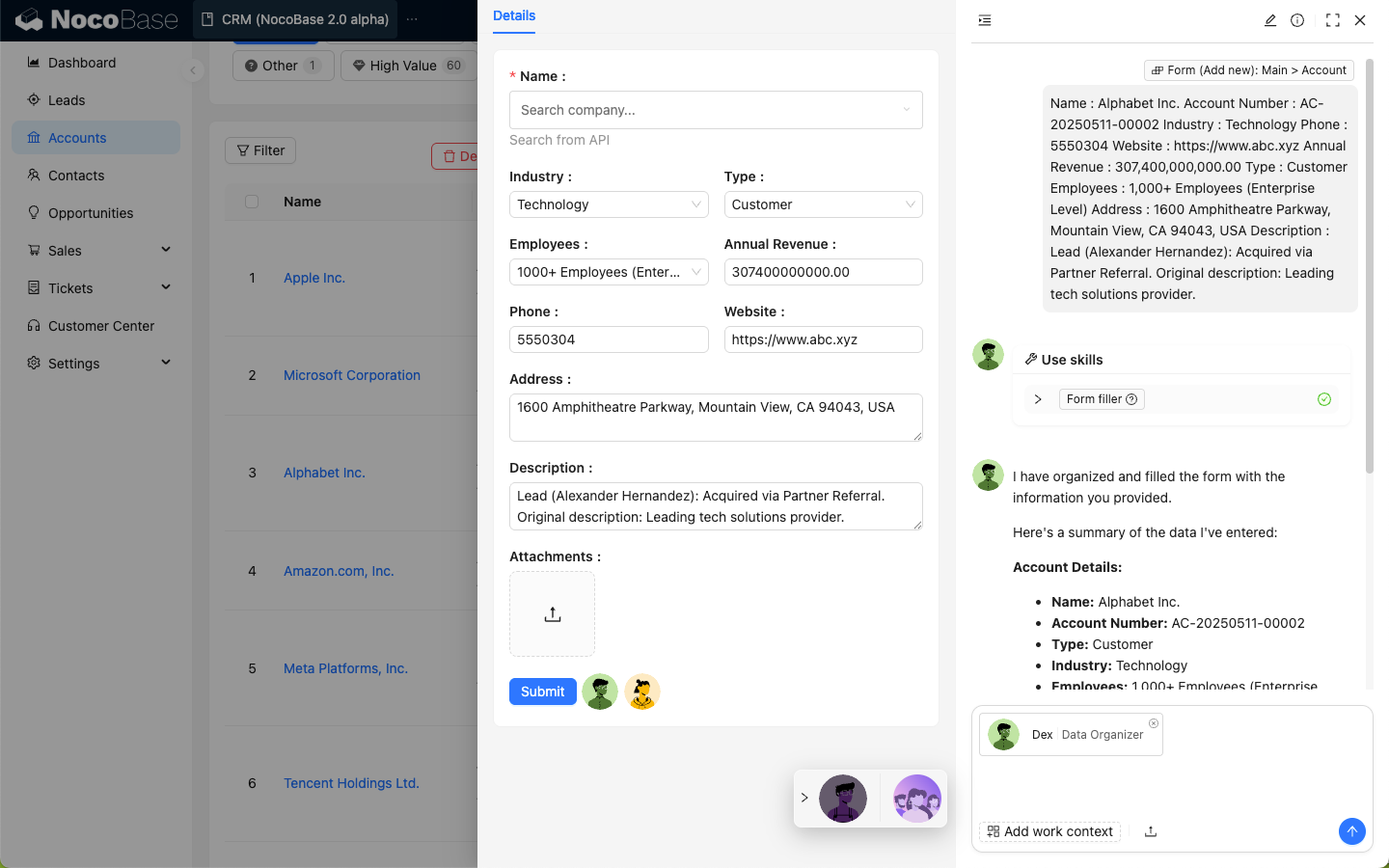
After sending, Dex will structure the data and use Skills to update the data into the selected form.
Orin: Data Modeling Expert
Introduction
Intelligently design data tables and optimize database structures.
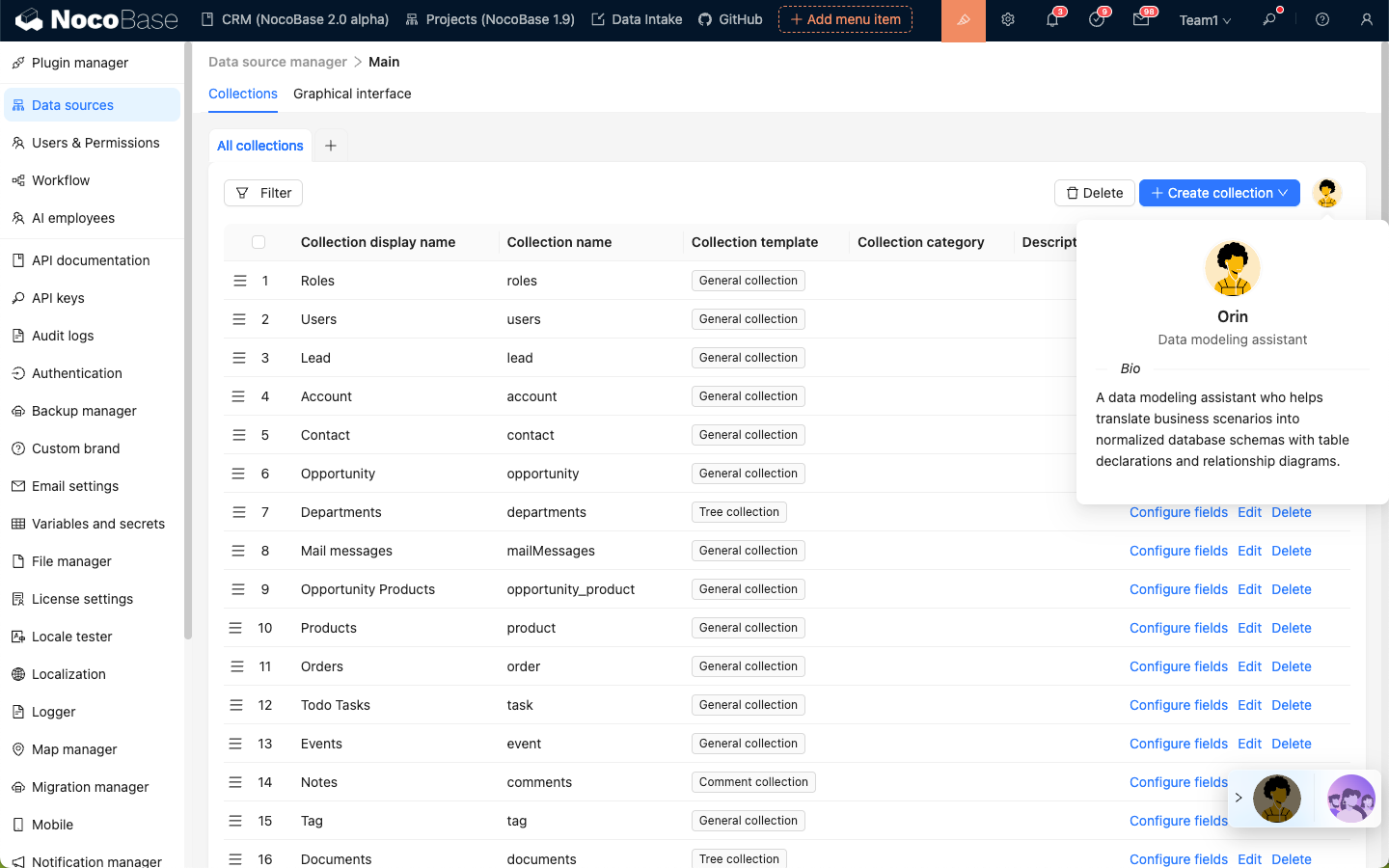
Orin is a data modeling expert. On the main data source configuration page, you can let Orin help you create or modify data tables.
How to Use
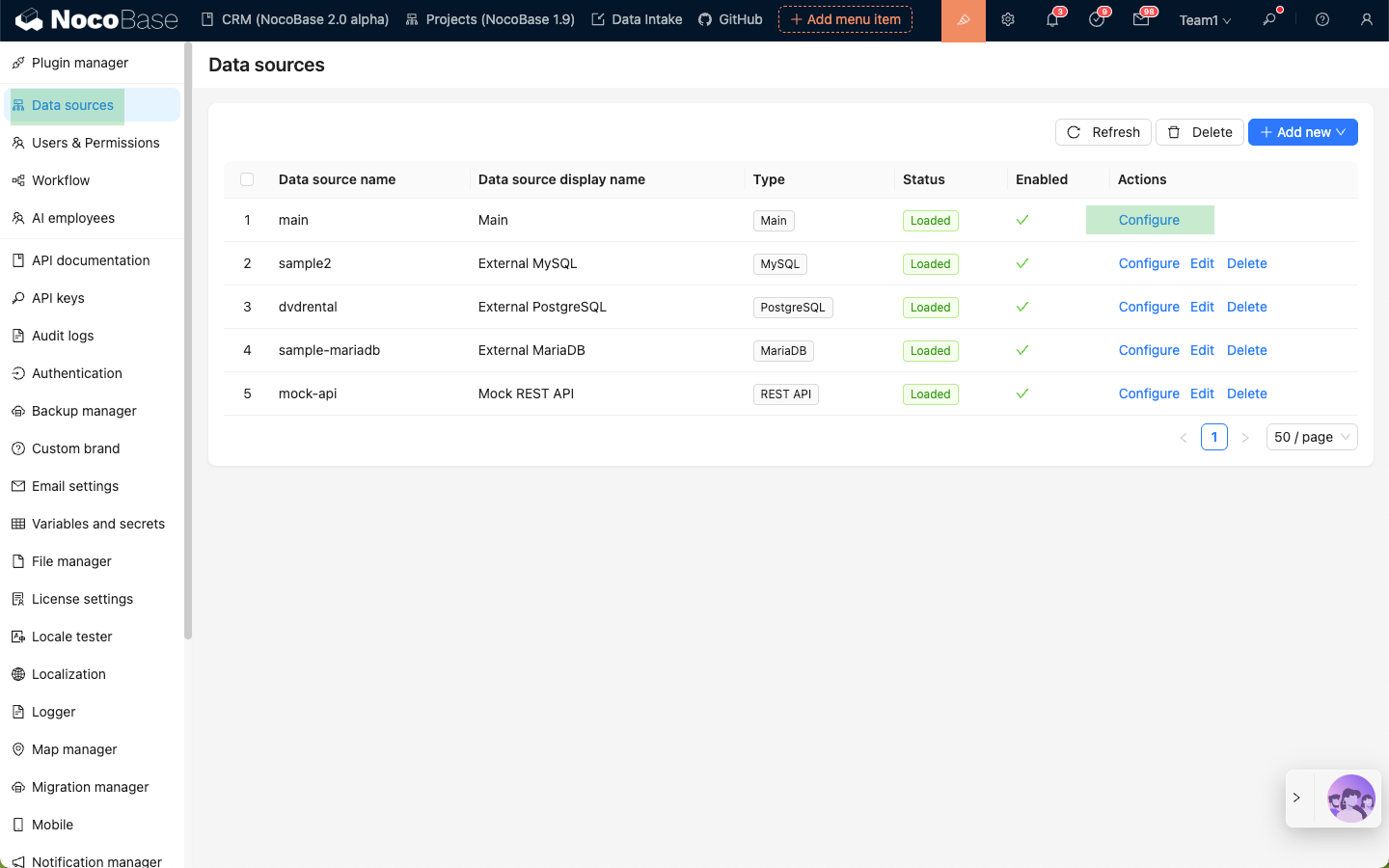
Enter the Data Source Manager plugin and select to configure the main data source.
Click the Orin Avatar in the top right corner to open the AI Employee Chatbox.
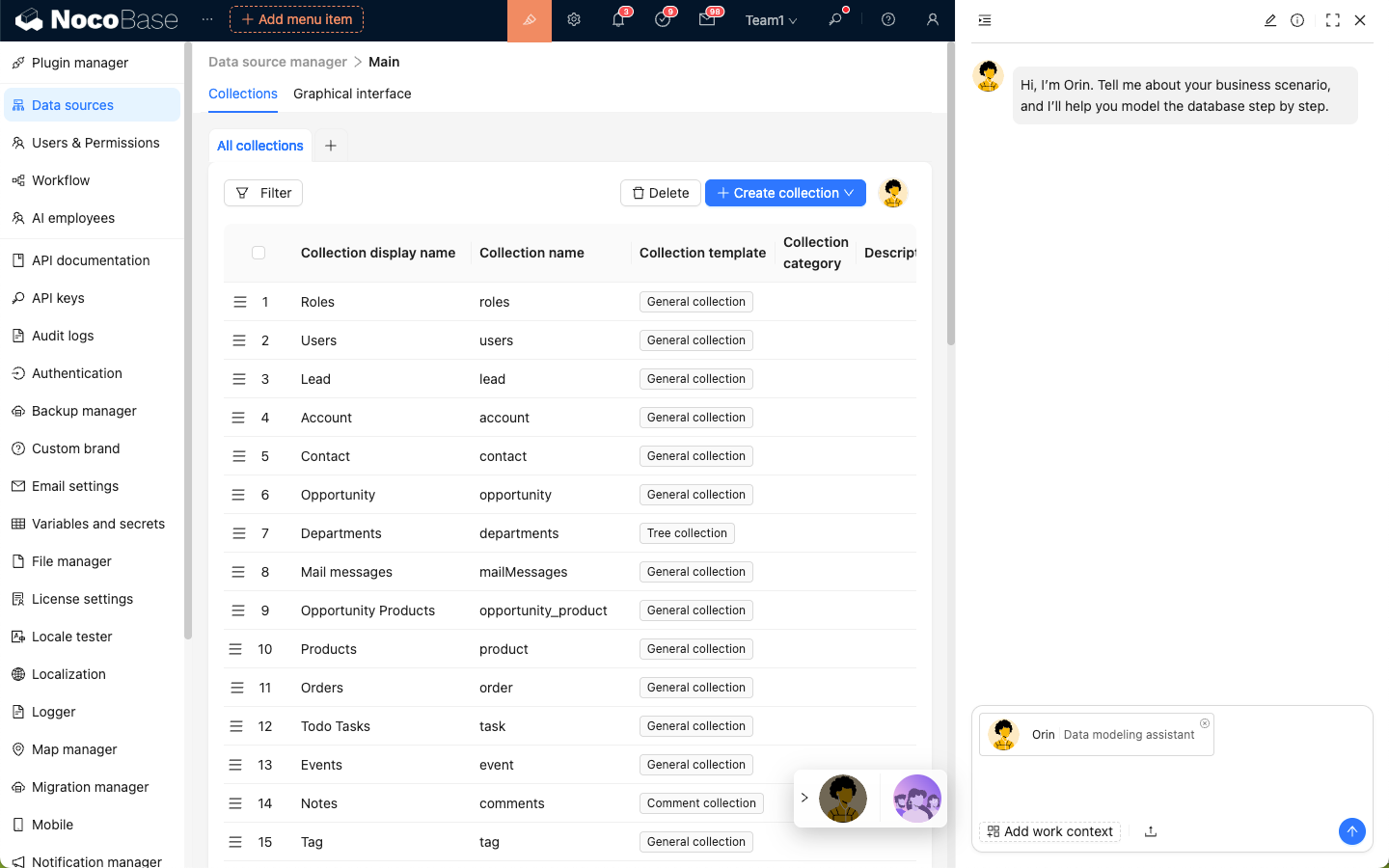
Describe your modeling needs to Orin, send it, and wait for a reply.
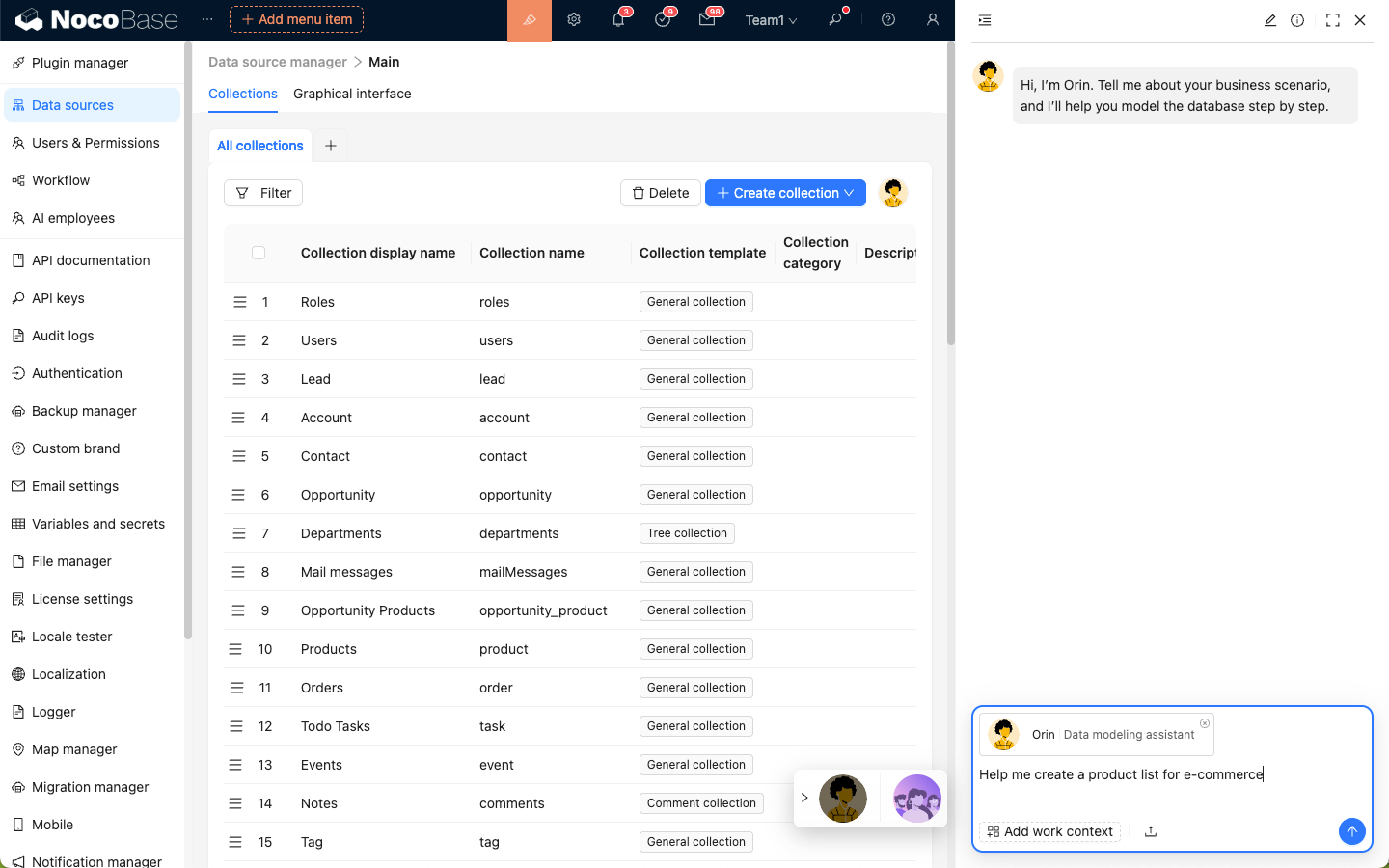
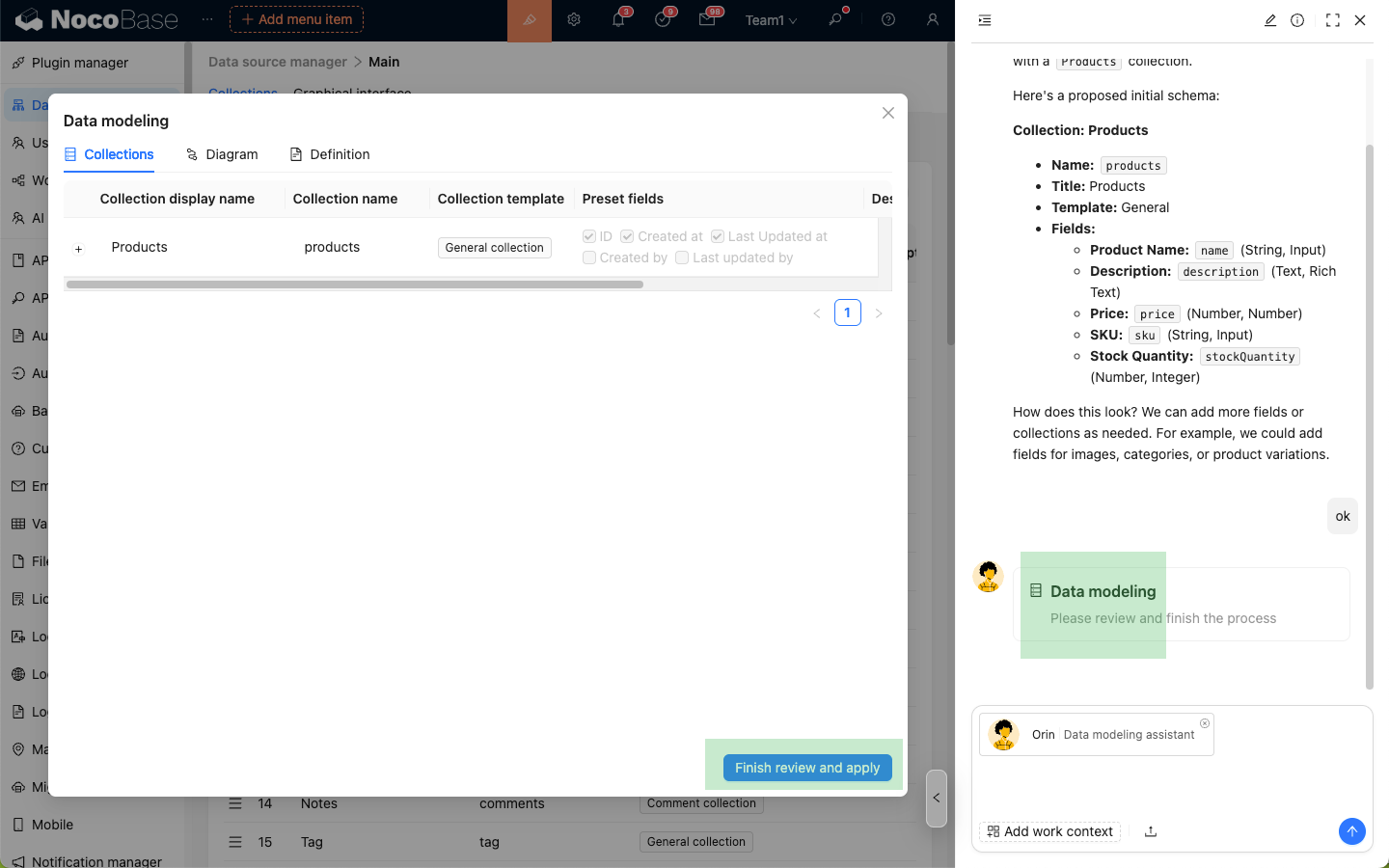
When Orin confirms your needs, he will use Skills and reply to you with a preview of the data modeling.
After reviewing the preview, click the Finish review and apply button to create data tables according to Orin's modeling.
Nathan: Frontend Engineer
Introduction
Help you write and optimize frontend code to achieve complex interaction logic.
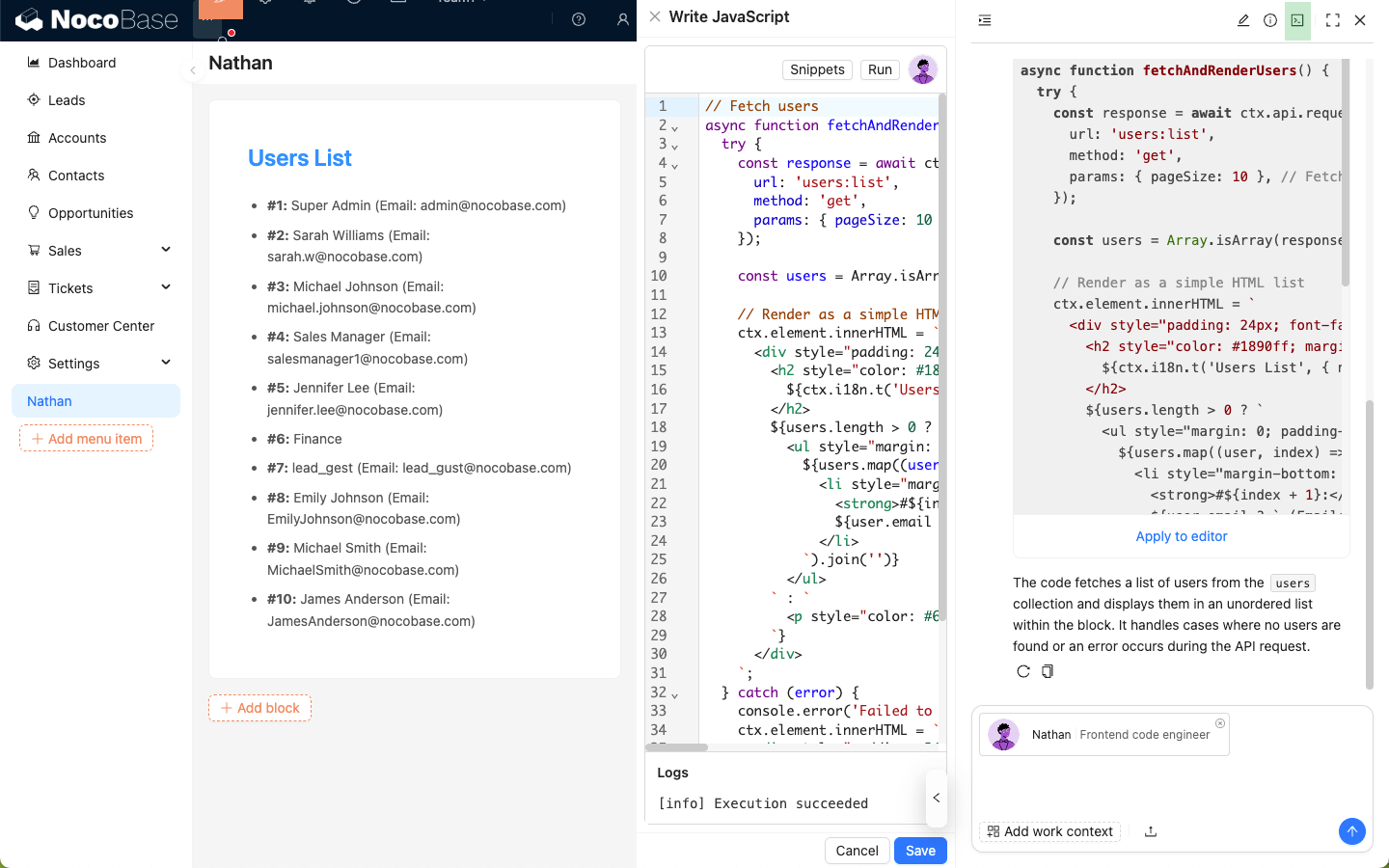
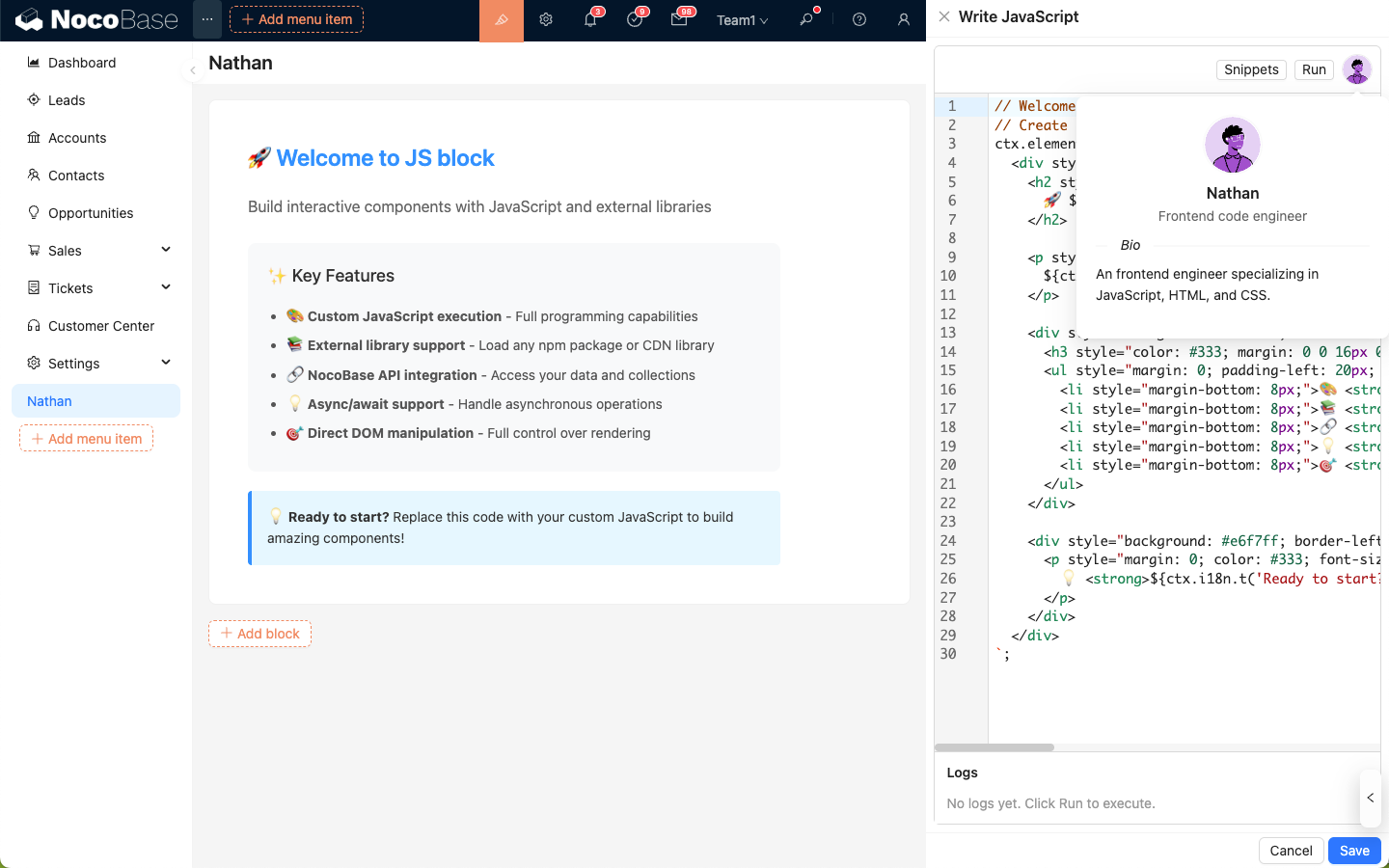
Nathan is a frontend development expert in NocoBase. In scenarios requiring JavaScript such as JSBlock, JSField, JSItem, JSColumn, JSAction, Event Flow, Linkage, etc., Nathan's Avatar will appear in the top right corner of the code editor. You can let him help you write or modify the code in the code editor.
How to Use
In the code editor, click Nathan to open the AI Employee Chatbox. The code in the code editor will be automatically attached to the input box as the application Context and sent to Nathan.
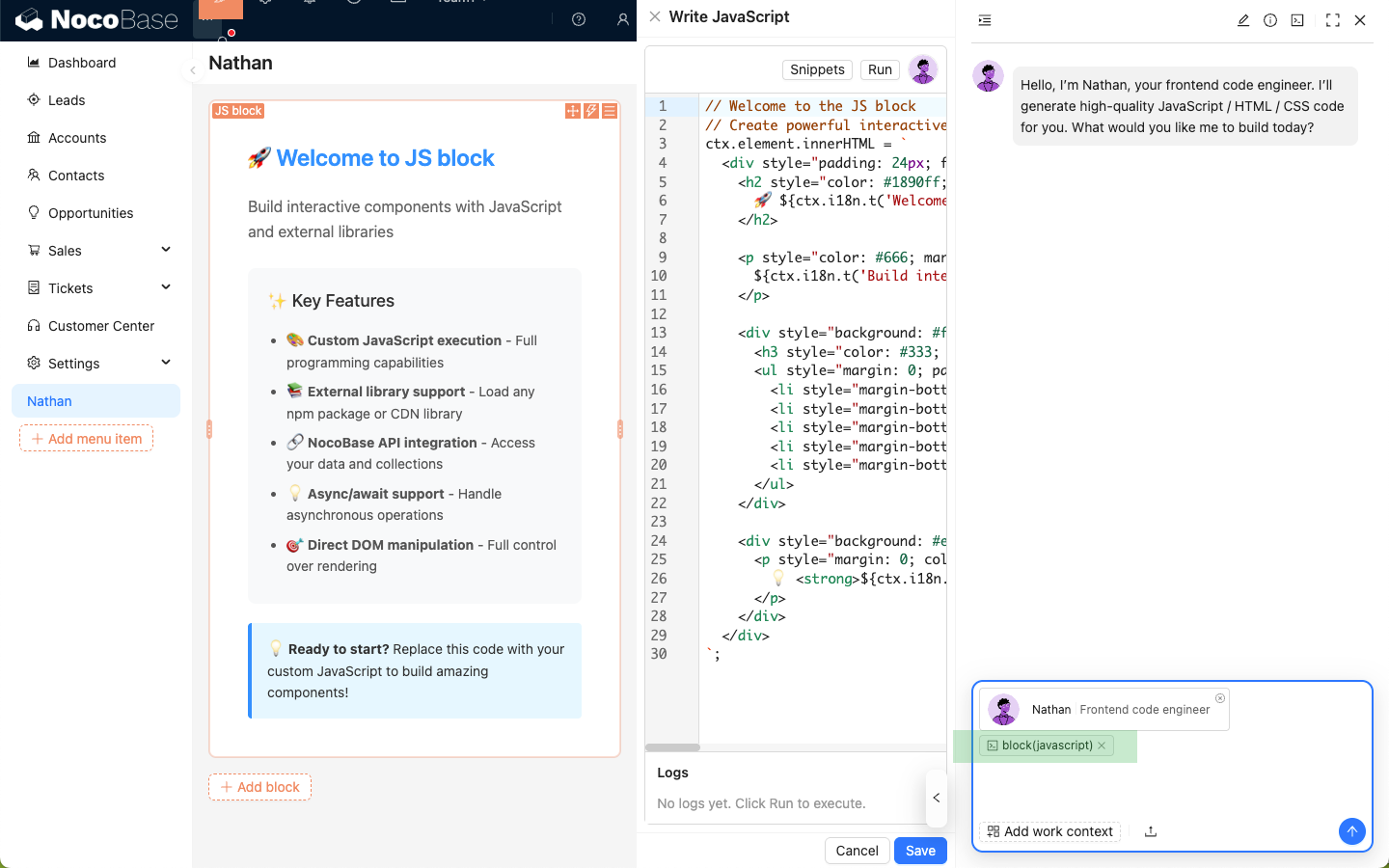
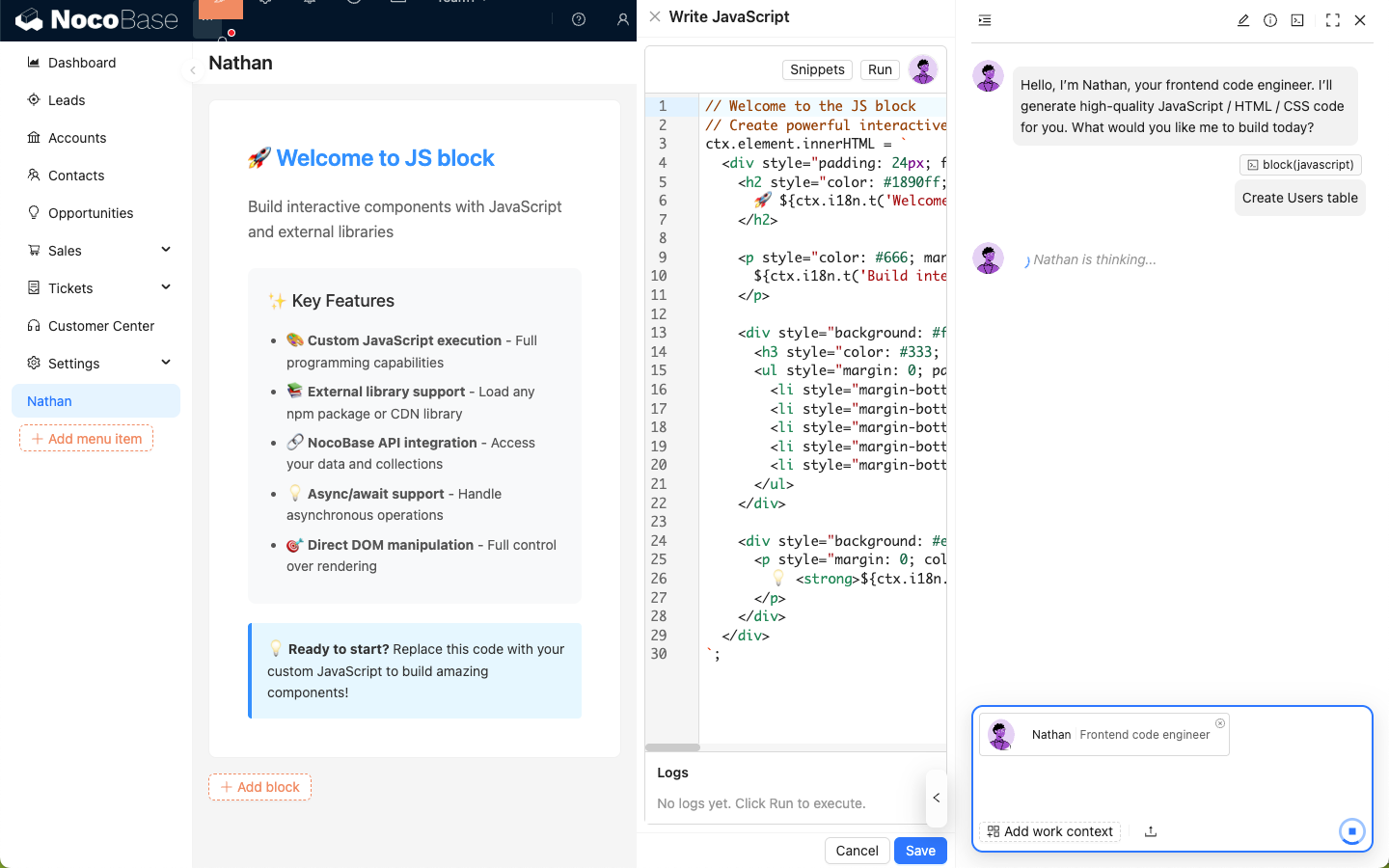
Enter your coding needs, send them to Nathan, and wait for his reply.
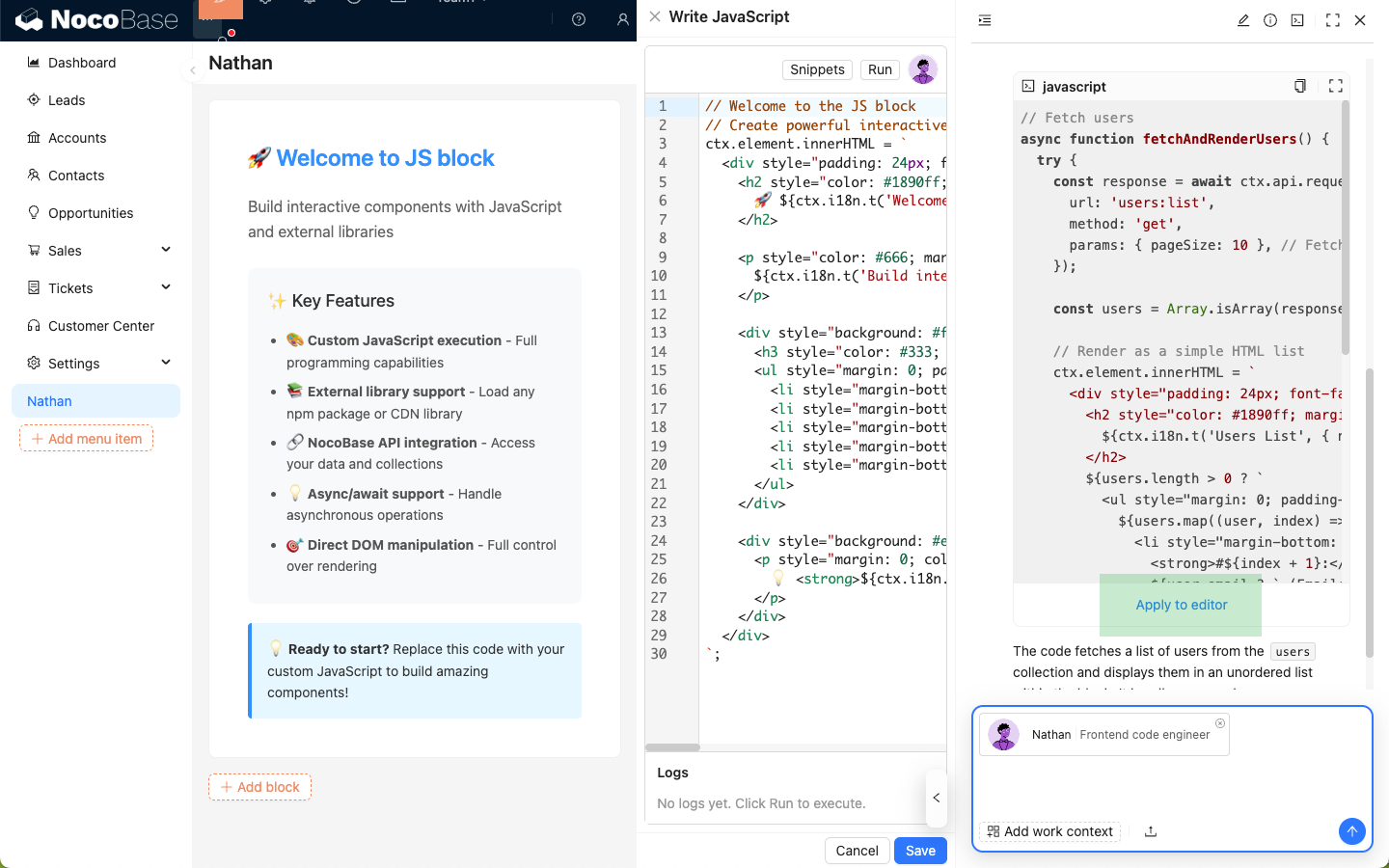
Click the Apply to editor button on the code block replied by Nathan to overwrite his code into the code editor.
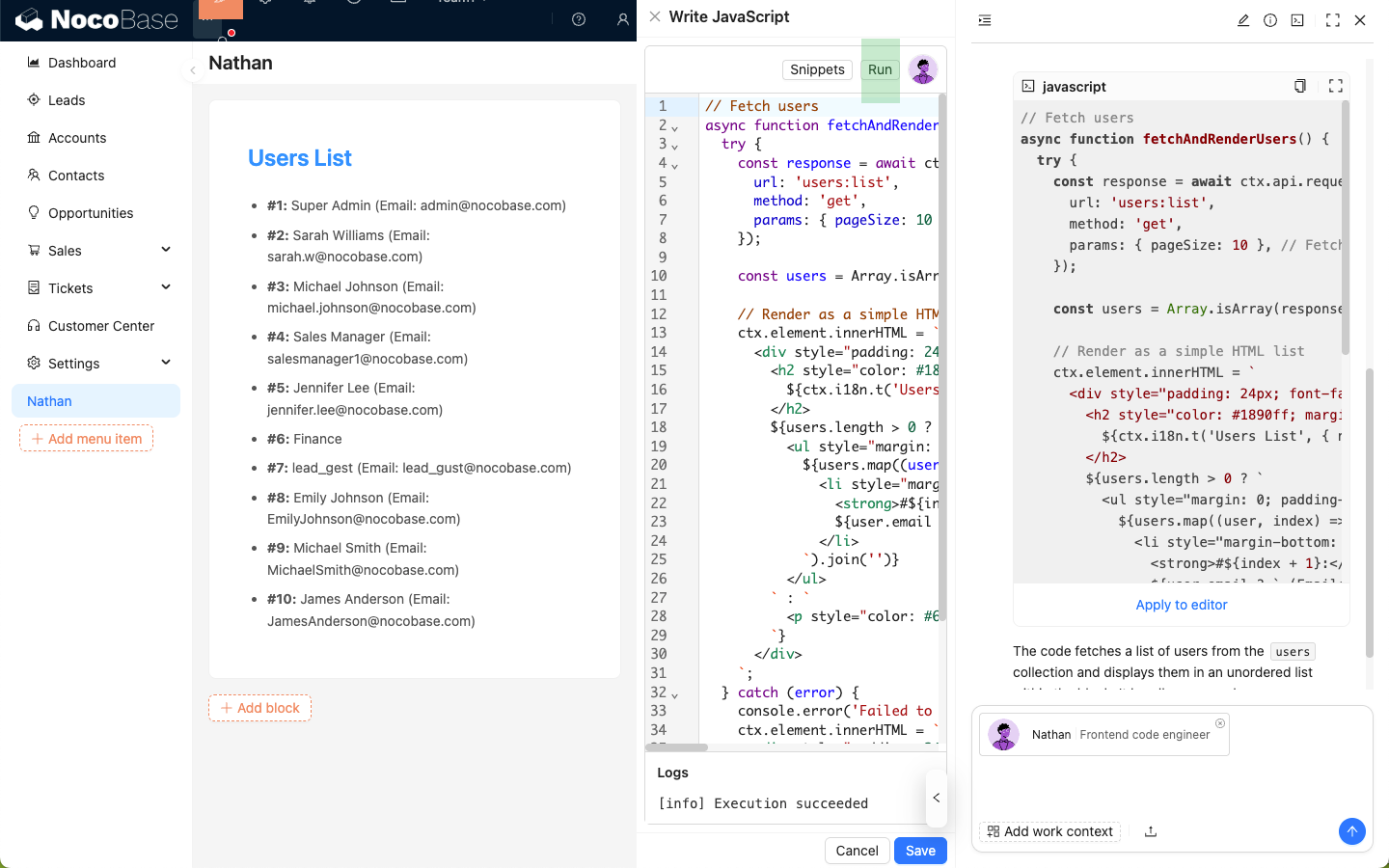
Click the Run button of the code editor to view the effect in real-time.
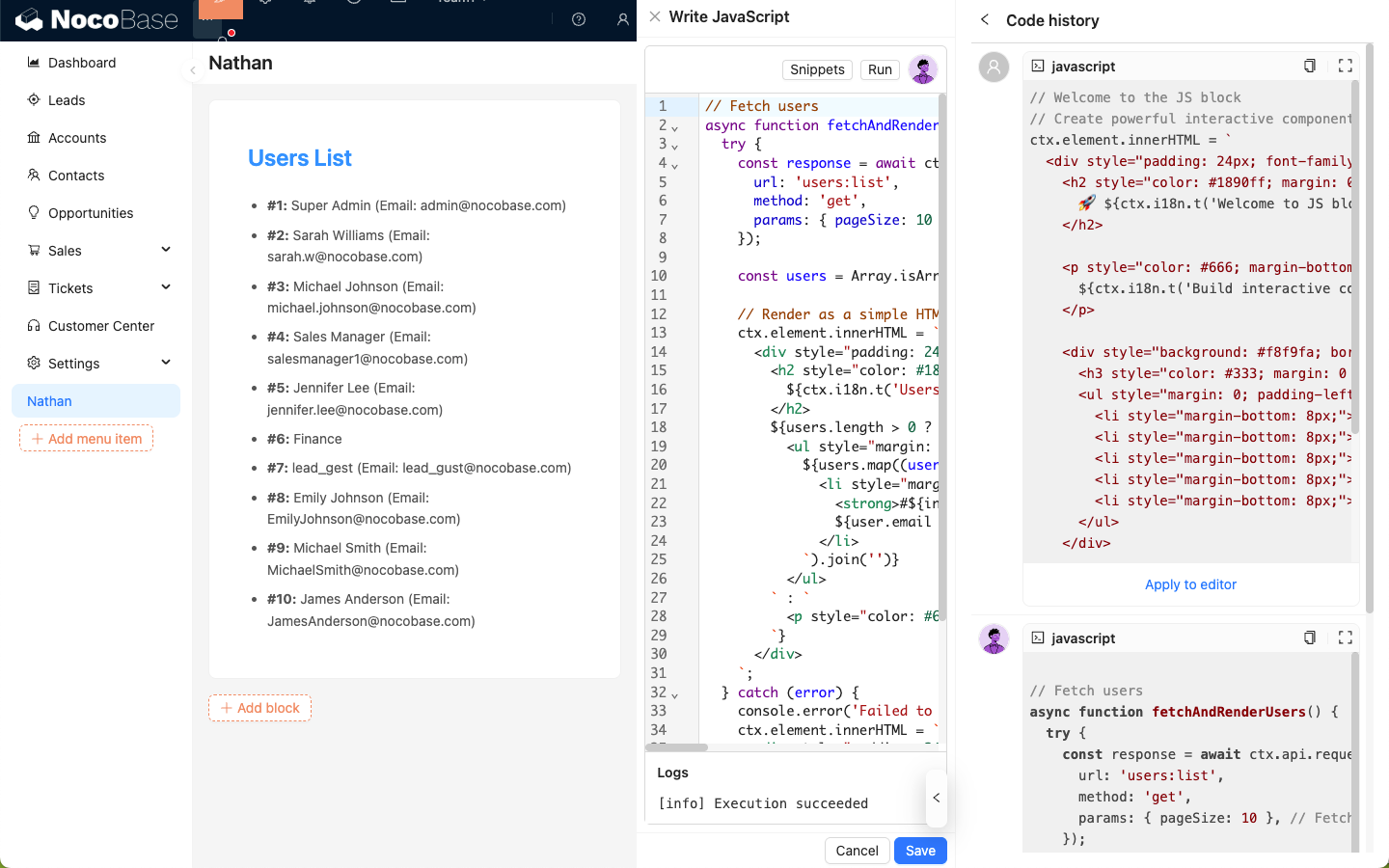
Code History
Click the 'command line' icon in the top right corner of Nathan's Chatbox to view the code snippets you sent and the code snippets replied by Nathan in the current session.