logologo
Get Started
Tutorials
Guide
Development
Plugins
API
Home
English
简体中文
日本語
한국어
Español
Português
Deutsch
Français
Русский
Italiano
Türkçe
Українська
Tiếng Việt
Bahasa Indonesia
ไทย
Polski
Nederlands
Čeština
العربية
עברית
हिन्दी
Svenska
Get Started
Tutorials
Guide
Development
Plugins
API
Home
logologo

V2 Tutorial (IT Ticket System)

Tutorial Overview
Chapter 1: Getting Started — Build a Working System in 5 Minutes
Chapter 2: Data Modeling — Two Tables for a Complete Ticket System
Chapter 3: Building Pages — From Blank to Functional
Chapter 4: Forms & Details — Input, Display, All in One
Chapter 5: Users & Permissions — Who Sees What
Chapter 6: Workflows — Let the System Do the Work
Chapter 7: Dashboard — The Big Picture at a Glance

V1 Tutorials (Legacy)

Task Management System Overview
Chapter 1: Getting Started
Chapter 2: Designing the System
Chapter 3: Task Data Management
Chapter 4: Task & Comment Plugins
Chapter 5: Tabs & Dynamic Blocks
Chapter 6: User & Permissions
Chapter 7: Workflow
Project Management Overview
Chapter 8: Knowledge Base - Tree Collection
Chapter 9: Task Dashboard & Charts
Chapter 10: Dashboard Filters & Conditions
Chapter 11: Subtasks & Work Hours
Chapter 12: Meeting Room Booking & Workflows
Implementing User Registration Review
Implementing CRM Lead Conversion
Markdown Blocks Tips and Tricks
CRM Sales Cloud Overview
Lead Follow-up & Status Management
CRM System (Sales Cloud)
Using API Keys to Retrieve Data
Markdown Template Variables
How to Deploy NocoBase Faster
CRM Sales Pipeline Visualization
CRM Demo Deployment Guide
Previous PageHow to Deploy NocoBase Faster
Next PageCRM Demo Deployment Guide

#CRM Sales Pipeline Visualization

#1. Introduction

#1.1 Preface

This chapter is the second part of the How to Implement CRM Lead Conversion in NocoBase tutorial series. In the previous chapter, we covered the fundamentals of lead conversion, including creating the necessary collections, configuring data management pages, and implementing the conversion of leads to companies, contacts, and opportunities. This chapter will focus on implementing the lead follow-up process and status management.

🎉 NocoBase CRM Solution is Now Live — Ready for You to Explore

#1.2 Chapter Objective

In this chapter, we will learn how to implement CRM lead conversion in NocoBase. Through lead follow-up and status management, you can boost operational efficiency and achieve more refined sales process control.

#1.3 Preview of the Final Outcome

In the previous chapter, we explained how to associate data between leads and the Company, Contact, and Opportunity collections. Now, we focus on the Lead module, primarily discussing how to perform lead follow-up and status management. Please watch the following demo:

#2. Structure of the Lead Collection

#2.1 Introduction to the Lead Collection

In the lead follow-up functionality, the "status" field plays a crucial role. It not only reflects the current progress of the lead (e.g., Unqualified, New, Working, Nurturing, In Transaction, Completed) but also drives the dynamic display and changes of the form. The following table block shows the field structure of the Lead collection along with its detailed description:

Field nameDisplay NameField InterfaceDescription
idIdIntegerPrimary key
account_idaccount_idIntegerForeign key of the ACCOUNT collection
contact_idcontact_idIntegerForeign key of the CONTACT collection
opportunity_idopportunity_idIntegerForeign key of the OPPORTUNITY collection
nameLead NameSingle line textName of the prospective customer
companyCompany NameSingle line textName of the prospective customer's company
emailEmailEmailEmail address of the prospective customer
phoneContact NumberPhoneContact number
statusStatusSingle selectCurrent lead status (Unqualified, New, Working, Nurturing, In Transaction, Completed)
AccountCompanyMany to oneLinked to the Company collection
ContactContactMany to oneLinked to the Contact collection
OpportunityOpportunityMany to oneLinked to the Opportunity collection

#3. Creating the Leads Table Block and Detail Block

#3.1 Instructions for Creation

First, we need to create a "Leads" table block to display the necessary fields. At the same time, configure a detail block on the right side of the page so that when you click on a record, the corresponding details are automatically displayed. Please refer to the demo below:

#4. Configuring Action Buttons

#4.1 Overall Description of the Buttons

To meet various operational needs, we need to create a total of 10 buttons. Each button will display differently (hidden, active, or disabled) based on the record's status, guiding the user through the correct business process. 20250311083825

#4.2 Detailed Configuration for Each Function Button

ButtonStyleActionLinkage Rule
Edit ButtonEdit operation—Automatically disabled when the record's status is "Completed" to prevent unnecessary editing.
Unqualified Button (Active)"Unqualified >"Updates the record's status to "Unqualified".Displayed by default; disabled when status is "Completed".
New Button (Inactive)Update data operation, "New >"Sets status to "New", shows "New" success notification.Hidden if record's status is not "Unqualified". (Should be active if record is already at "New" or later status)
New Button (Active)Update data operation, "New >"Updates the record's status to "New".Hidden when status is "Unqualified"; disabled when status is "Completed".
Working Button (Inactive)Update data operation, "Working >"Updates status to "Working", shows "Working" success notification.Hidden when record's status is not "Unqualified" or "New".
Working Button (Active)Update data operation, "Working >"Updates the record's status to "Working".Hidden when status is "Unqualified" or "New"; disabled when status is "Completed".
Nurturing Button (Inactive)Update data operation, "Nurturing >"Sets status to "Nurturing", shows "Nurturing" success notification.Hidden when record's status is not "Unqualified", "New", or "Working".
Nurturing Button (Active)Update data operation, "Nurturing >"Updates the record's status to "Nurturing".Hidden when status is "Unqualified", "New", or "Working"; disabled when status is "Completed".
Transfer ButtonEdit operation, "transfer", icon: "√"Opens conversion form, upon submission updates status to "Completed".Hidden when the record's status is "Completed" to prevent duplicate transfers.
Transferred Button (Active)View operation, "transferred", icon: "√"Only displays information after transfer completion, no editing functionality.Only displayed when the record's status is "Completed"; hidden for other statuses.
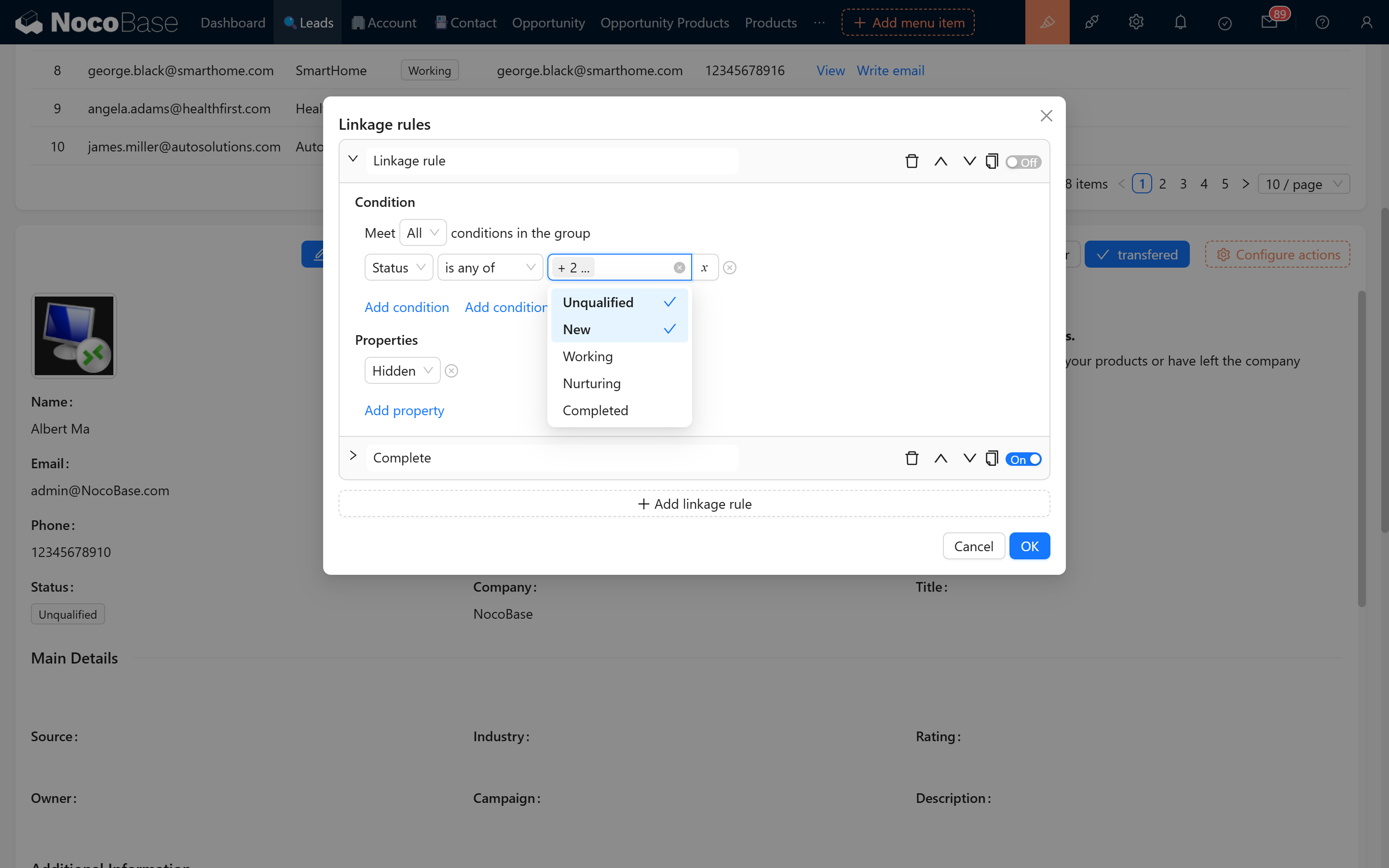
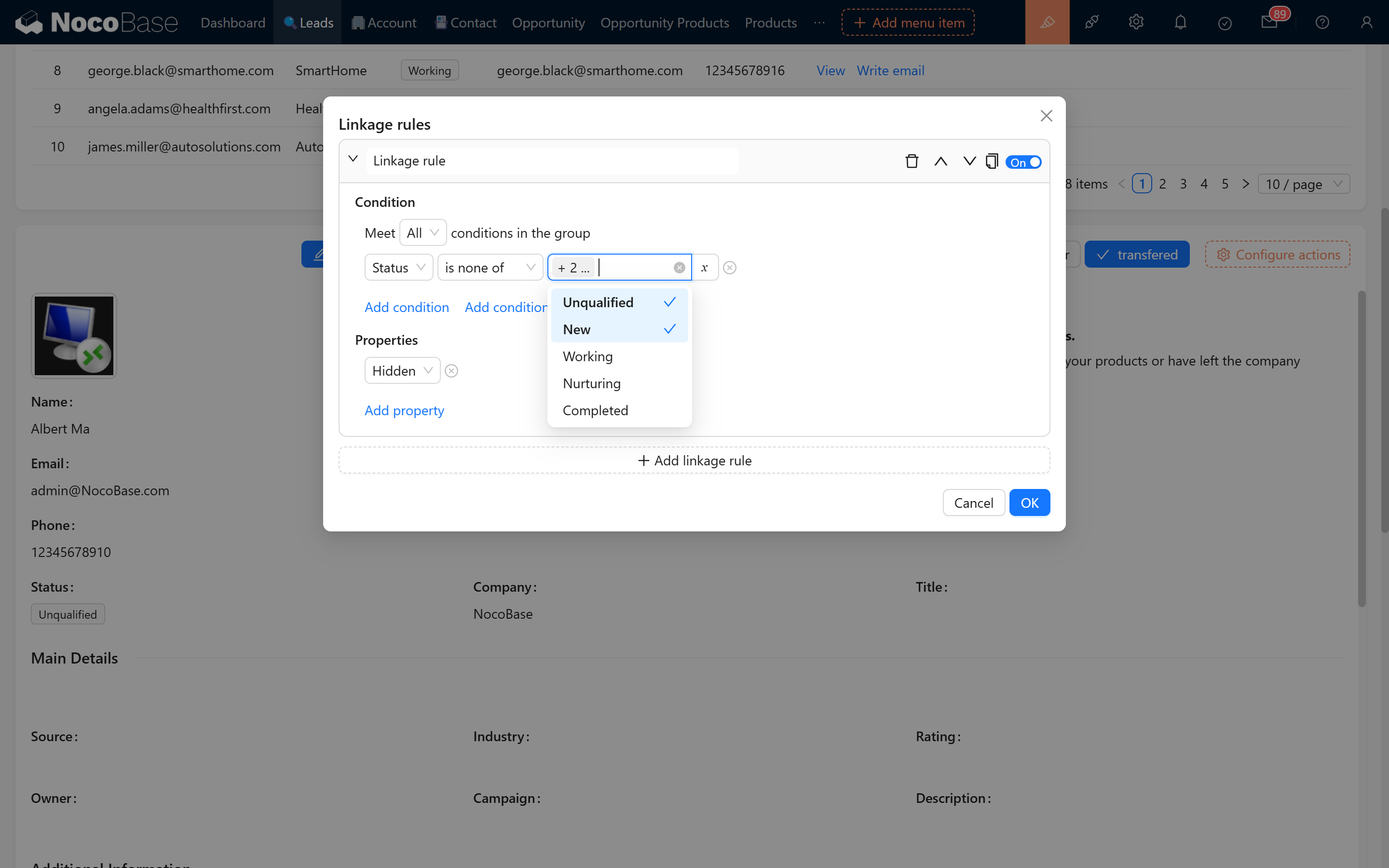
  • Linkage Rule Example: Working Button (Inactive) 20250311084104 Working Button (Active) 20250311083953
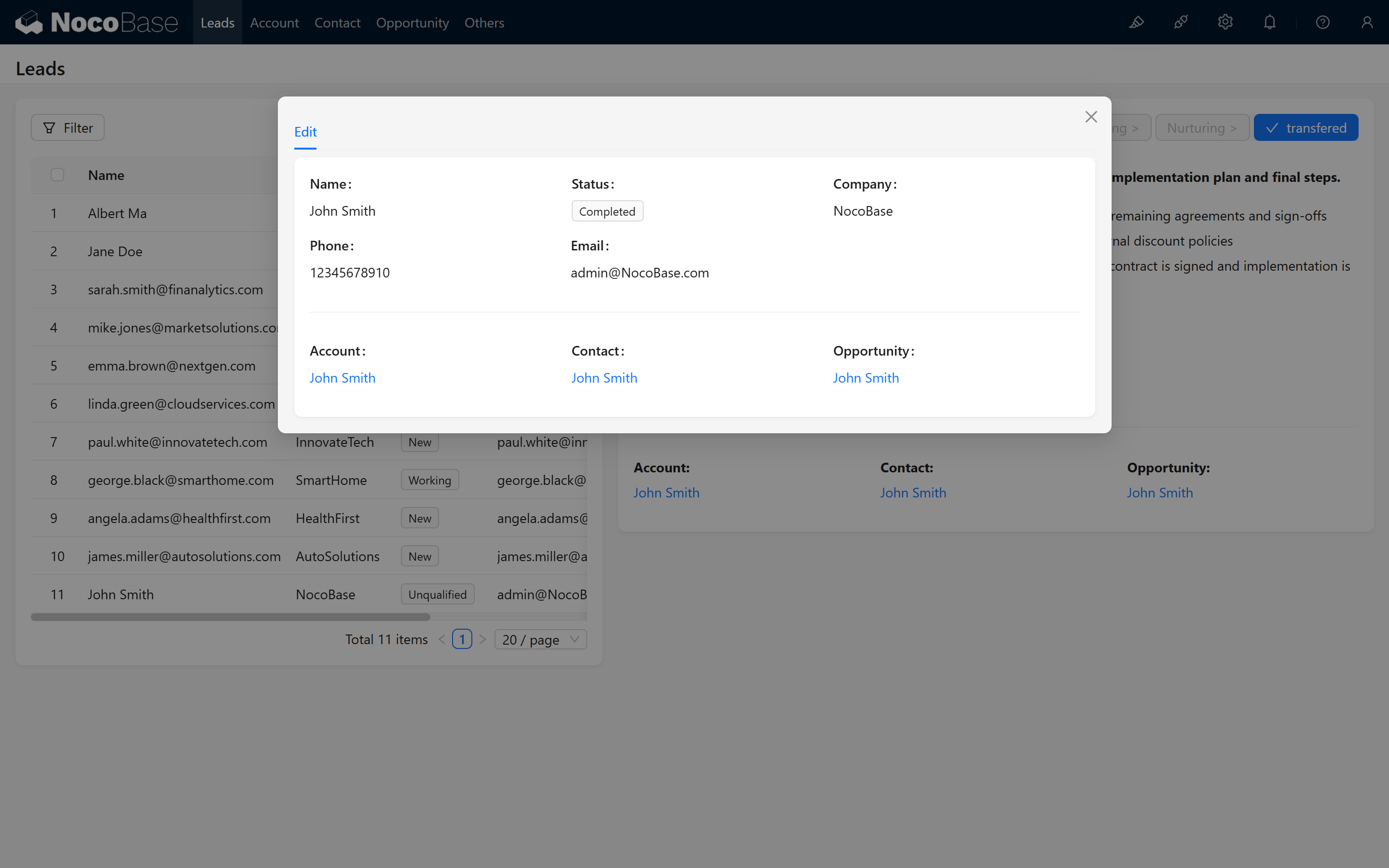
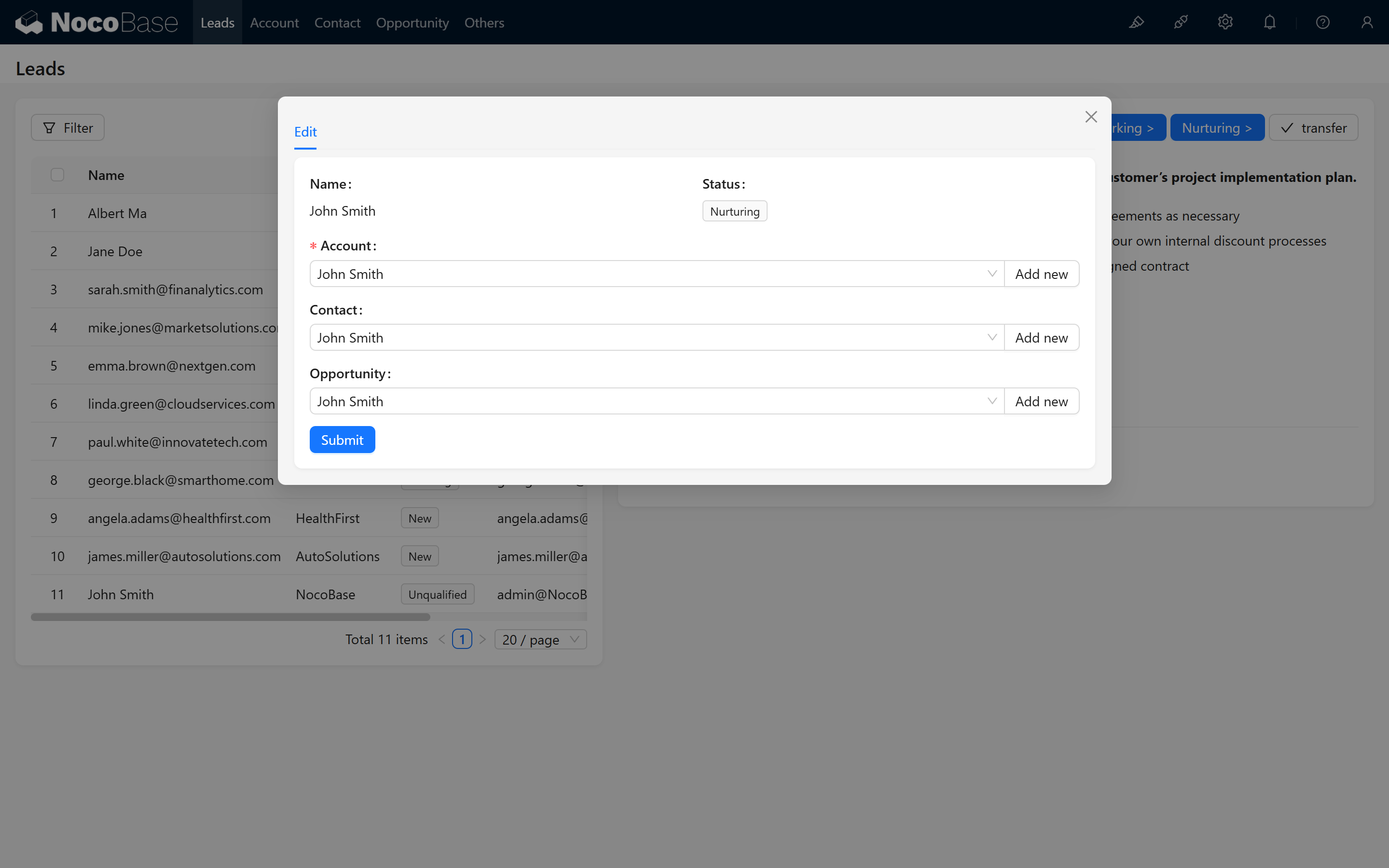
  • Transfer Form: Transfer Button (Inactive) Transfer Button (Active)
  • Prompt shown during transfer submission: 20250311084638

#4.3 Summary of Button Configurations

  • Each function provides different button styles for inactive and active states.
  • Linkage rules dynamically control the display (hidden or disabled) of the buttons based on the record's status, guiding sales personnel to follow the correct workflow.

#5. Form Linkage Rule Settings

#5.1 Rule 1: Display Only the Name

  • When the record is not confirmed or the status is empty, only the name is displayed.

#5.2 Rule 2: Optimized Display Under "New" Status

  • When the status is "New", the company name is hidden and the contact information is displayed.

#6. Page Markdown Rules and Handlebars Syntax

#6.1 Dynamic Text Display

In the page, we use Handlebars syntax to dynamically display different prompt messages based on the record's status. Below are example codes for each status:

When the status is "Unqualified":

{{#if (eq $nRecord.status "Unqualified")}}
**Track the details of your unqualified leads.**  
If your lead is not interested in the product or has left the related company, it might be unqualified.  
- Record lessons learned for future reference  
- Save outreach details and contact information  
{{/if}}

When the status is "New":

{{#if (eq $nRecord.status "New")}}
**Collect more information about this lead.**  
- Understand the potential customer's needs and interests
- Gather basic contact information and company background
- Determine follow-up priorities and methods
{{/if}}

When the status is "Working":

{{#if (eq $nRecord.status "Working")}}
**Proactively contact the lead and initially assess needs.**  
- Establish contact with the potential customer via phone/email
- Understand the customer's problems and challenges
- Preliminarily evaluate the match between customer needs and your products/services
{{/if}}

When the status is "Nurturing":

{{#if (eq $nRecord.status "Nurturing")}}
**Explore customer needs deeply and nurture the lead.**  
- Provide relevant product information or solution recommendations
- Answer customer questions and address concerns
- Evaluate the possibility of lead conversion
{{/if}}

When the status is "Completed":

{{#if (eq $nRecord.status "Completed")}}
**Lead has been successfully converted to a customer.**  
- Confirm that related company and contact records have been created
- Create opportunity record and set up follow-up plans
- Transfer relevant materials and communication records to the responsible sales personnel
{{/if}}

#7. Displaying Associated Objects and Jump Links After Conversion

#7.1 Description of Associated Objects

After conversion, we want to display the associated objects (Company, Contact, Opportunity) along with links to their detail pages. You can find a detail popup, such as a company, and copy the link. 20250311085502 Note: In other pop-ups or pages, the last part of the detail link (after filterbytk) represents the current object's id. For example:
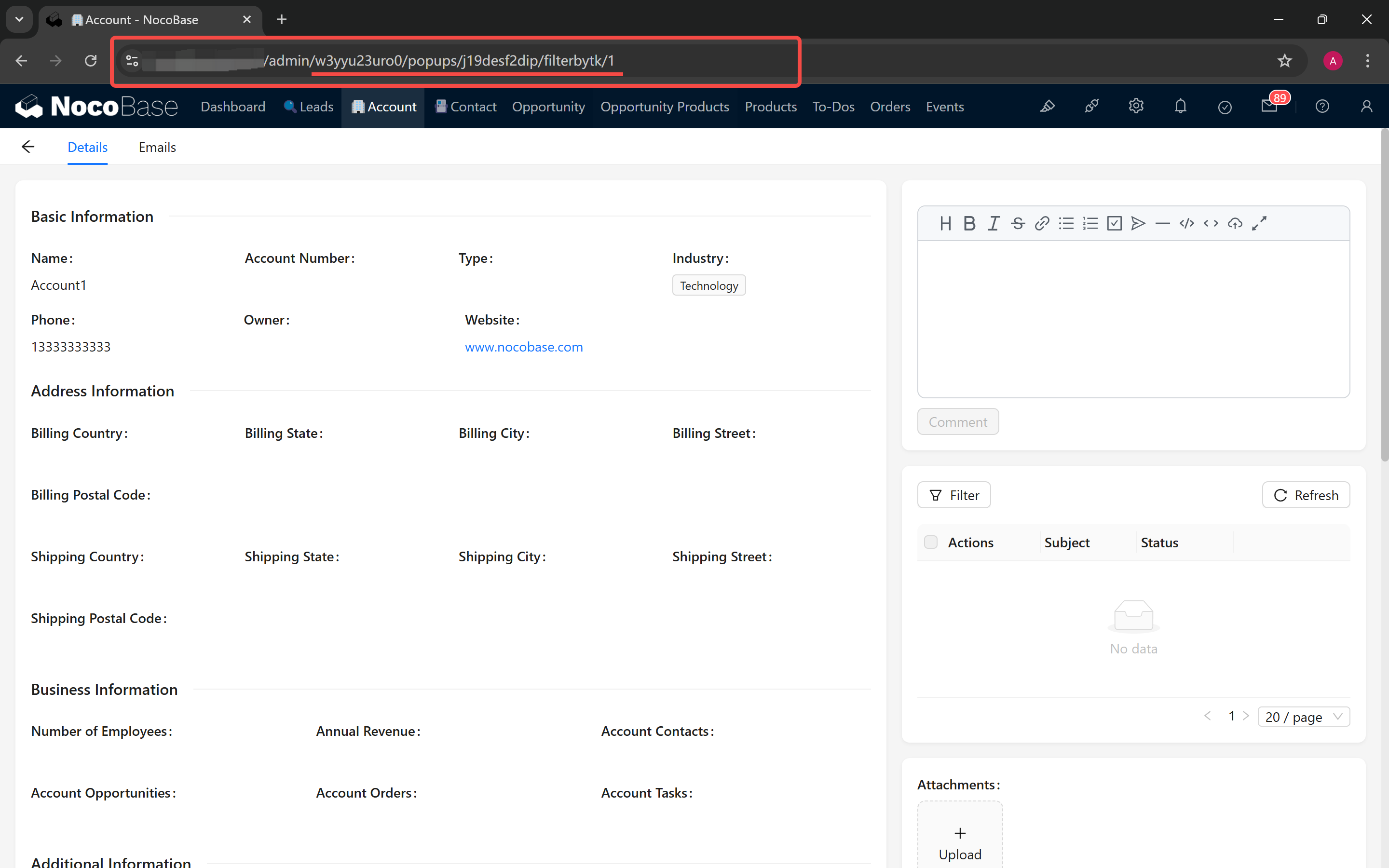
{Base URL}/admin/w3yyu23uro0/popups/ki0wcnfruj6/filterbytk/{id}

#7.2 Generating Associated Links Using Handlebars

For Company:

{{#if (eq $nRecord.status "Completed")}}
**Company:**
[{{$nRecord.account.name}}](w3yyu23uro0/popups/ki0wcnfruj6/filterbytk/{{$nRecord.account_id}})
{{/if}}

For Contact:

{{#if (eq $nRecord.status "Completed")}}
**Contact:**
[{{$nRecord.contact.name}}](1oqybfwrocb/popups/8bbsqy5bbpl/filterbytk/{{$nRecord.contact_id}})
{{/if}}

For Opportunity:

{{#if (eq $nRecord.status "Completed")}}
**Opportunity:**
[{{$nRecord.opportunity.name}}](si0io9rt6q6/popups/yyx8uflsowr/filterbytk/{{$nRecord.opportunity_id}})
{{/if}}

#8. Hiding Associated Objects but Retaining Their Values

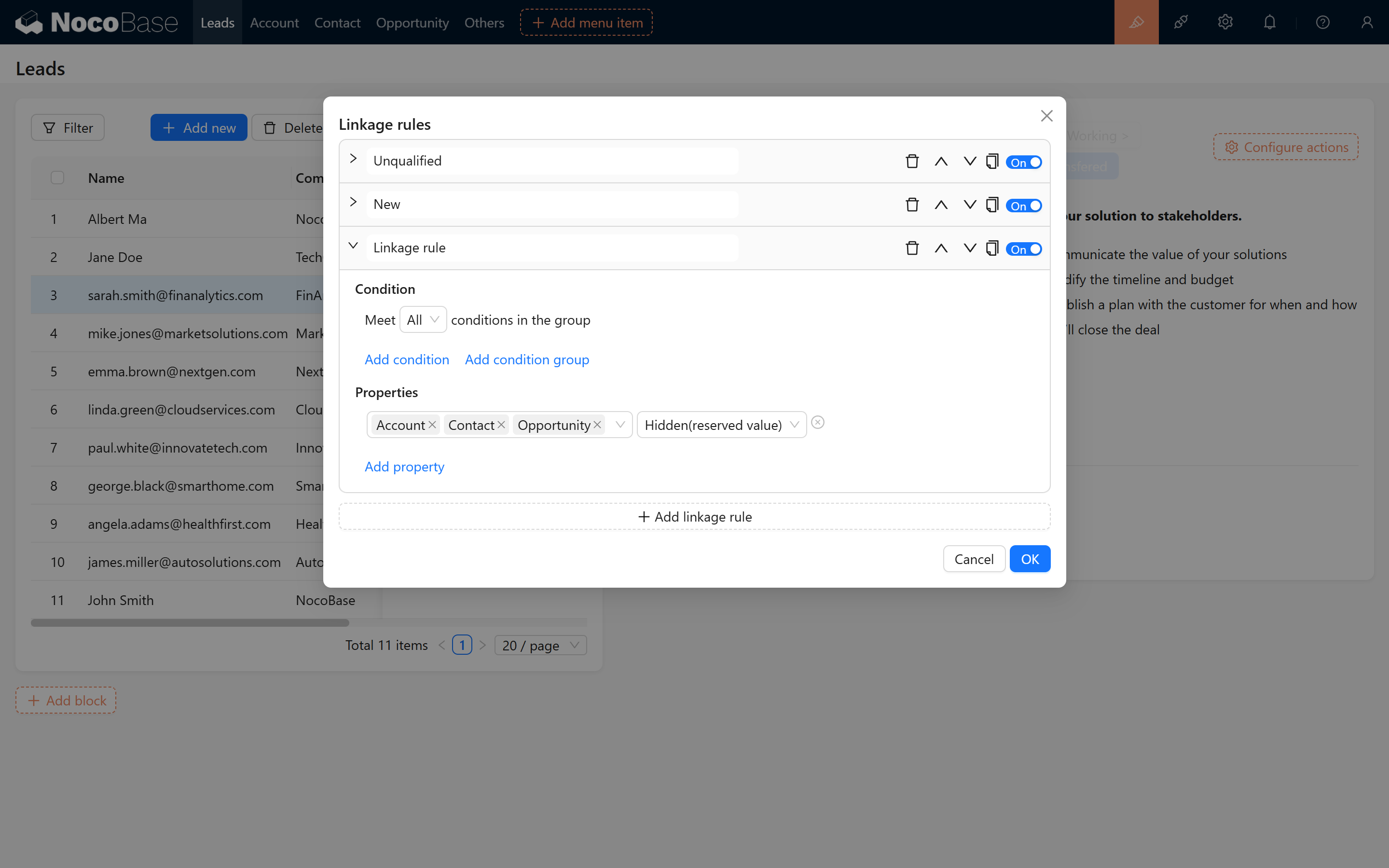
To ensure that associated information is displayed properly after conversion, the statuses for "Company", "Contact", and "Opportunity" should be set to "hidden (retain value)". This way, even though these fields are not shown on the form, their values are still recorded and passed along.
#9. Preventing Status Modification After Conversion

To prevent accidental changes to the status after conversion, we add a condition to all buttons: when the status is "Completed", all buttons will be disabled.

#10. Conclusion

After completing all of the above steps, your lead follow-up conversion functionality is complete! Through this step-by-step guide, we hope you have gained a clearer understanding of how status-based form dynamics and linkages are implemented in NocoBase. Wishing you smooth operations and an enjoyable experience!