

Duplicate
Action: Duplicate recordCommunity Edition+Introduction
The Duplicate action allows users to quickly create new records based on existing data. It supports two duplication modes: Direct duplicate and Duplicate to form and continue filling.
Installation
This is a built-in plugin, no additional installation is required.
Duplication Mode
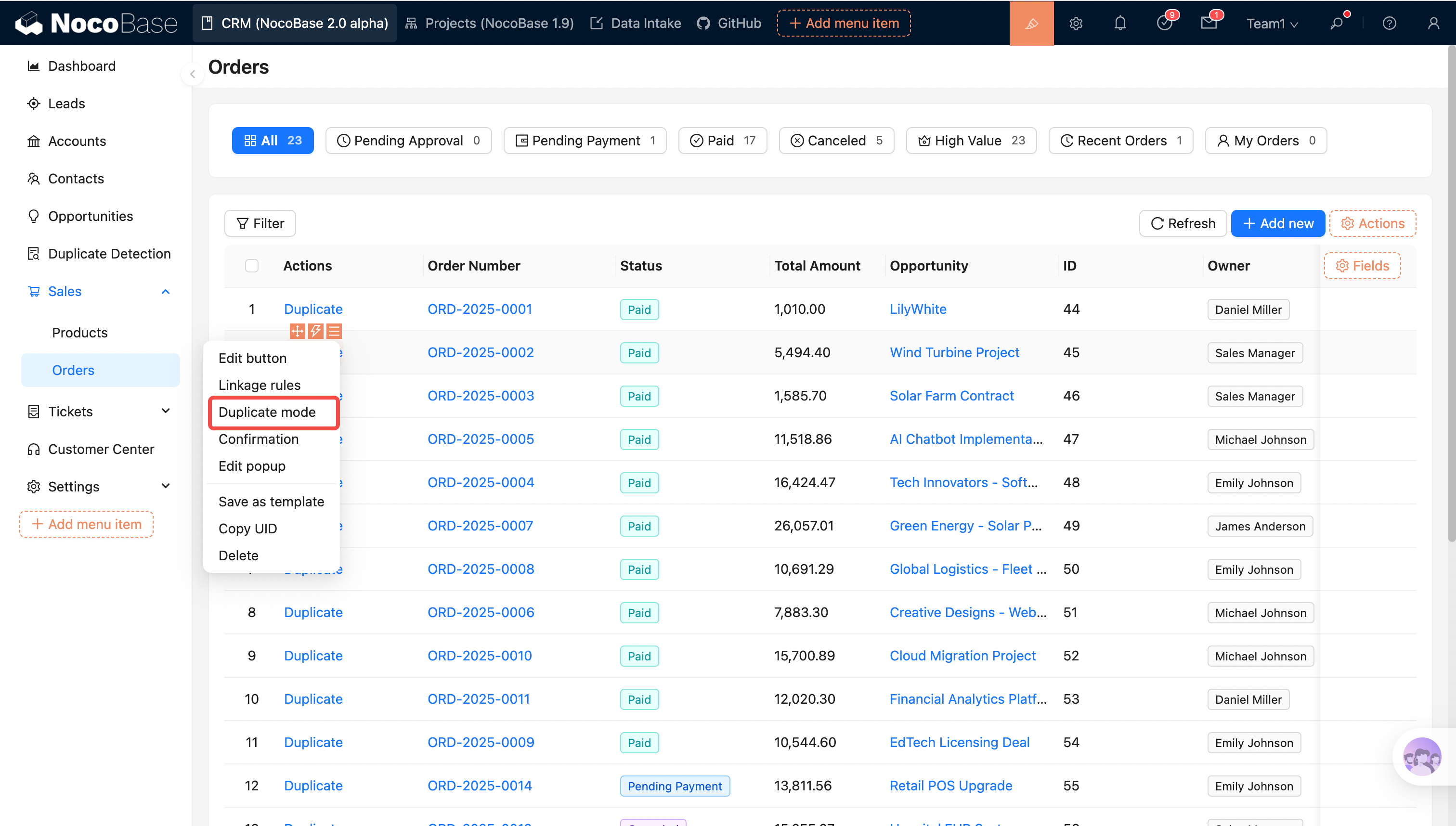
Direct duplicate
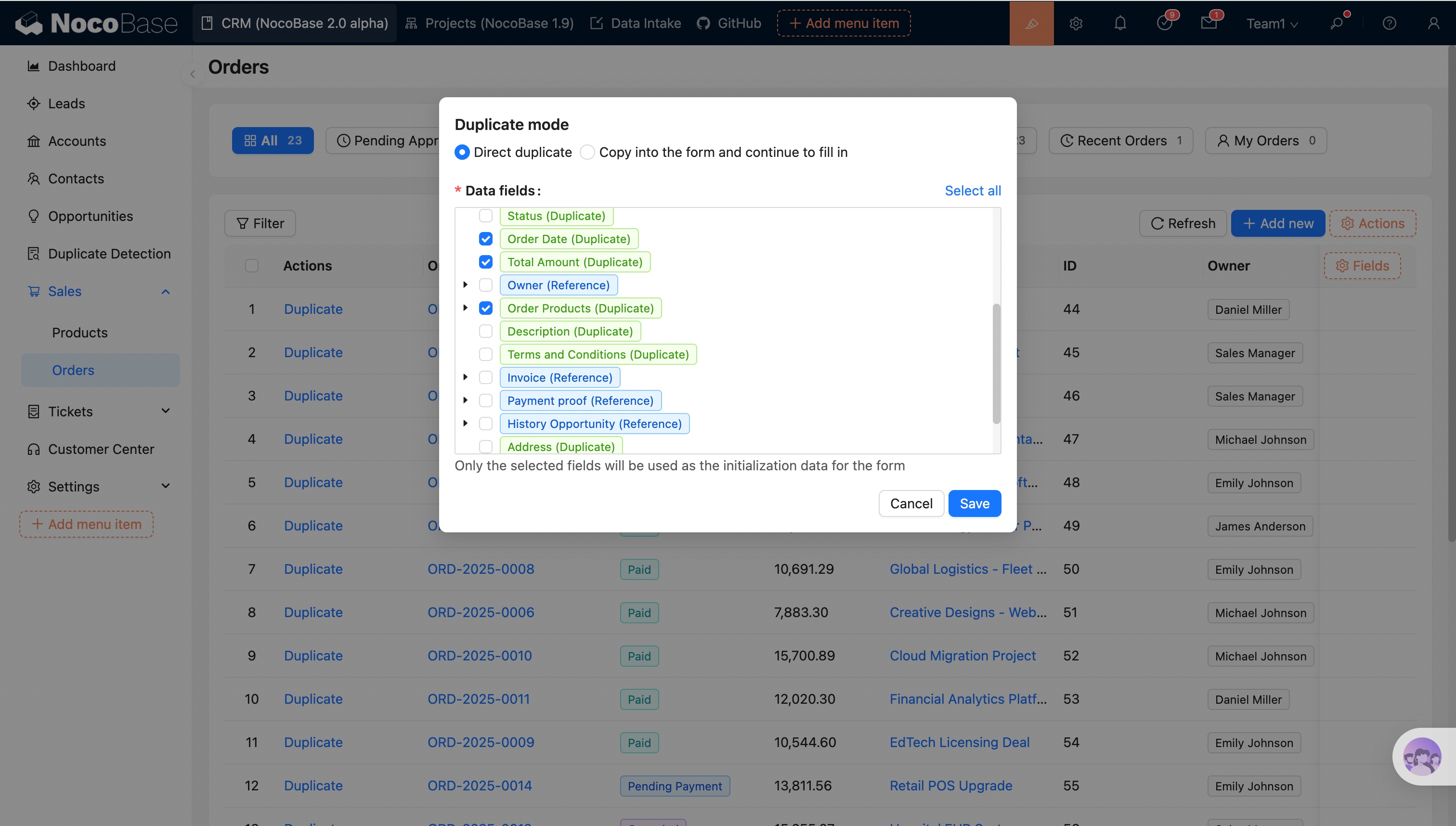
- Executes as "Direct duplicate" by default;
- Template fields: Specify the fields to be duplicated. "Select all" is supported. This is a required configuration.
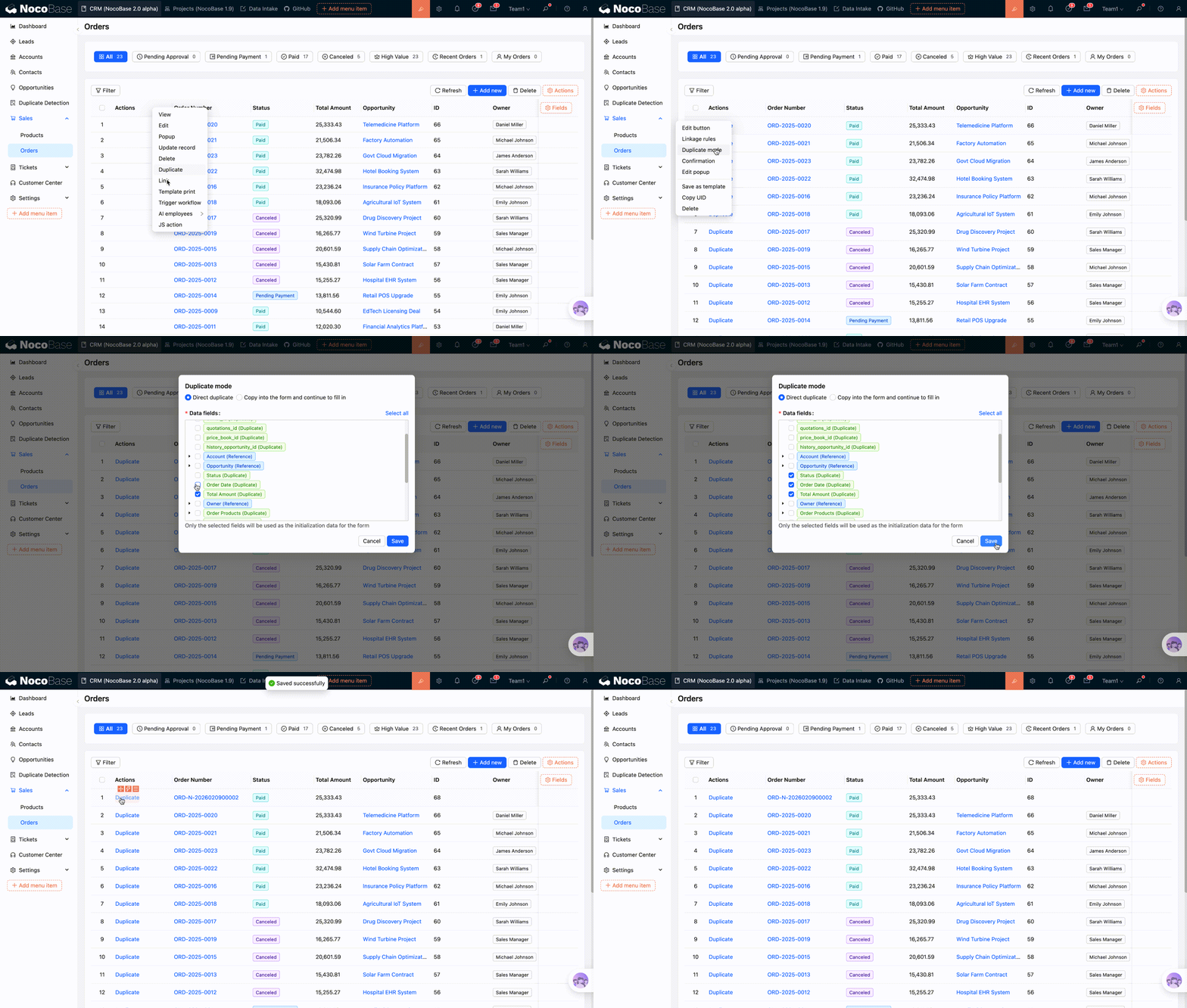
Once configured, click the button to duplicate the data.
Duplicate to form and continue filling
The configured template fields will be populated into the form as default values. Users can modify these values before submitting to complete the duplication.
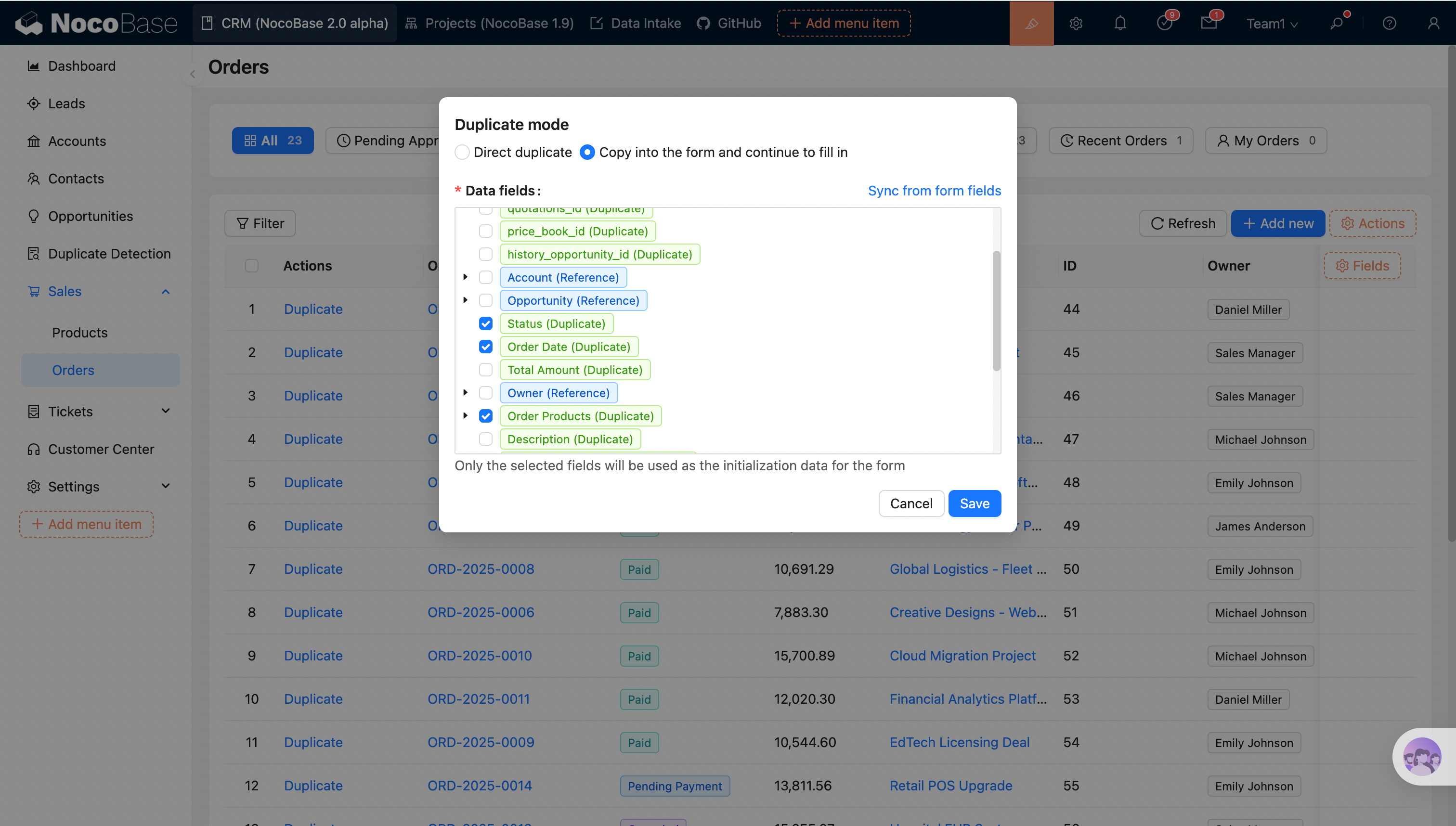
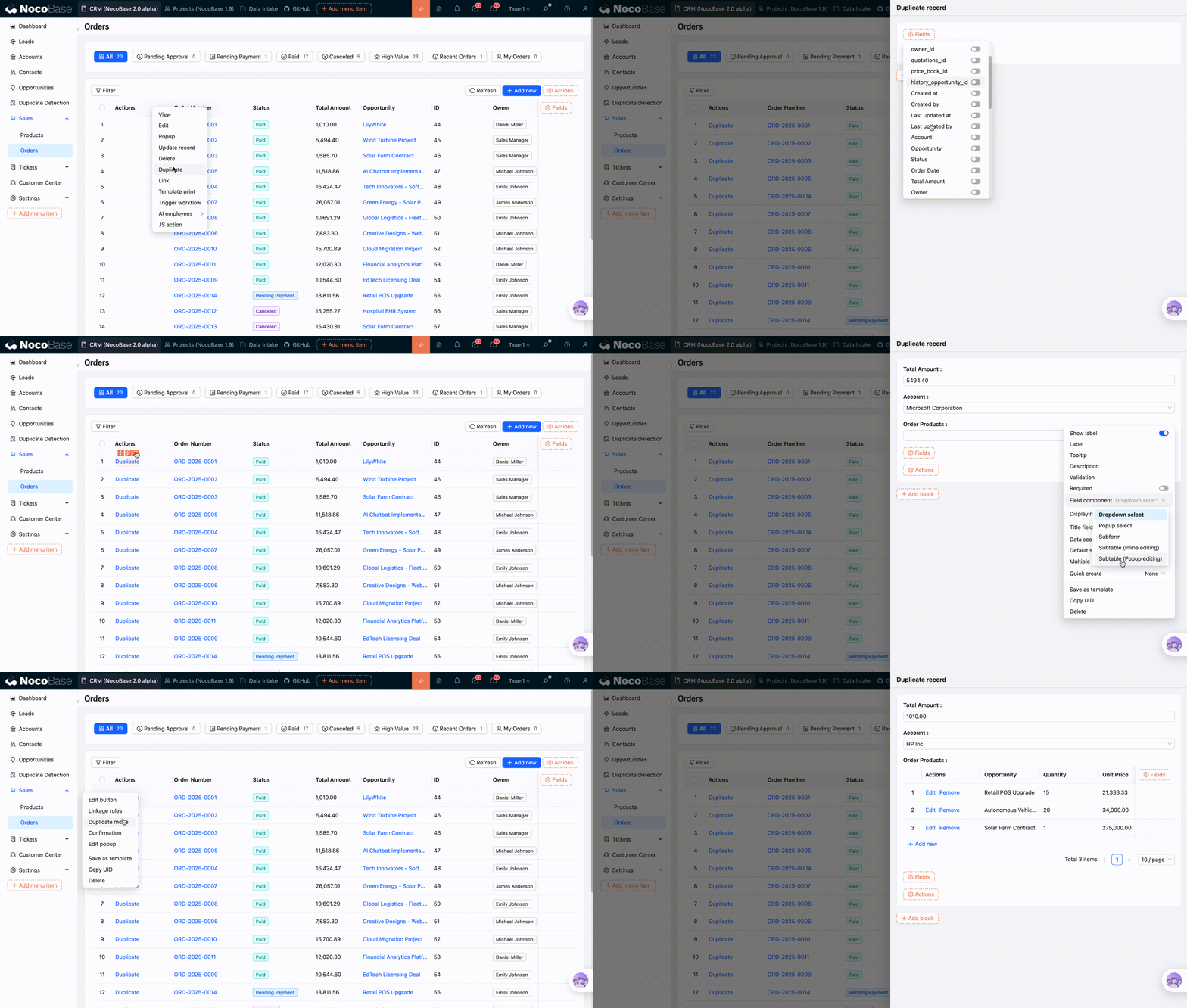
Configure template fields: Only the selected fields will be carried over as default values.
Sync form fields
- Automatically parses the fields already configured in the current form block as template fields;
- If form block fields are modified later (e.g., adjusting association field components), you need to reopen the template configuration and click Sync form fields to ensure consistency.
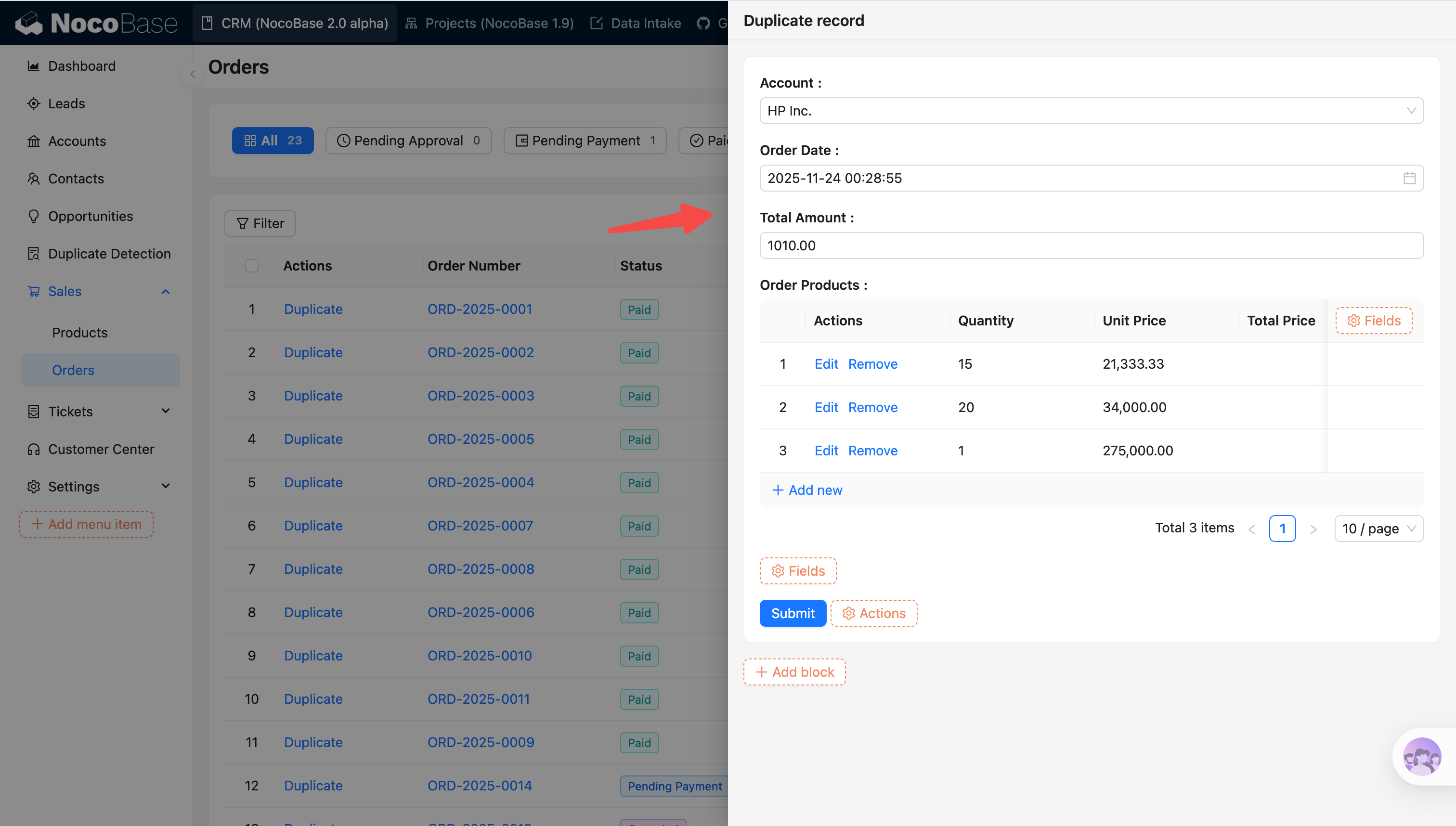
The template data will be filled as form defaults, and users can submit after modification to complete the duplication.
Supplementary Notes
Duplicate, Reference, Preload
Different field types (association types) have different processing logic: Duplicate / Reference / Preload. The field component of an association field also affects this logic:
- Select / Record picker: Used for Reference
- Sub-form / Sub-table: Used for Duplicate
Duplicate
- Regular fields are duplicated;
hasOne/hasManycan only be duplicated (these relationships should not use selection components like Single select or Record picker; instead, use Sub-form or Sub-table components);- Changing the component for
hasOne/hasManywill not change the processing logic (it remains Duplicate); - For duplicated association fields, all sub-fields can be selected.
Reference
belongsTo/belongsToManyare treated as Reference;- If the field component is changed from "Single select" to "Sub-form", the relationship changes from Reference to Duplicate (once it becomes Duplicate, all sub-fields become selectable).
Preload
- Association fields under a Reference field are treated as Preload;
- Preload fields may become Reference or Duplicate after a component change.
Select All
- Selects all Duplicate fields and Reference fields.
The following fields will be filtered out from the record selected as the data template:
- Primary keys of duplicated association data are filtered; primary keys for Reference and Preload are not filtered;
- Foreign keys;
- Fields that do not allow duplicates (Unique);
- Sort fields;
- Sequence fields;
- Password;
- Created by, Created at;
- Last updated by, Updated at.
Sync form fields
- Automatically parses the fields configured in the current form block into template fields;
- After modifying form block fields (e.g., adjusting association field components), you must sync again to ensure consistency.