

UI Templates
This feature is provided by the plugin «UI templates»0Introduction
UI templates are used to reuse configurations in interface building, reducing repetitive setup and keeping multiple configurations in sync when needed.
Currently supported template types include:
- Block Template: Reuse entire block configurations
- Field Template: Reuse "fields" configurations in form/detail blocks
- Popup Template: Reuse popup configurations triggered by actions/fields
Core Concepts
Reference and Duplicate
There are typically two ways to use templates:
Reference: Multiple places share the same template configuration; modifying the template or any reference point will sync updates to all other reference points.Duplicate: Duplicate as an independent configuration; subsequent modifications do not affect each other.
Save as Template
When a block/popup is already configured, you can use Save as template in its settings menu and choose the save method:
Convert current... to template: After saving, the current position will switch to referencing that template.Duplicate current... as template: Only creates the template, the current position remains unchanged.
Block Template
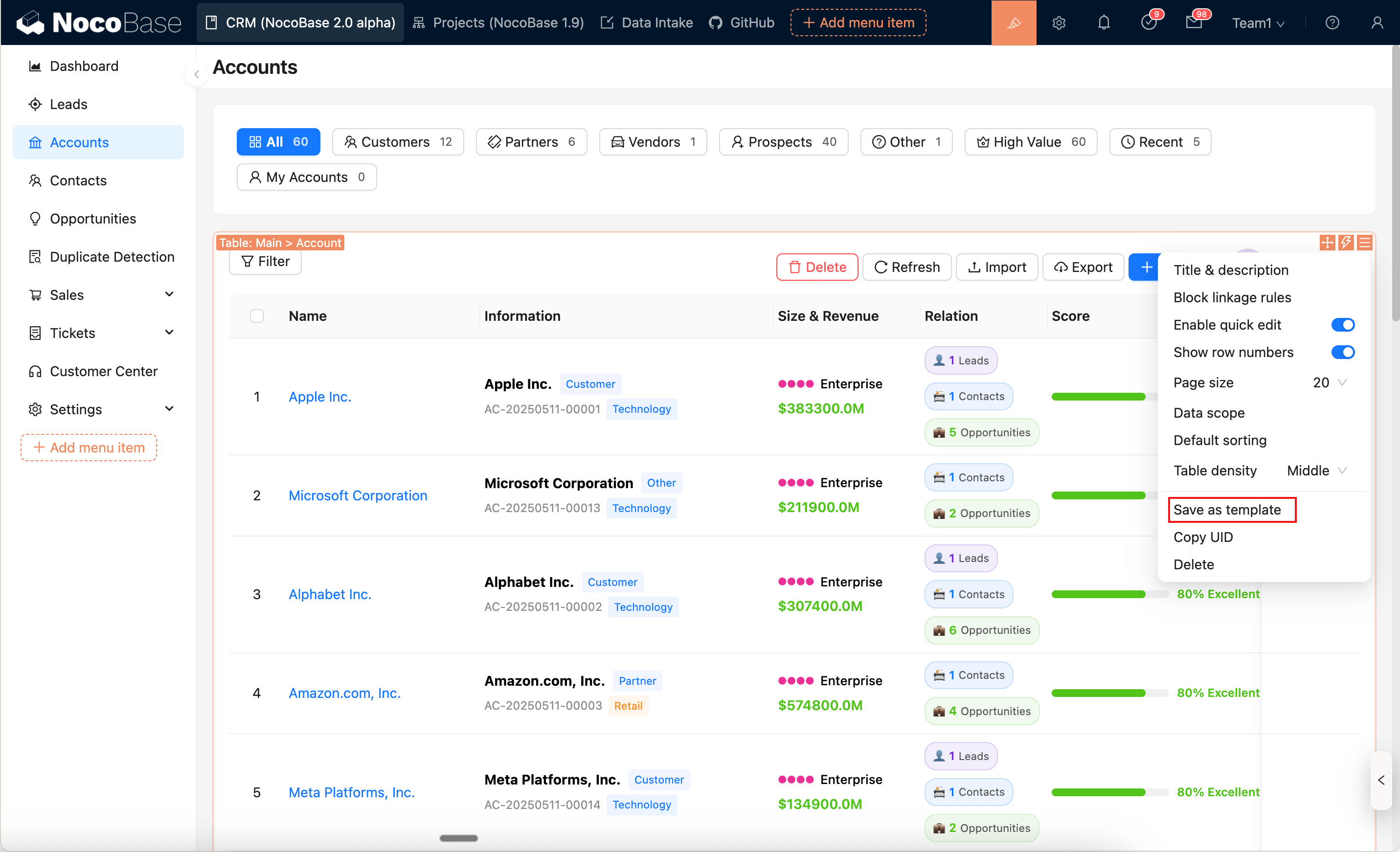
Save Block as Template
- Open the settings menu of the target block, click
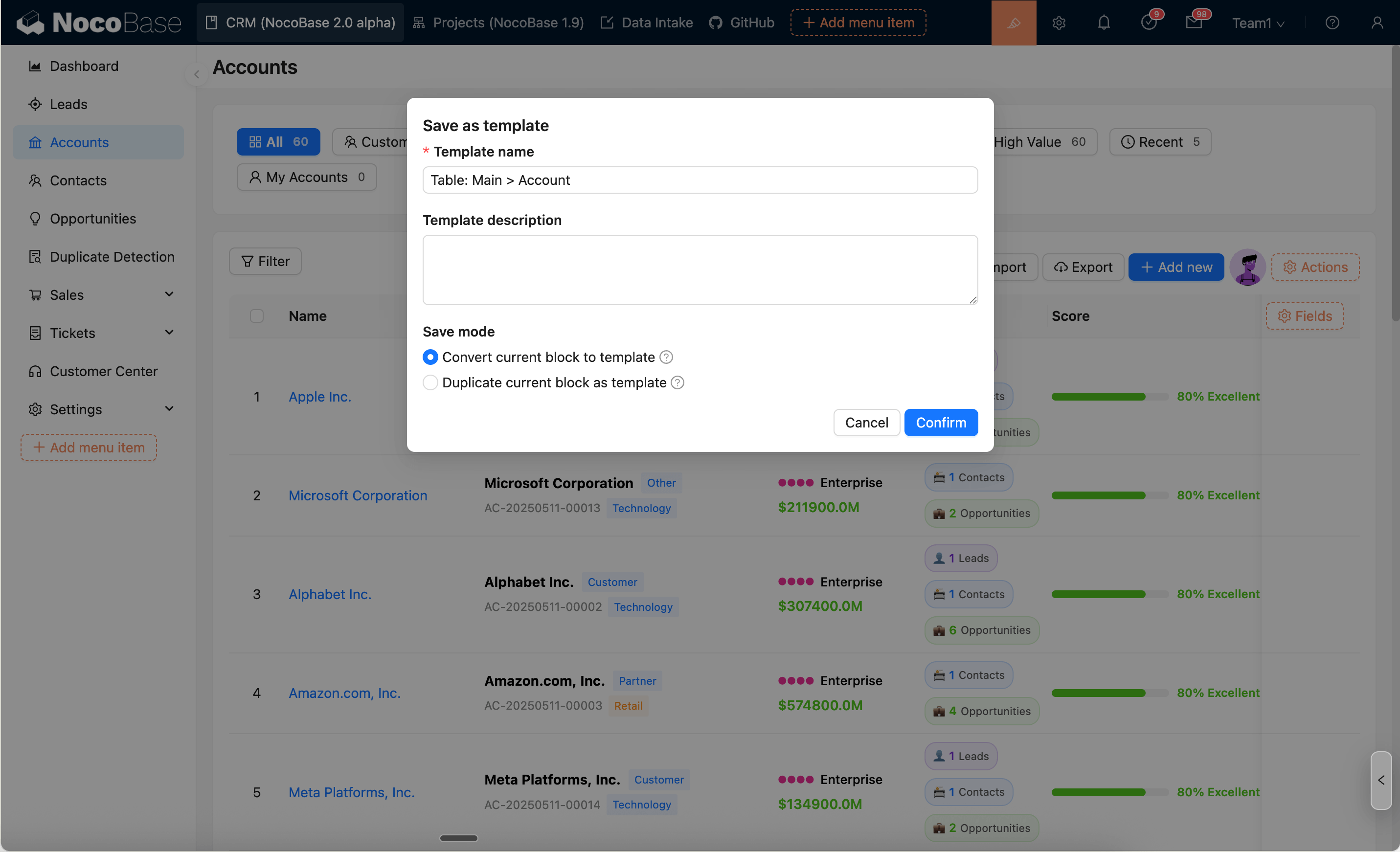
Save as template - Fill in
Template name/Template description, and choose the save mode:Convert current block to template: After saving, the current position will be replaced with aBlock templateblock (i.e., referencing that template)Duplicate current block as template: Only creates the template, the current block remains unchanged
Use Block Template
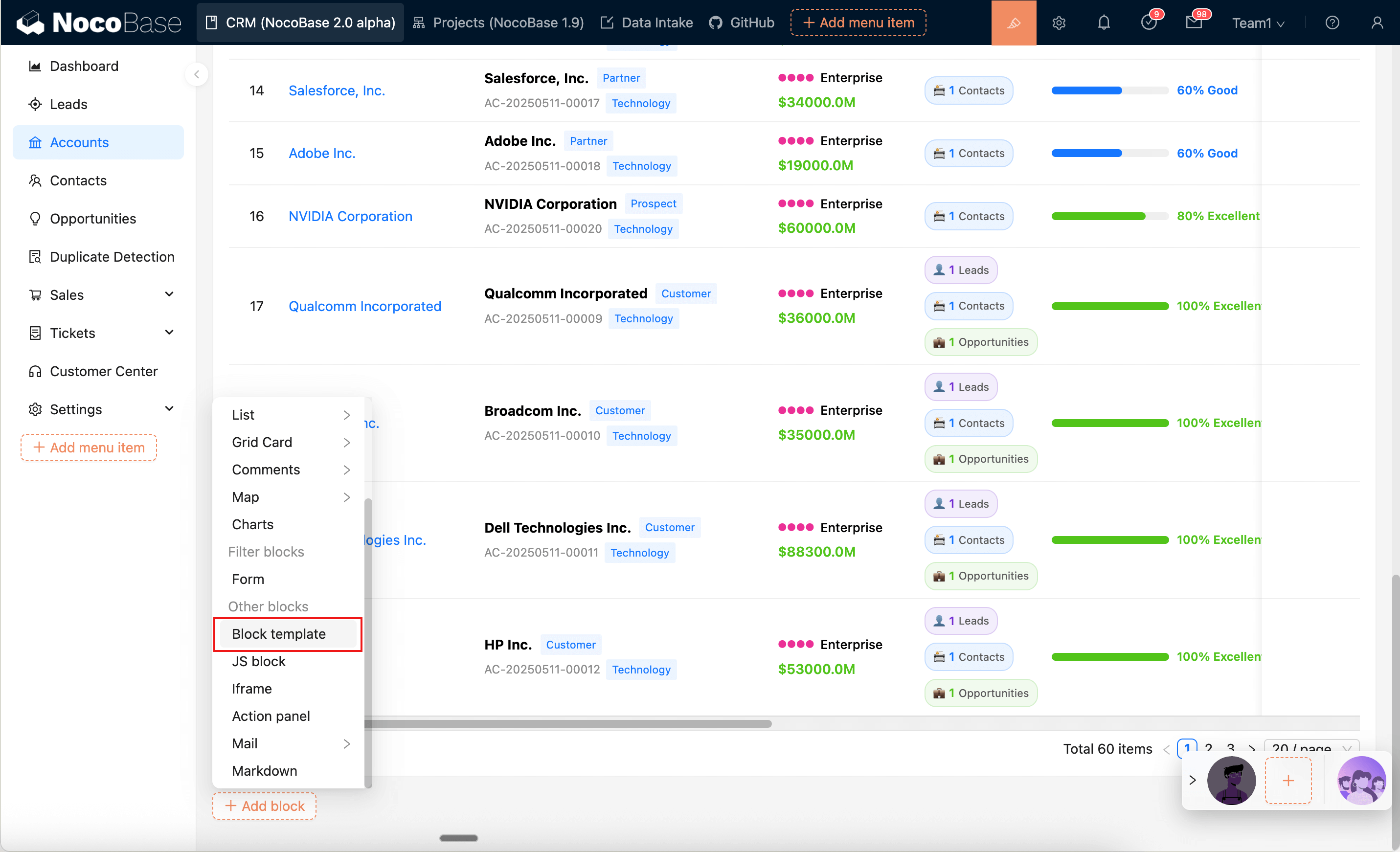
- Add block → "Other blocks" →
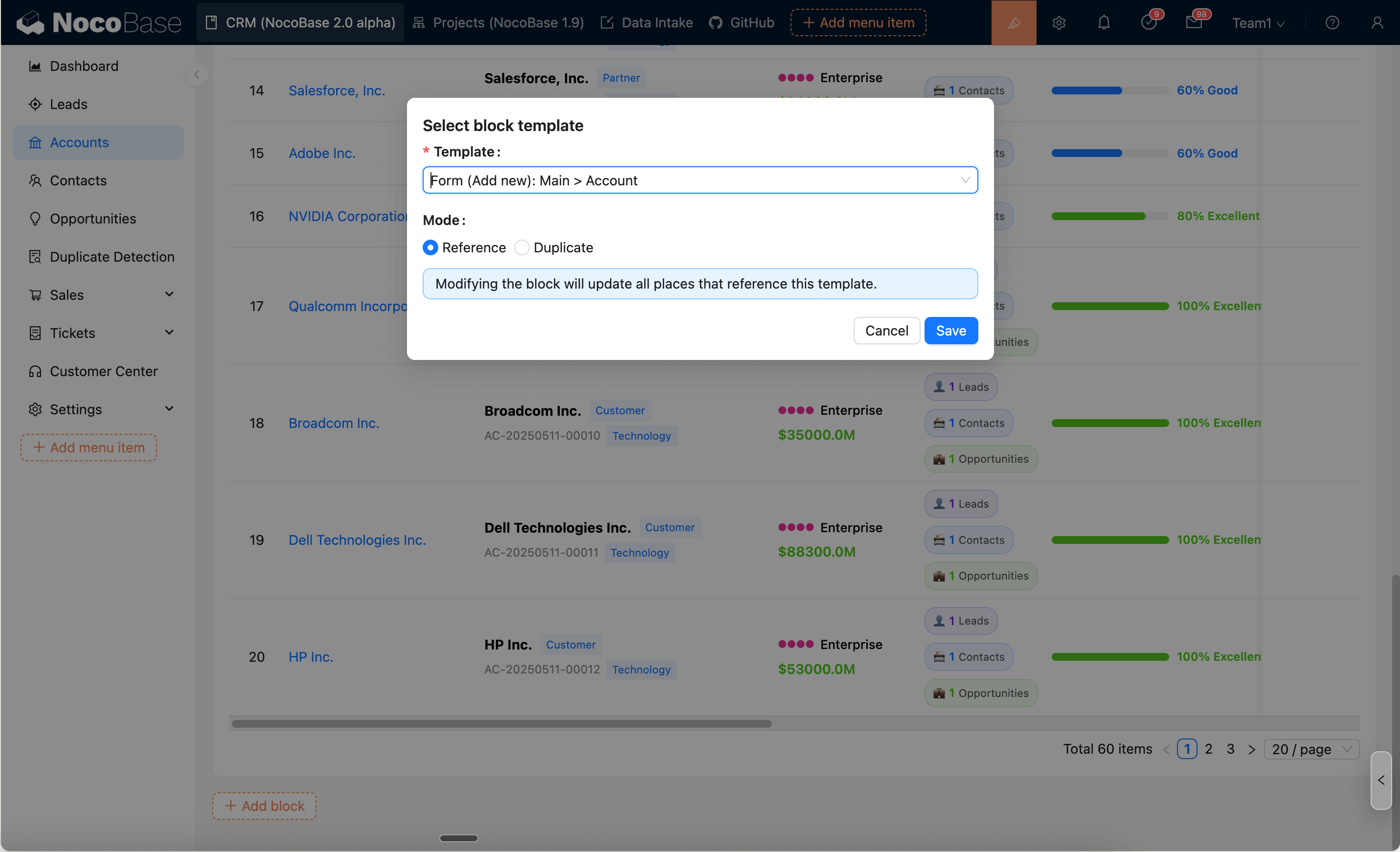
Block Template - In the configuration, select:
Template: Choose a templateMode:ReferenceorDuplicate
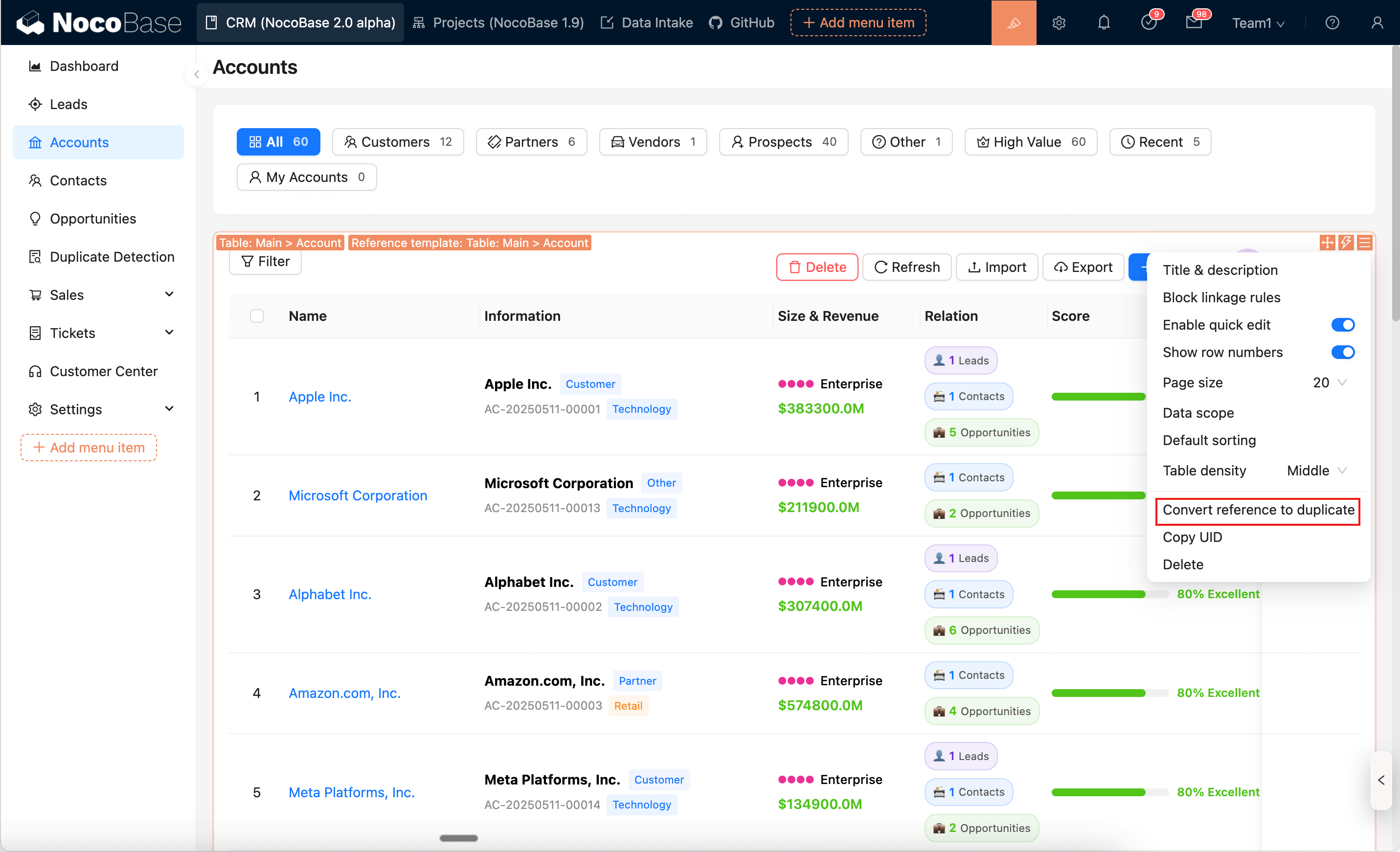
Convert Reference to Duplicate
When a block is referencing a template, you can use Convert reference to duplicate in the block settings menu to change the current block to a regular block (disconnect the reference), subsequent modifications will not affect each other.
Notes
Duplicatemode will regenerate UIDs for the block and its child nodes, some configurations that depend on UIDs may need to be reconfigured.
Field Template
Field templates are used to reuse field area configurations (field selection, layout, and field settings) in form blocks and detail blocks, avoiding repetitive field addition across multiple pages/blocks.
Field templates only affect the "field area" and do not replace the entire block. To reuse an entire block, please use Block Template described above.
Use Field Template in Form/Detail Blocks
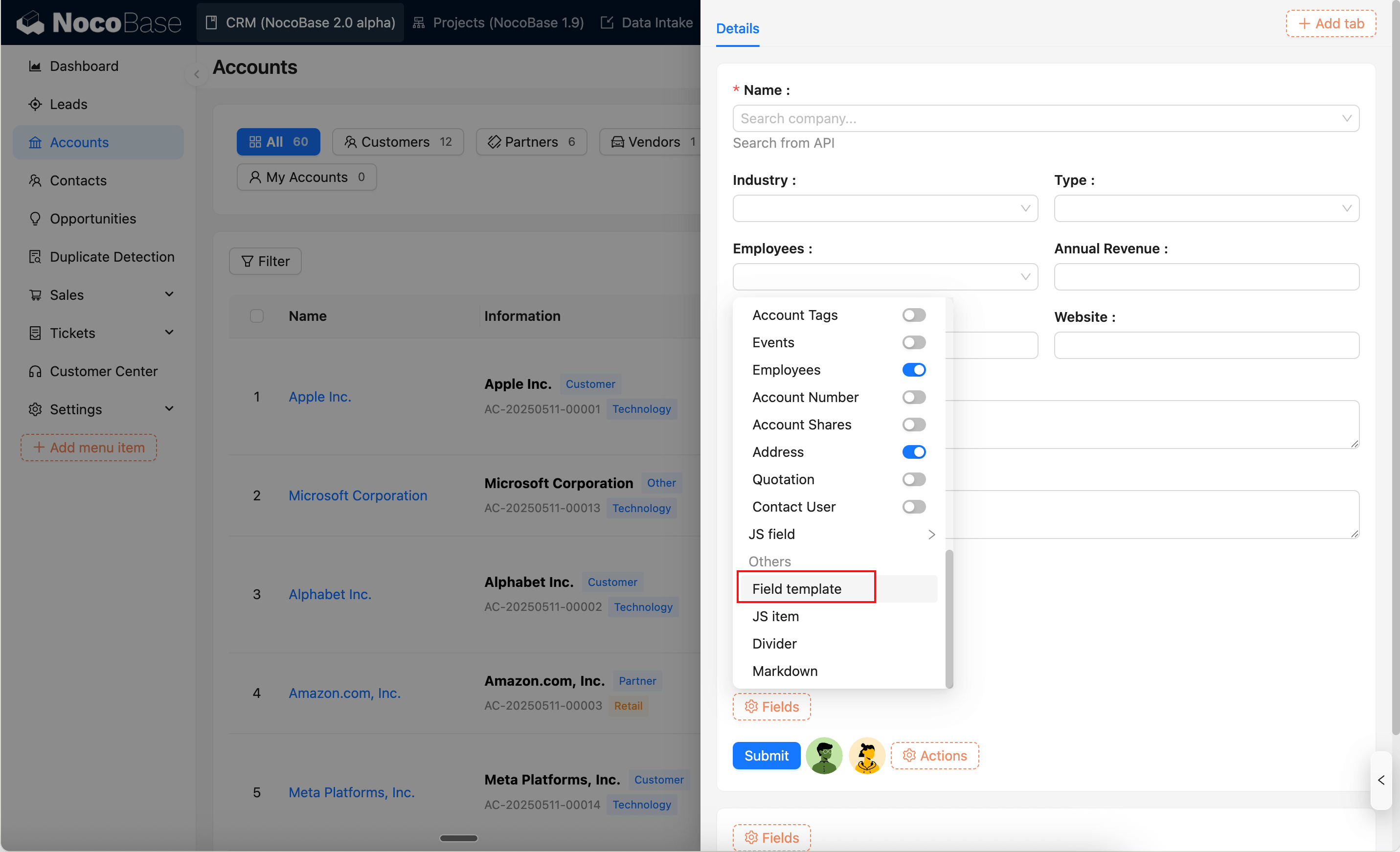
- Enter configuration mode, open the "Fields" menu in a form block or detail block
- Select
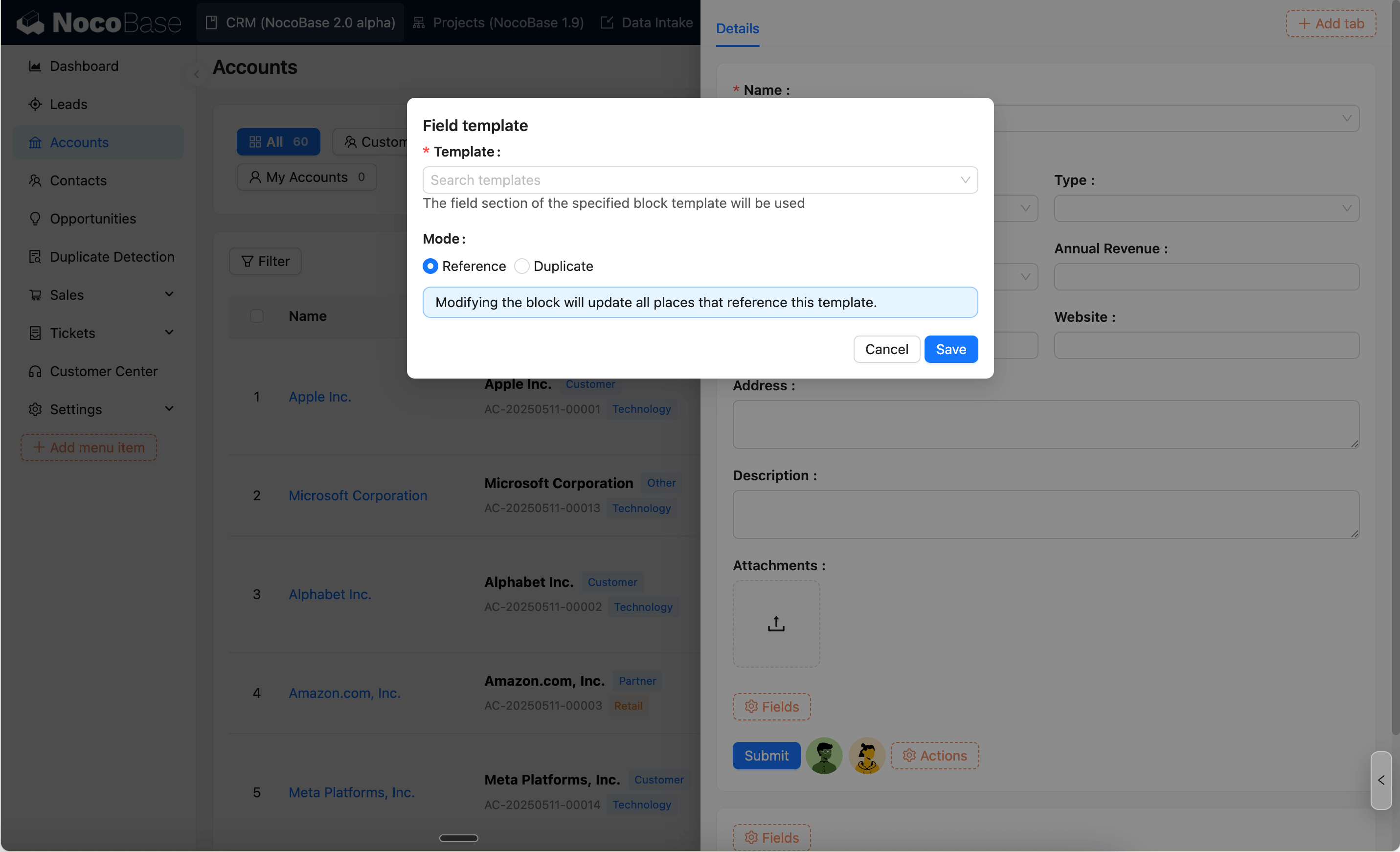
Field Template - Choose a template and select mode:
ReferenceorDuplicate
Override Prompt
When fields already exist in the block, using Reference mode will usually prompt for confirmation (because referenced fields will replace the current field area).
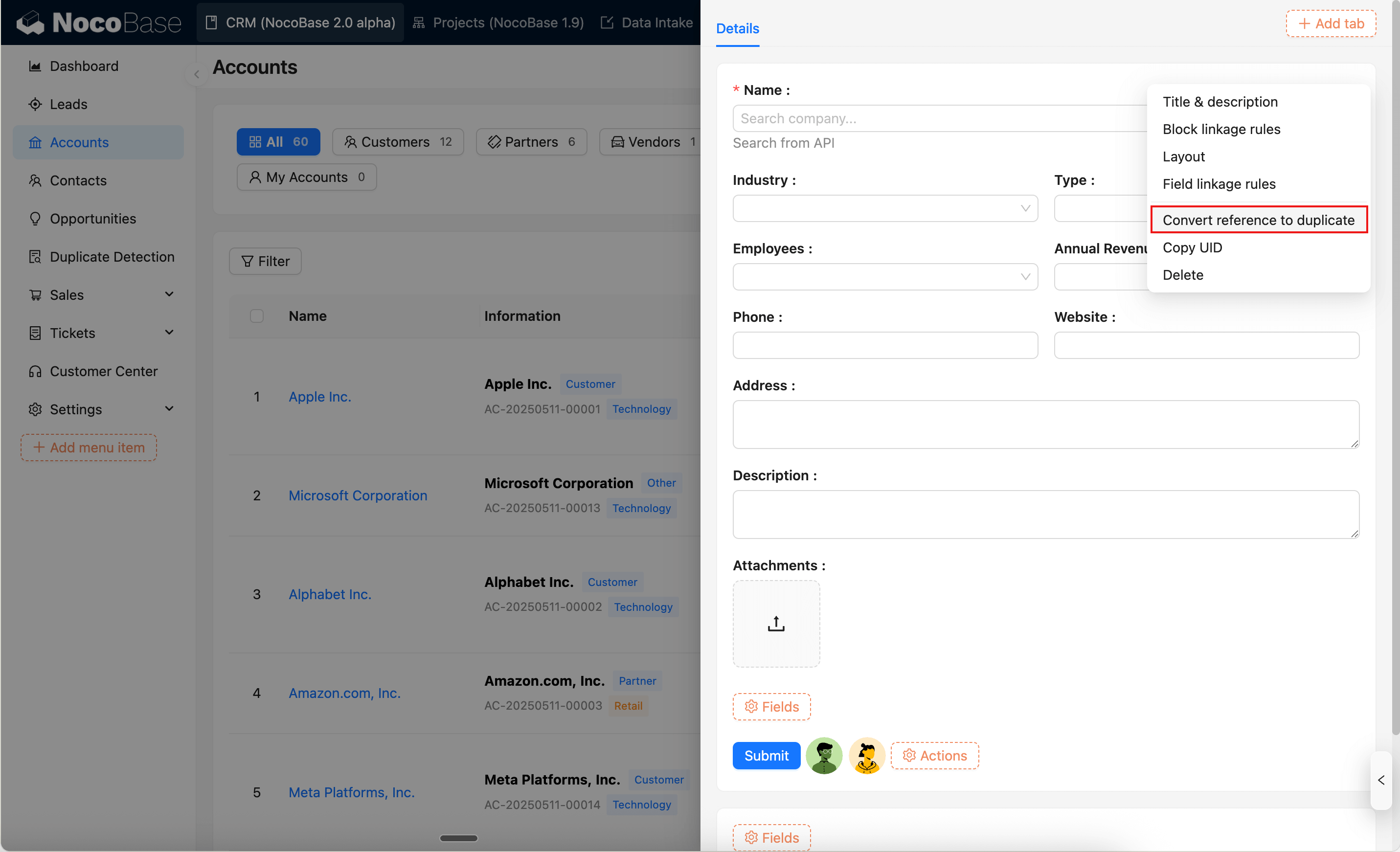
Convert Referenced Fields to Duplicate
When a block is referencing a field template, you can use Convert referenced fields to duplicate in the block settings menu to make the current field area an independent configuration (disconnect the reference), subsequent modifications will not affect each other.
Notes
- Field templates only apply to form blocks and detail blocks.
- When the template and current block are bound to different data tables, the template will be shown as unavailable in the selector with the reason displayed.
- If you want to make "personalized adjustments" to fields in the current block, it is recommended to use
Duplicatemode directly, or first execute "Convert referenced fields to duplicate".
Popup Template
Popup templates are used to reuse a set of popup interfaces and interaction logic. For general configurations like popup opening method and size, refer to Edit Popup.
Save Popup as Template
- Open the settings menu of a button/field that can trigger a popup, click
Save as template - Fill in the template name/description and choose the save mode:
Convert current popup to template: After saving, the current popup will switch to referencing that templateDuplicate current popup as template: Only creates the template, the current popup remains unchanged
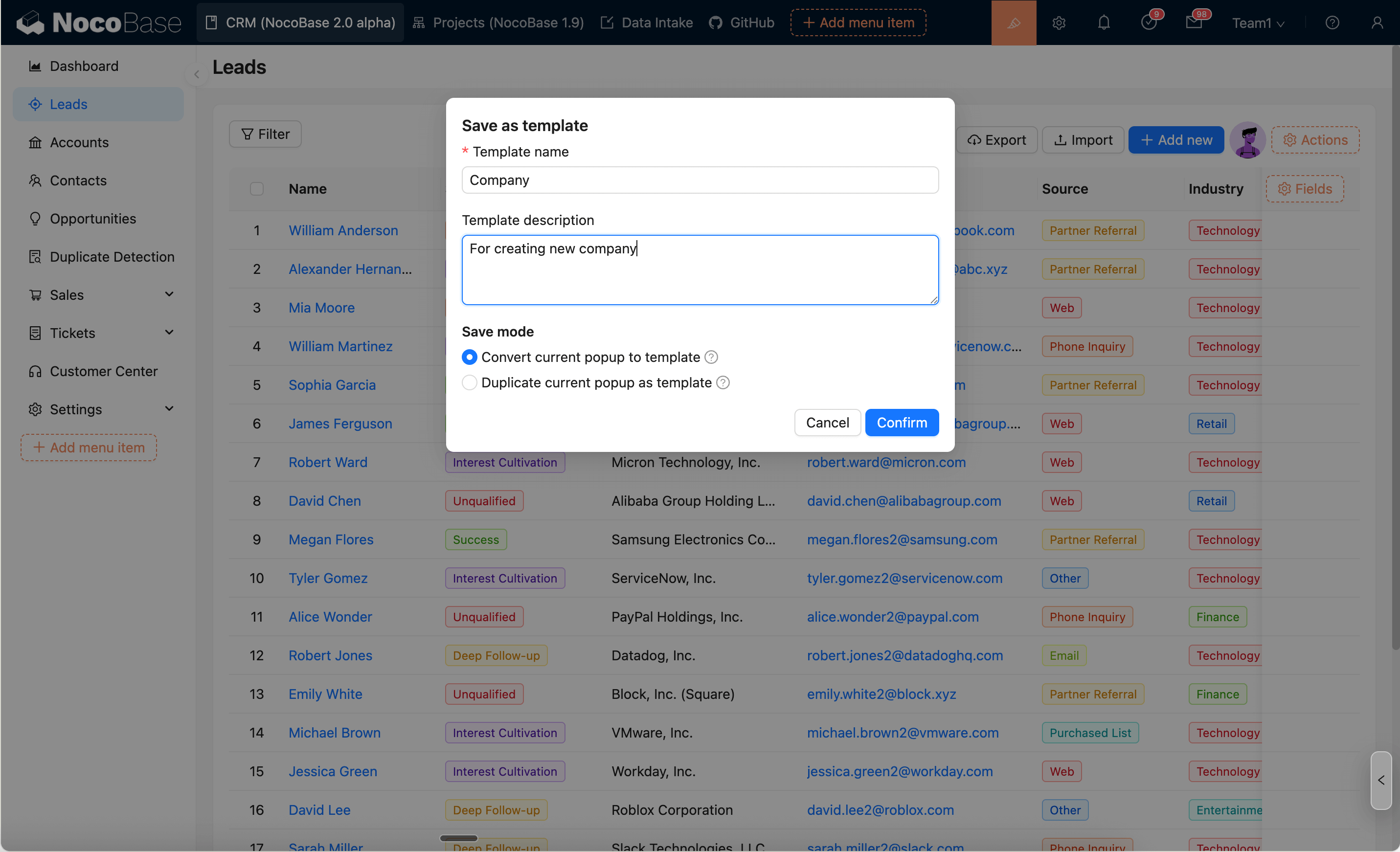
Use Template in Popup Configuration
- Open the popup configuration of the button/field
- Select a template in
Popup templateto reuse
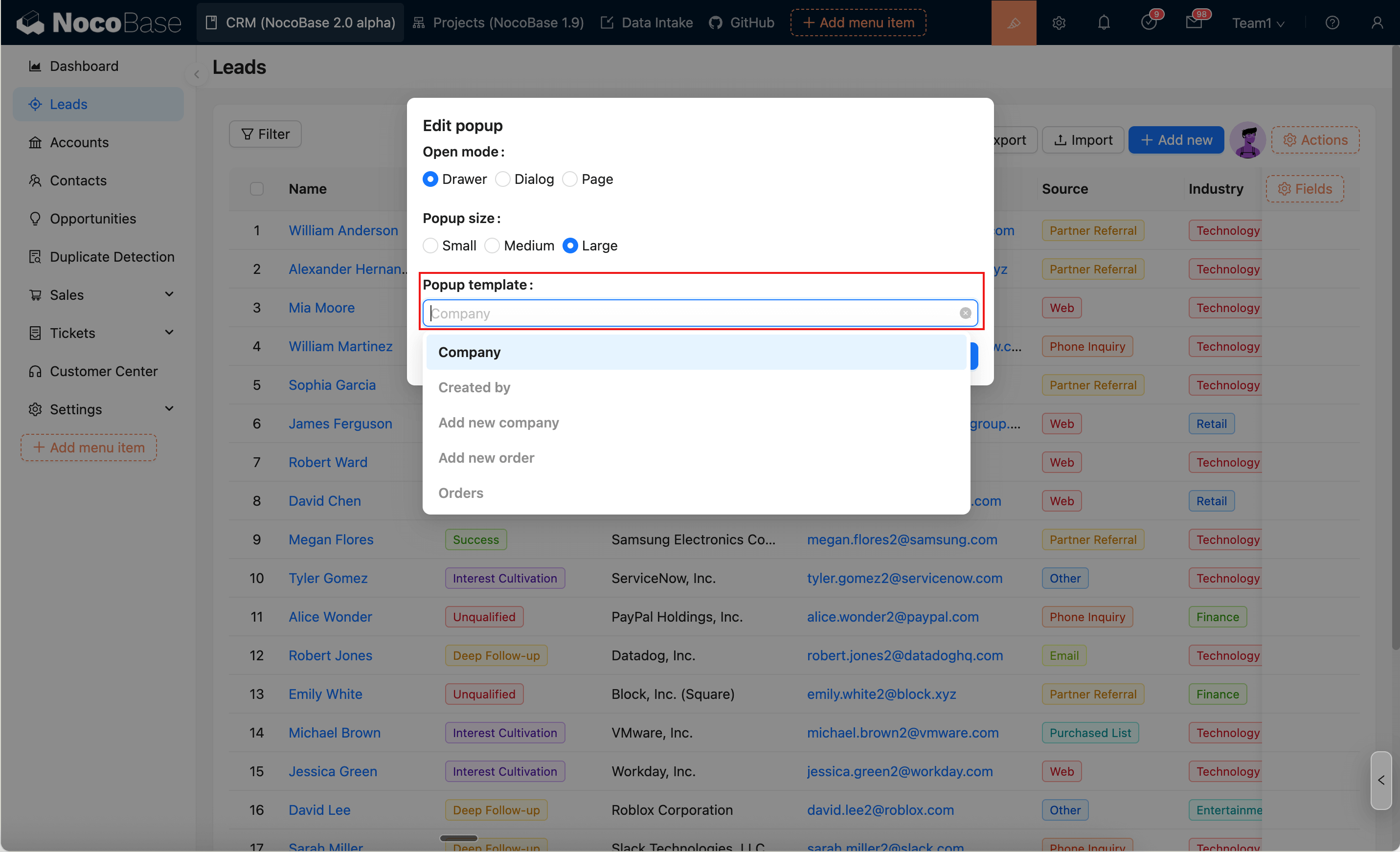
Usage Conditions (Template Availability Range)
Popup templates are related to the action scenario that triggers the popup. The selector will automatically filter/disable incompatible templates based on the current scenario (with reasons displayed when conditions are not met).
| Current Action Type | Available Popup Templates |
|---|---|
| Collection Action | Popup templates created by Collection actions of the same Collection |
| Non-association Record Action | Popup templates created by Collection actions or non-association Record actions of the same Collection |
| Association Record Action | Popup templates created by Collection actions or non-association Record actions of the same Collection; or popup templates created by association Record actions of the same association field |
Association Data Popups
Popups triggered by association data (association fields) have special matching rules:
Strict Matching for Association Popup Templates
When a popup template is created from an Association Record action (the template has an associationName), that template can only be used by actions/fields with the exact same association field.
For example, a popup template created on the Order.Customer association field can only be used by other Order.Customer association field actions. It cannot be used by the Order.Referrer association field (even if both target the same Customer data table).
This is because association popup templates' internal variables and configurations depend on the specific association relationship context.
Association Actions Reusing Target Collection Templates
Association fields/actions can reuse non-association popup templates from the target data table (templates created by Collection actions or non-association Record actions), as long as the data table matches.
For example, the Order.Customer association field can use popup templates from the Customer data table. This approach is suitable for sharing the same popup configuration across multiple association fields (such as a unified customer details popup).
Convert Reference to Duplicate
When a popup is referencing a template, you can use Convert reference to duplicate in the settings menu to make the current popup an independent configuration (disconnect the reference), subsequent modifications will not affect each other.
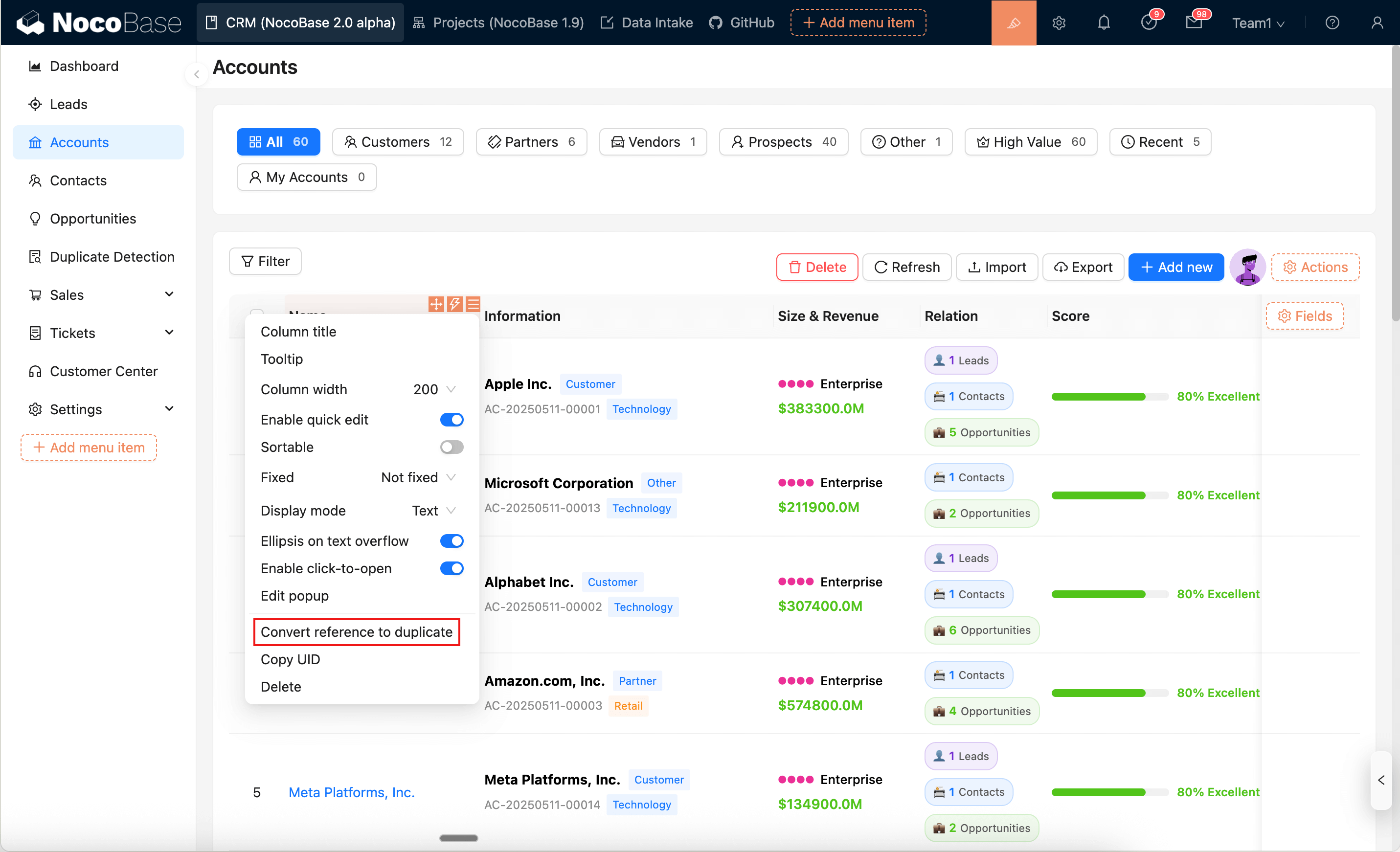
Template Management
In System settings → UI Templates, you can view and manage all templates:
- Block Templates (v2): Manage block templates
- Popup Templates (v2): Manage popup templates
Field templates originate from block templates and are managed within block templates.
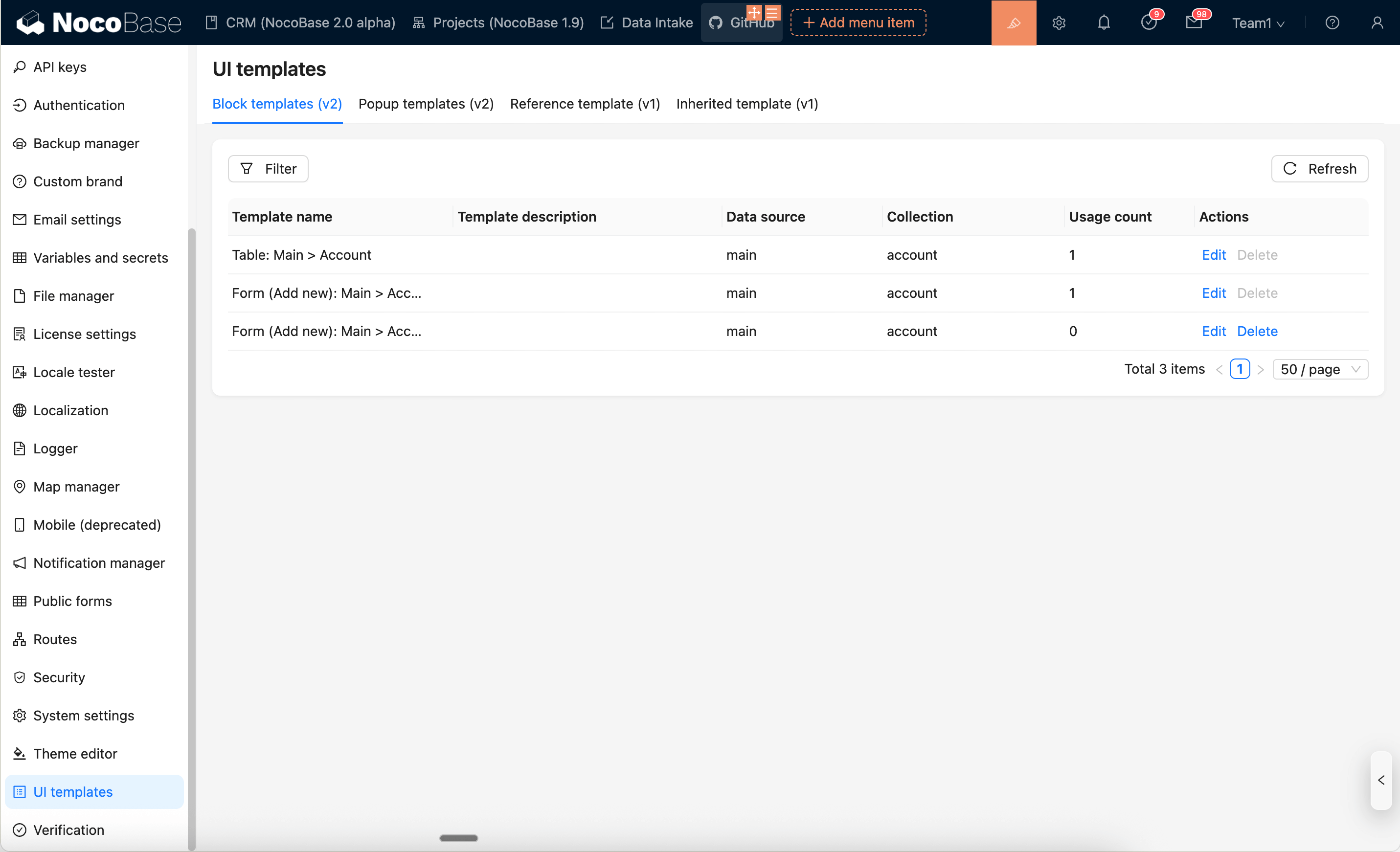
Supported operations: View, Filter, Edit, Delete.
Note: If a template is currently being referenced, it cannot be directly deleted. Please first use
Convert reference to duplicateat the positions referencing that template to disconnect the reference, then delete the template.